We are going to learn how to create a custom countdown timer in JavaScript. It is a typical project because it requires a lot of understanding and logic. If you are at a beginner level, this can give you a great understanding of JavaScript. I have all the code written. Let’s understand how it works.
JavaScript Countdown Timer: HTML Structure
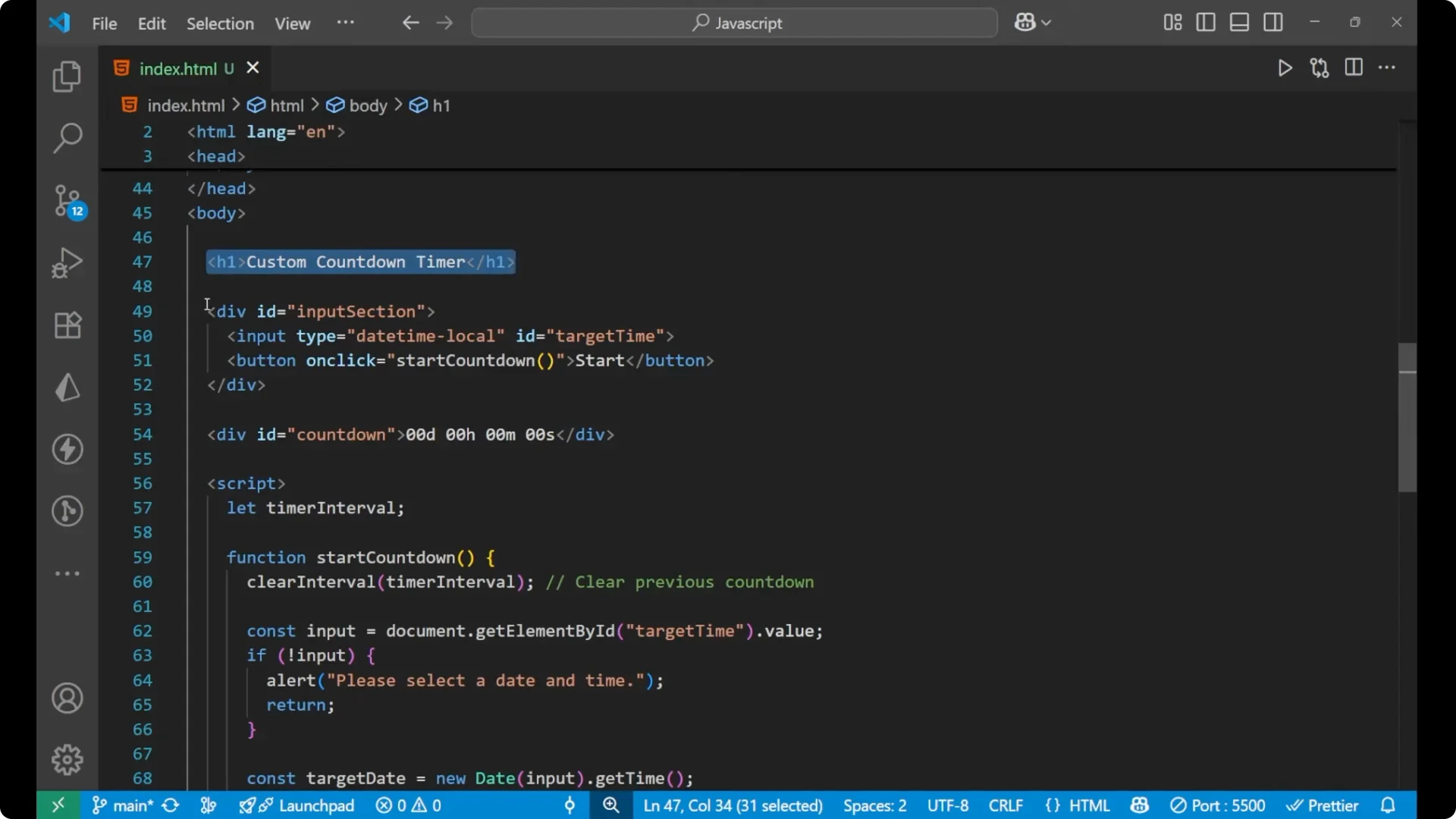
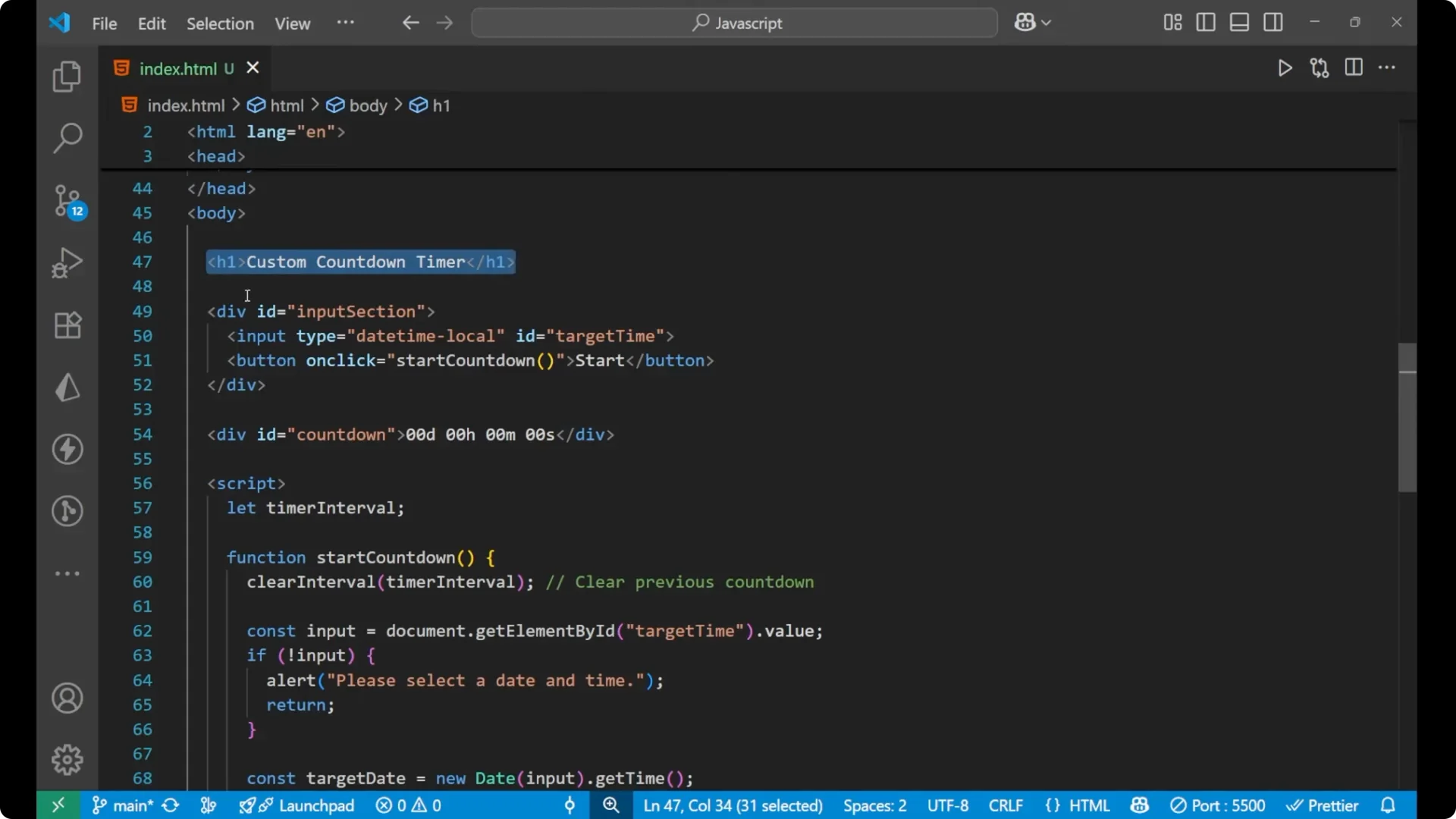
I will start with the HTML part. I am having a heading and then a div which is an input section. Inside this I am having an input and a button.
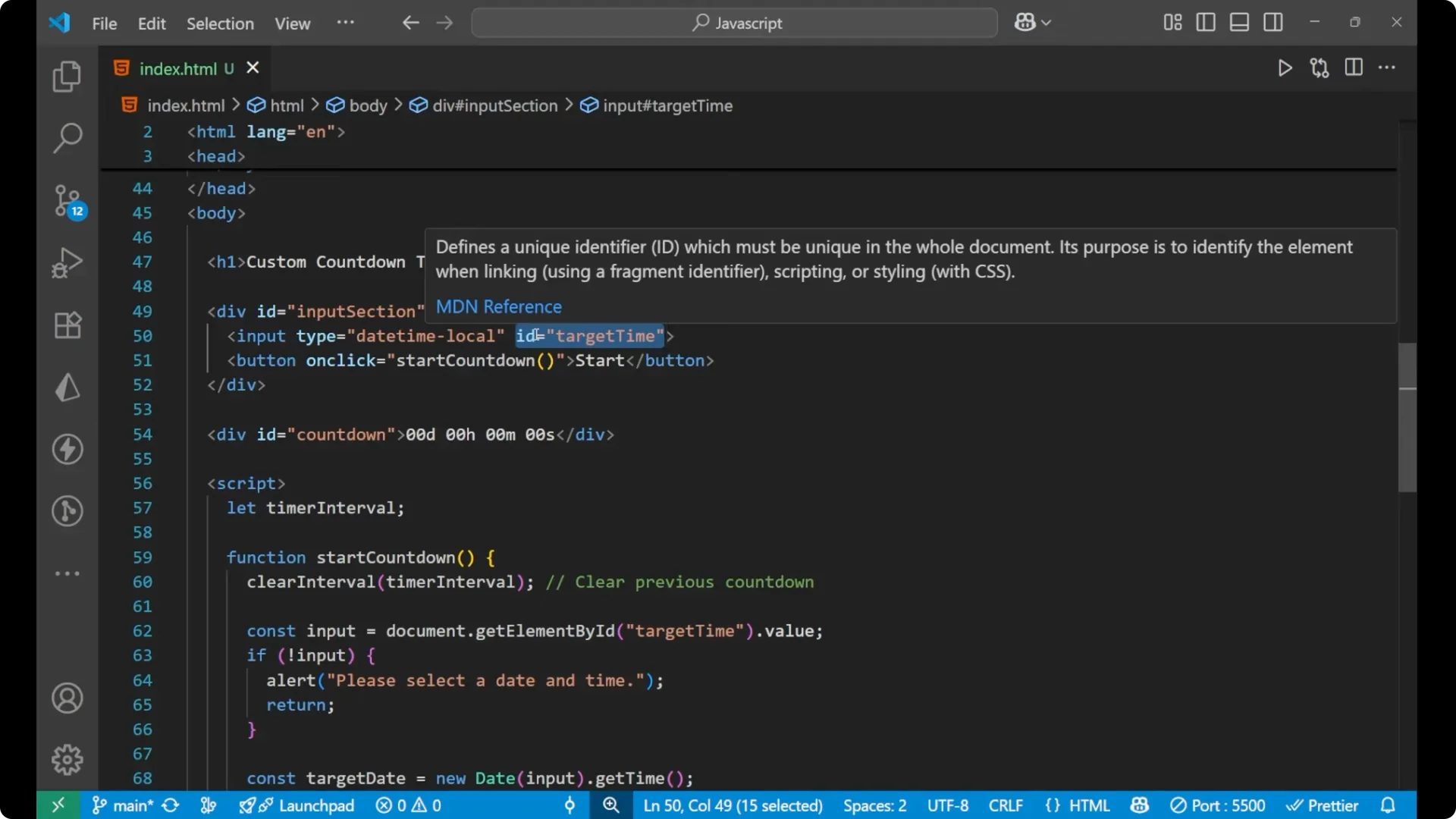
The input is of the type datetime-local. This input opens a date and time picker where you can select both the date and the time.
Note that it is datetime-local with a dash, and the input has the id target-time.
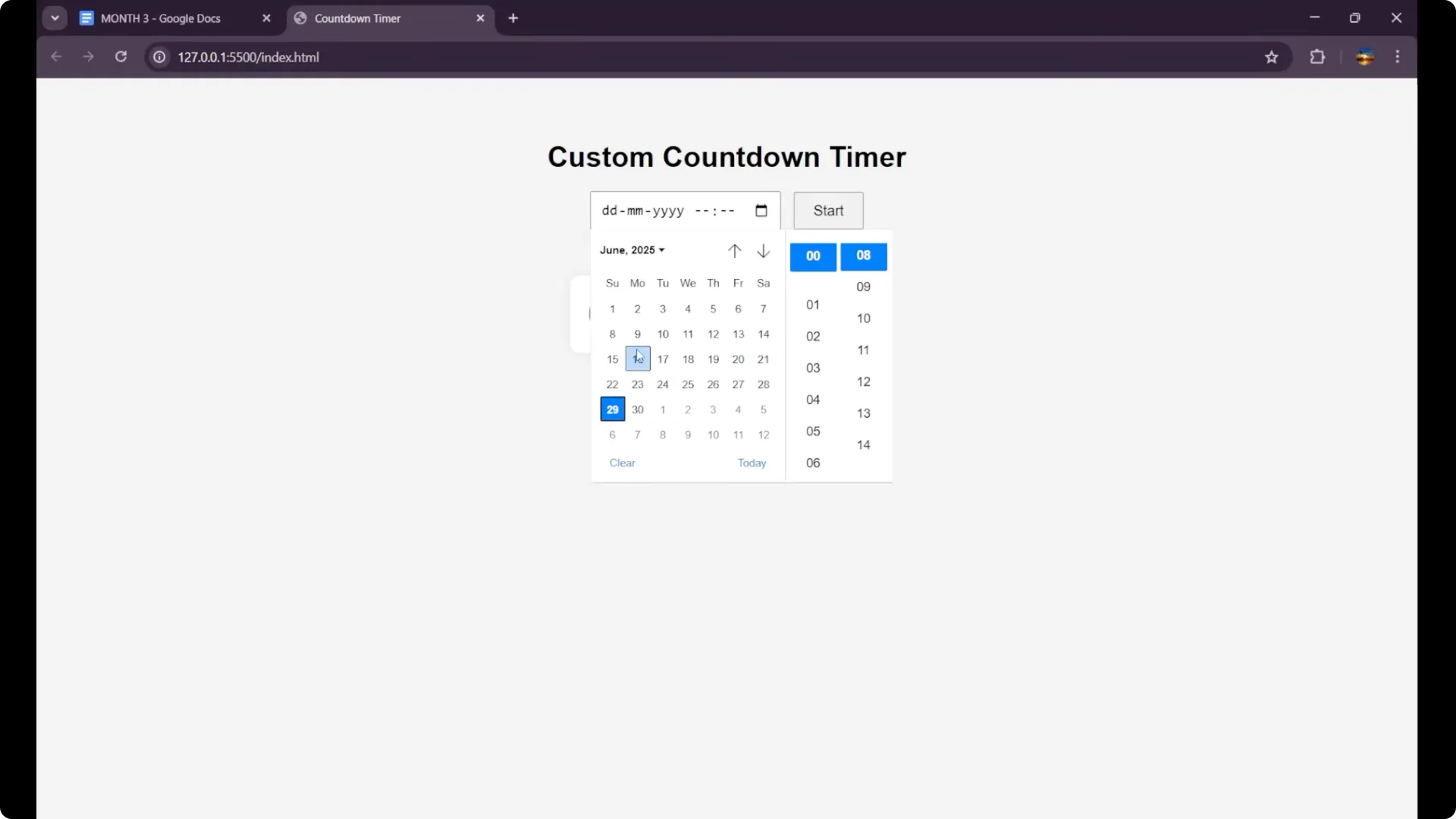
After that there is a button. When we click on this button, a function gets called that is startCountdown.
The content of the button is Start.
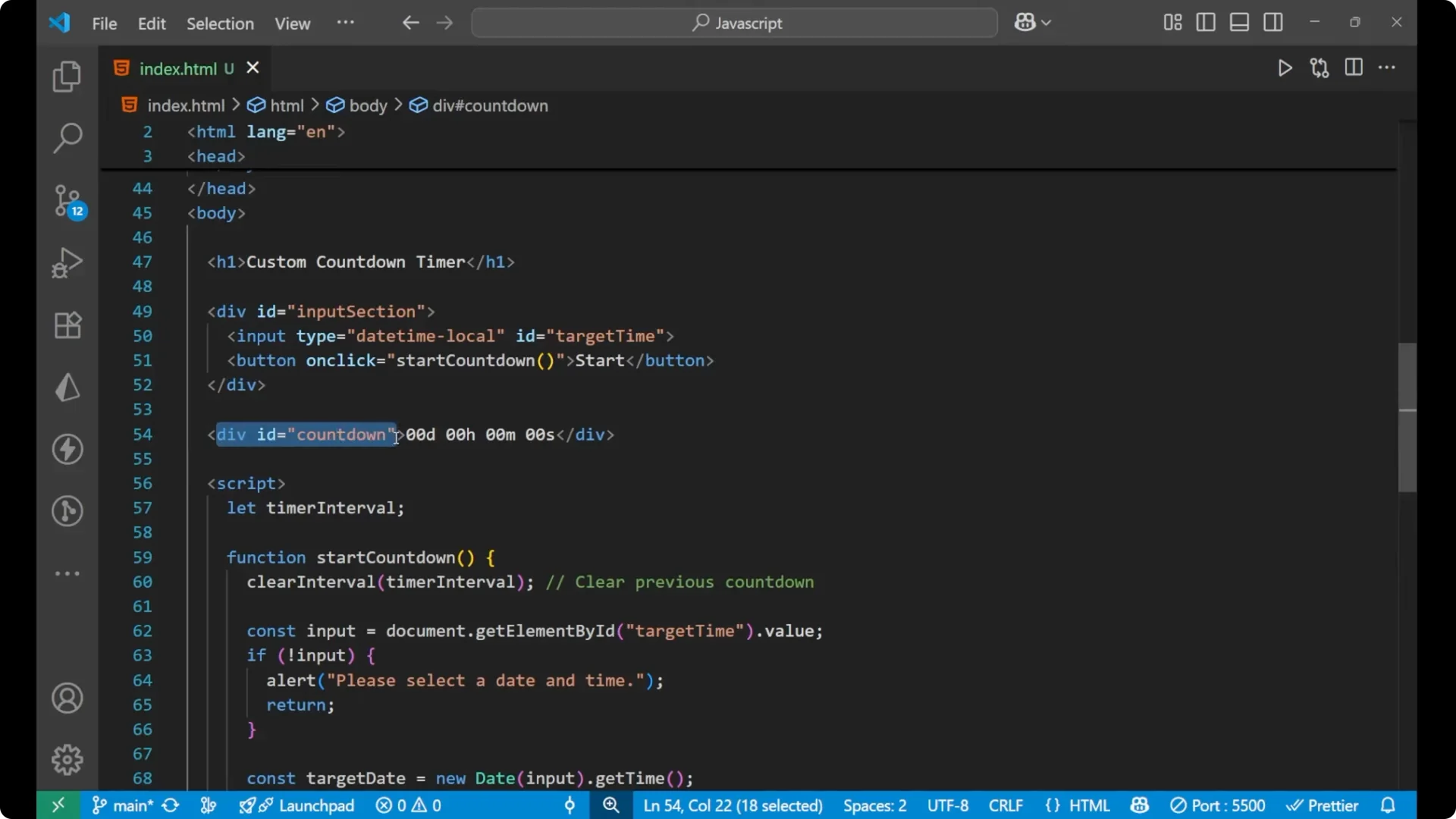
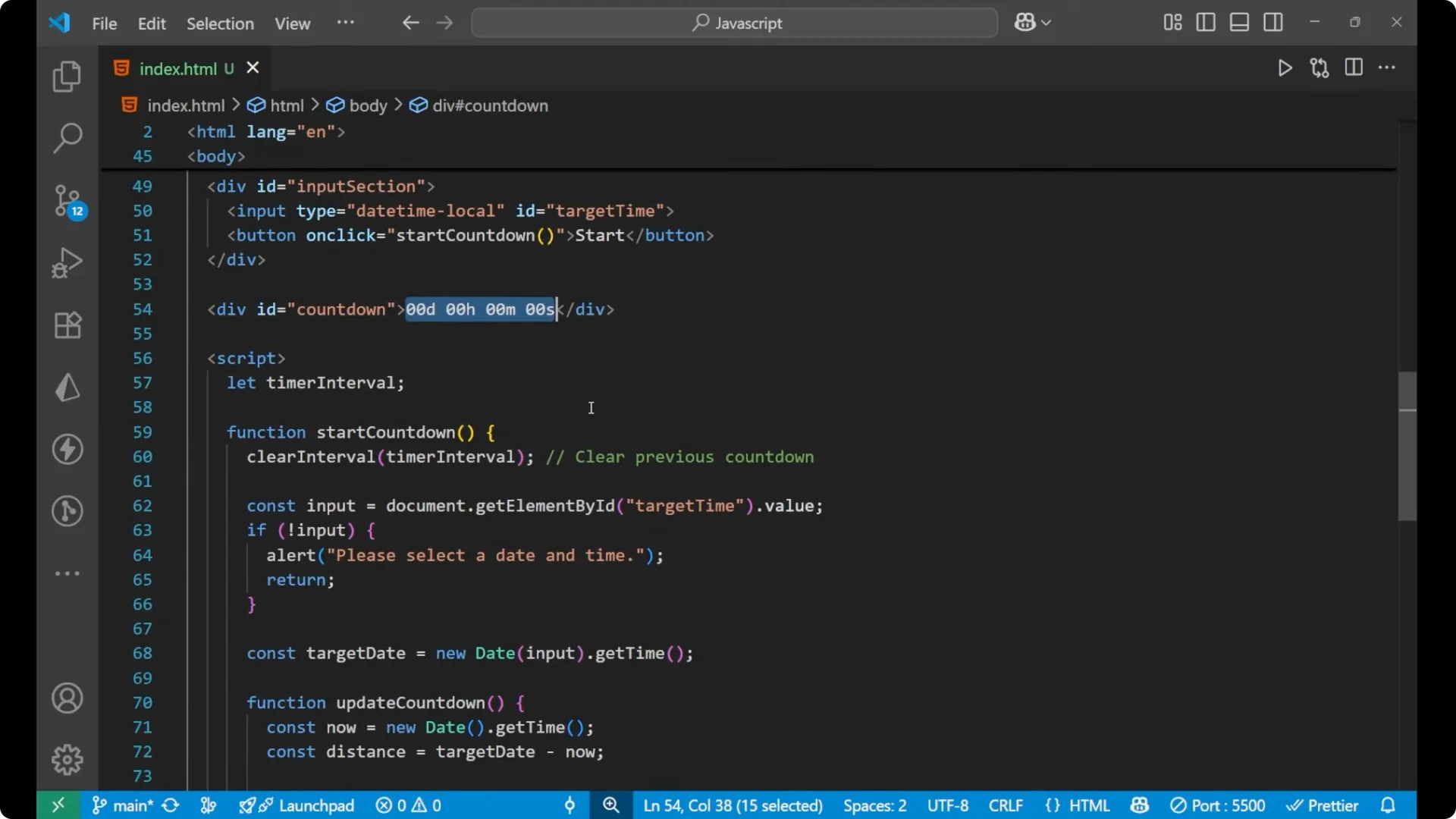
Below that, a div with the id countdown will show the timer of the countdown.
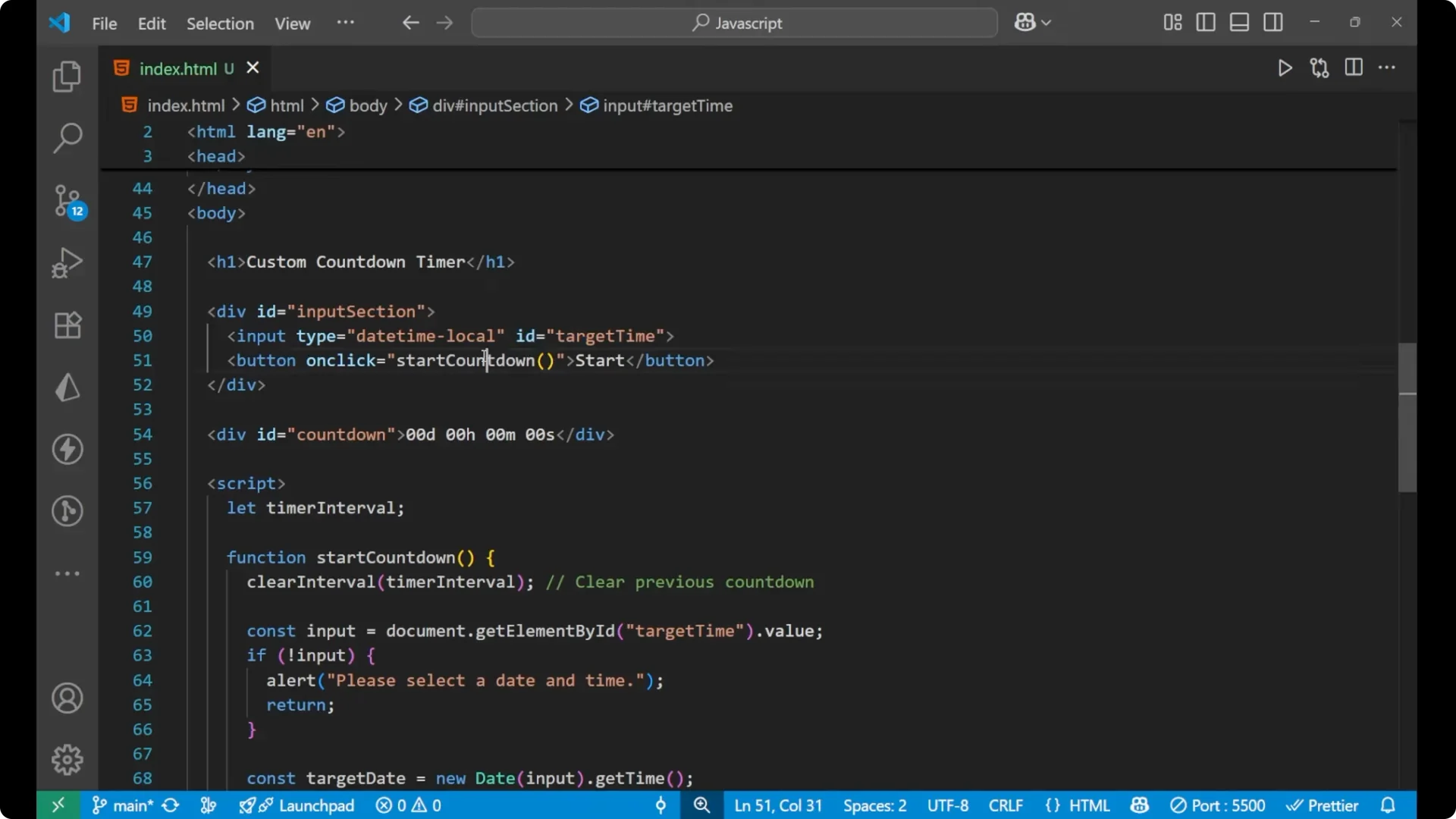
Custom Countdown Timer
JavaScript Countdown Timer: Basic CSS
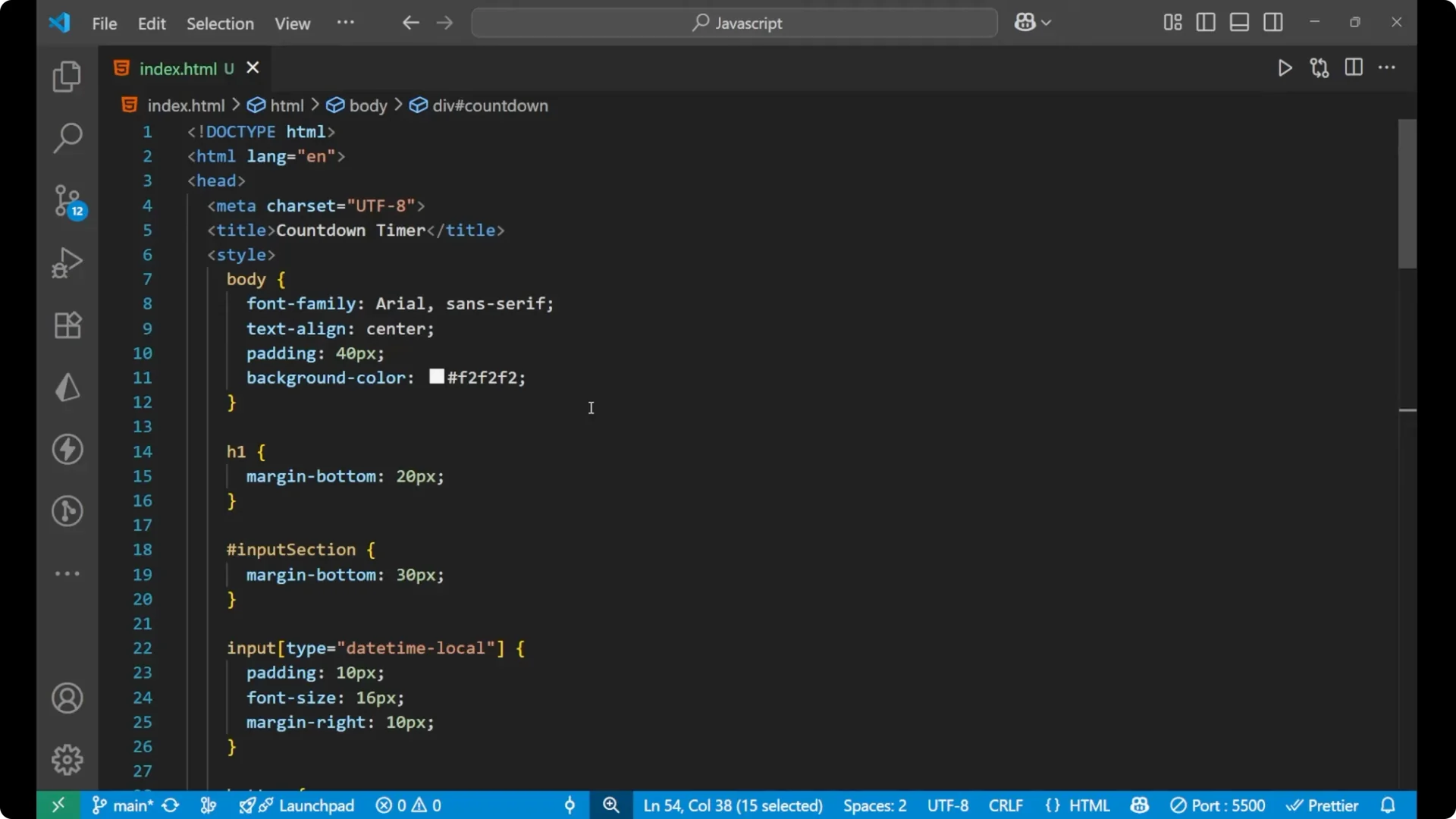
There is also some CSS. It is a basic CSS, nothing complex is present here.
body { font-family: system-ui, -apple-system, Segoe UI, Roboto, Arial, sans-serif; margin: 2rem; color: #222; }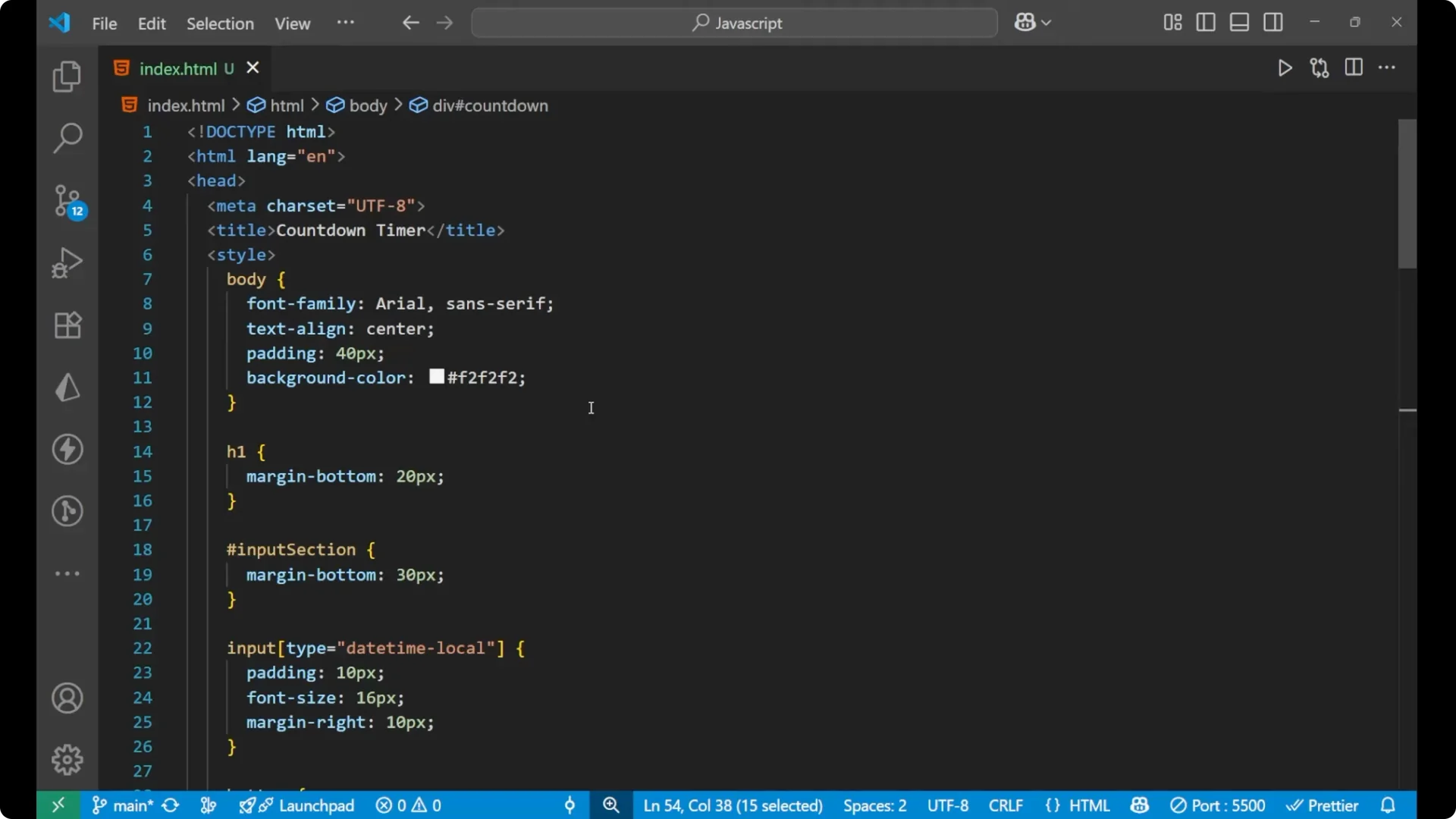 #input-section {
display: flex;
gap: 0.5rem;
align-items: center;
margin-bottom: 1rem;
}
#target-time {
padding: 0.4rem 0.6rem;
}
button {
padding: 0.45rem 0.8rem;
cursor: pointer;
}
#countdown {
font-size: 1.5rem;
font-weight: 600;
margin-top: 1rem;
}
#input-section {
display: flex;
gap: 0.5rem;
align-items: center;
margin-bottom: 1rem;
}
#target-time {
padding: 0.4rem 0.6rem;
}
button {
padding: 0.45rem 0.8rem;
cursor: pointer;
}
#countdown {
font-size: 1.5rem;
font-weight: 600;
margin-top: 1rem;
}
JavaScript Countdown Timer: JavaScript Logic
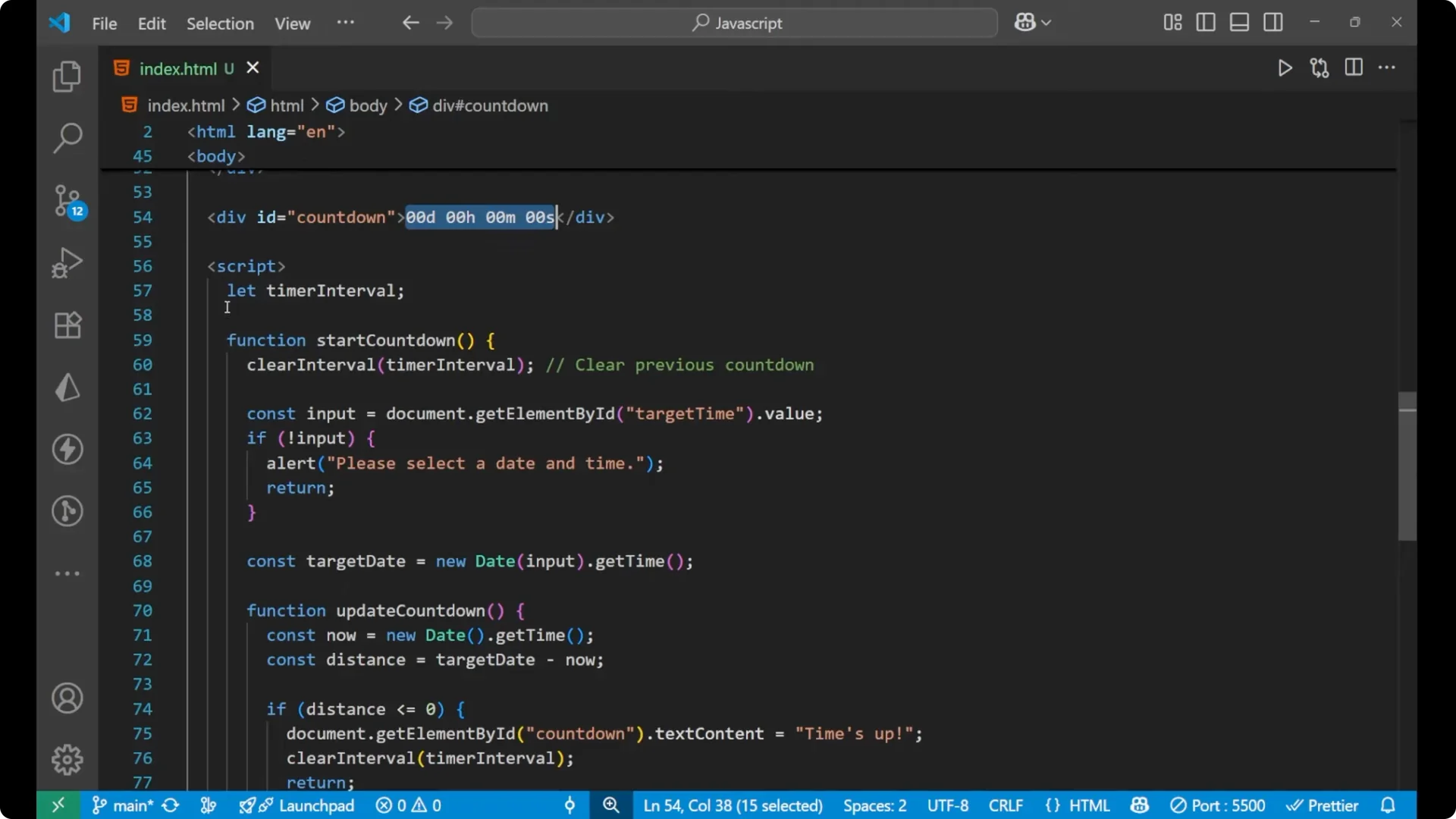
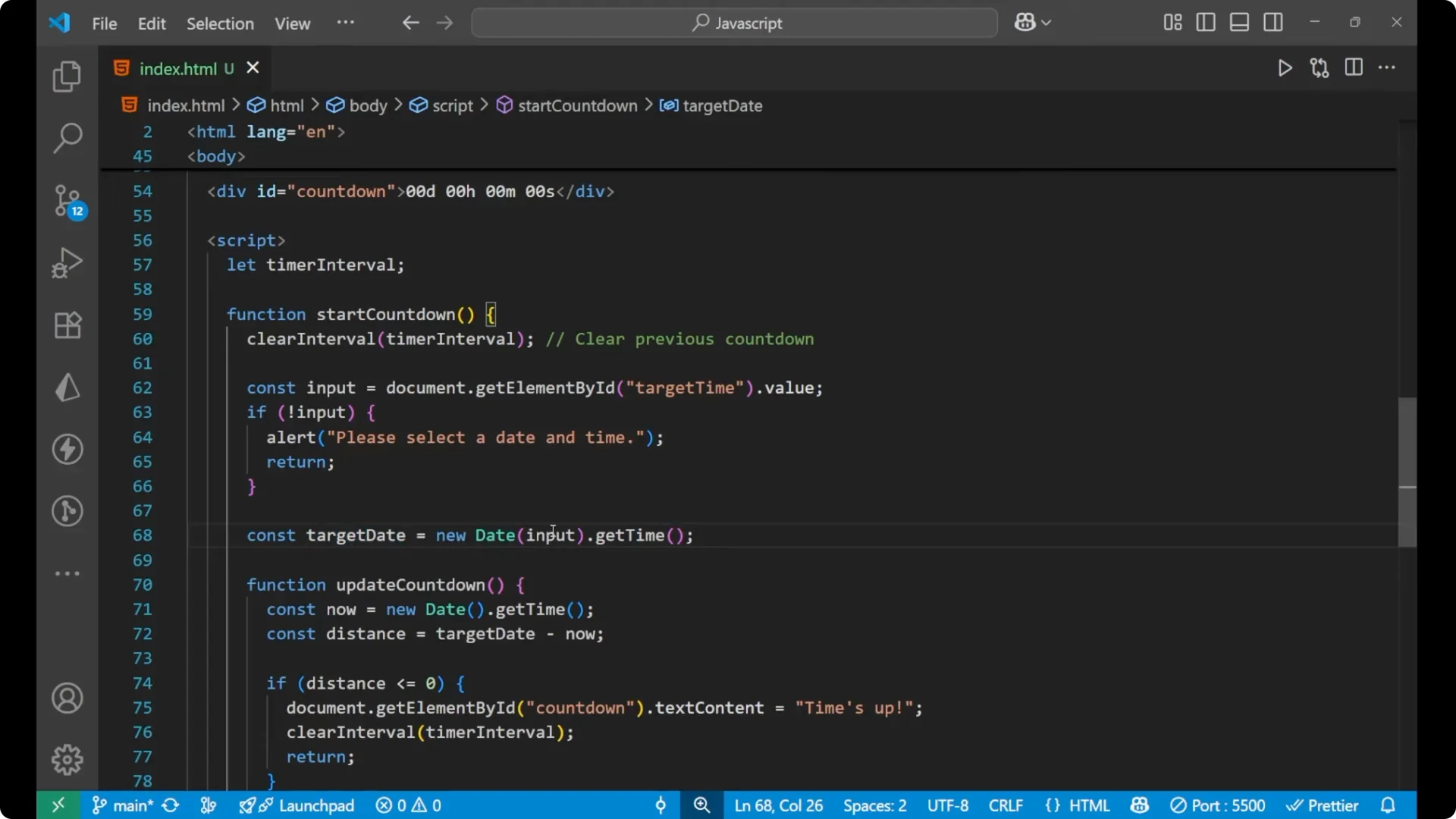
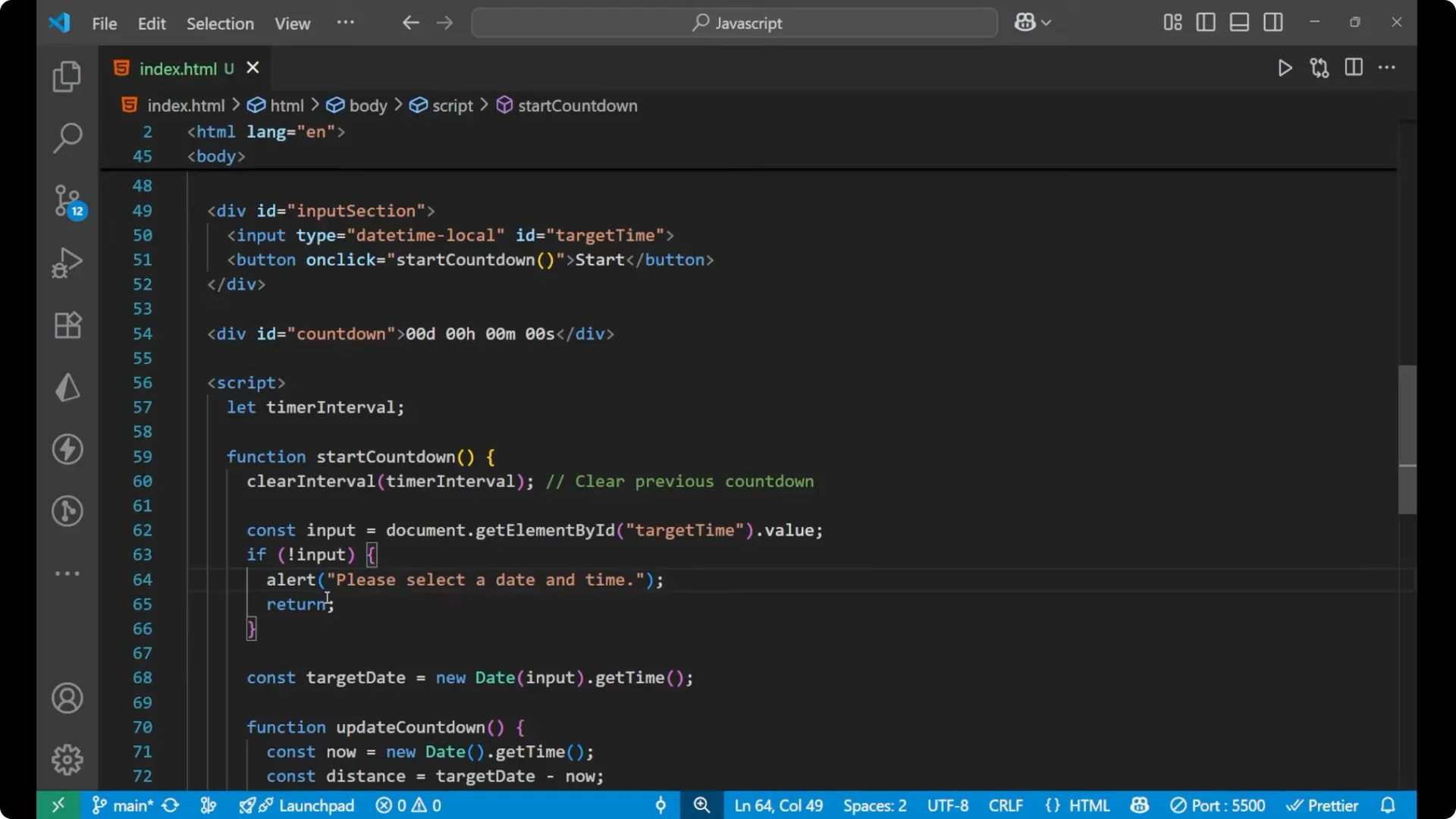
Initially we are defining a variable that is timeInterval. The function startCountdown is attached to the button, so when we click on this button the startCountdown function starts.
Step-by-step:
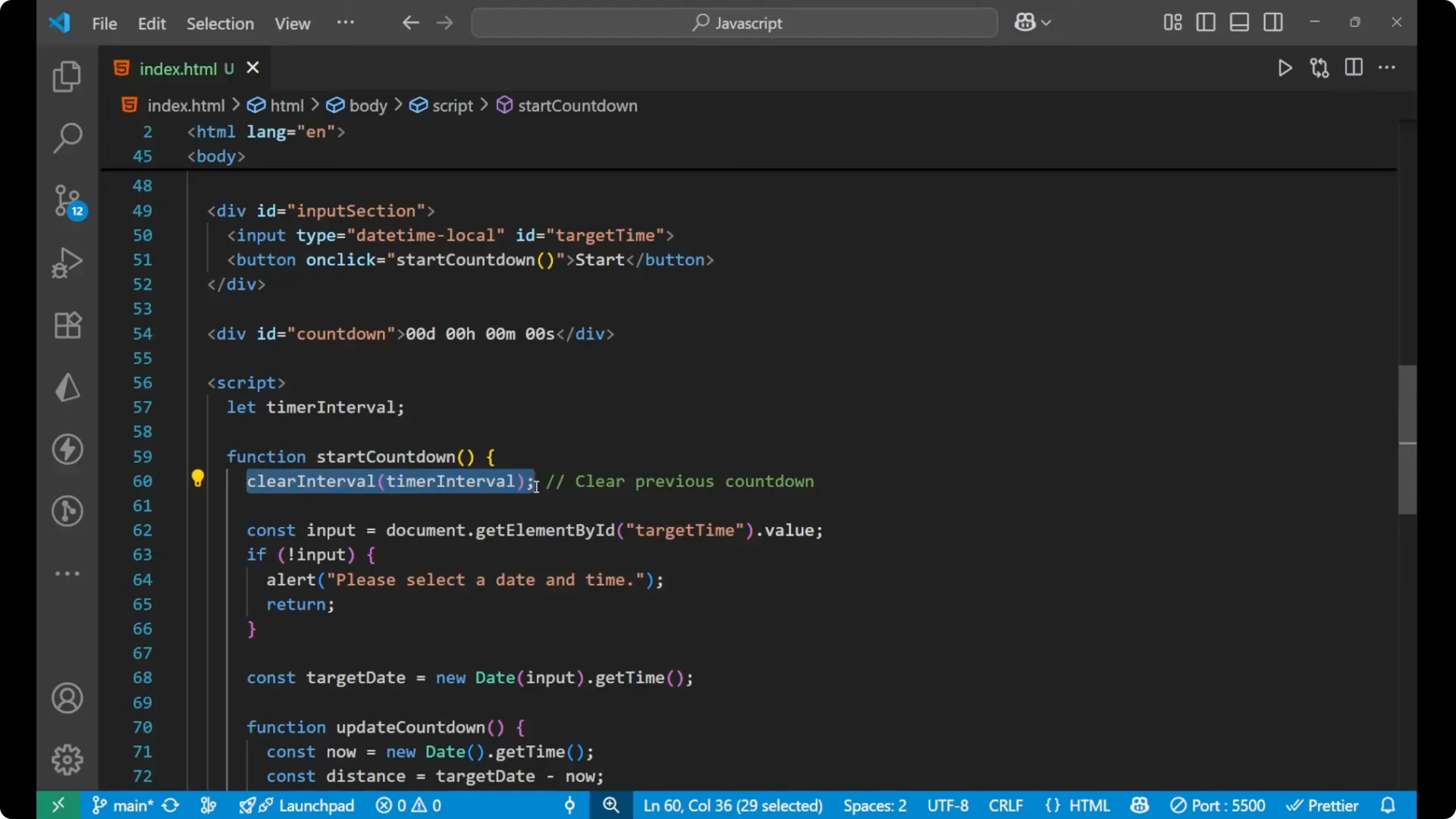
1. Clear any previous interval or countdown.
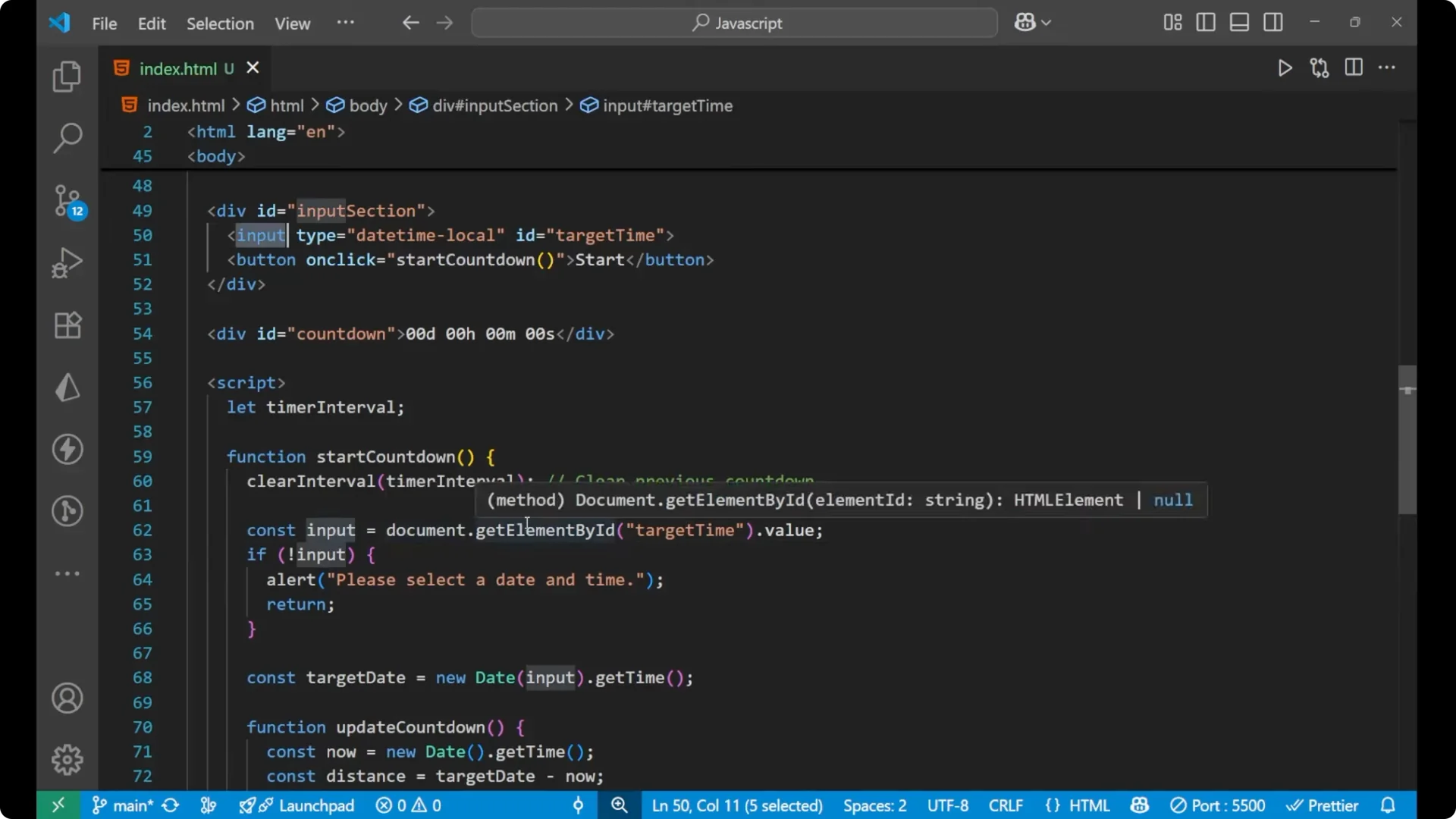
2. Read the value from the input field with id target-time.
3. If there is no input and you click Start, show an alert that says Please select a date and time and return.
4. If a value is present, create a targetDate in milliseconds using new Date(value).getTime().
5. Define updateCountdown:
– Get the current time in milliseconds with new Date().getTime().
– Calculate the distance between the target date and the current date: distance = targetDate – now.
– If distance is less than or equal to zero, set the countdown text to Time’s up, clear the interval, and return.
– Based on distance, calculate days, hours, minutes, and seconds.
– Put the computed values into the countdown element using a template literal.
6. Call updateCountdown once.
7. Start an interval to call updateCountdown every 1000 milliseconds.
let timeInterval;


function startCountdown() {
  // Clear any previous countdown
  clearInterval(timeInterval);

  // Read input value
  const inputValue = document.getElementById('target-time').value;

  // Guard - no input selected
  if (!inputValue) {
    alert('Please select a date and time');
    return;
  }

  // Convert selected date-time to milliseconds
  const targetDate = new Date(inputValue).getTime();

  function updateCountdown() {
    // Current time
    const now = new Date().getTime();

    // Distance between target and now
    const distance = targetDate - now;

    // If target is in the past or reached
    if (distance <= 0) {
      document.getElementById('countdown').textContent = 'Time\'s up';
      clearInterval(timeInterval);
      return;
    }

    // Millisecond breakdown
    const dayMs = 1000  60  60 * 24;
    const hourMs = 1000  60  60;
    const minuteMs = 1000 * 60;
    const secondMs = 1000;

    // Calculations
    const days = Math.floor(distance / dayMs);
    const hours = Math.floor((distance % dayMs) / hourMs);
    const minutes = Math.floor((distance % hourMs) / minuteMs);
    const seconds = Math.floor((distance % minuteMs) / secondMs);

    // Render
    document.getElementById('countdown').textContent =
      `${days} day ${hours} hour ${minutes} minute ${seconds} second`;
  }

  // Initial render and start ticking
  updateCountdown();
  timeInterval = setInterval(updateCountdown, 1000);
}
Milliseconds to days, hours, minutes, seconds
These are the calculations based on milliseconds:
- 1000 milliseconds in 1 second
- 60 seconds in 1 minute
- 60 minutes in 1 hour
- 24 hours in 1 day
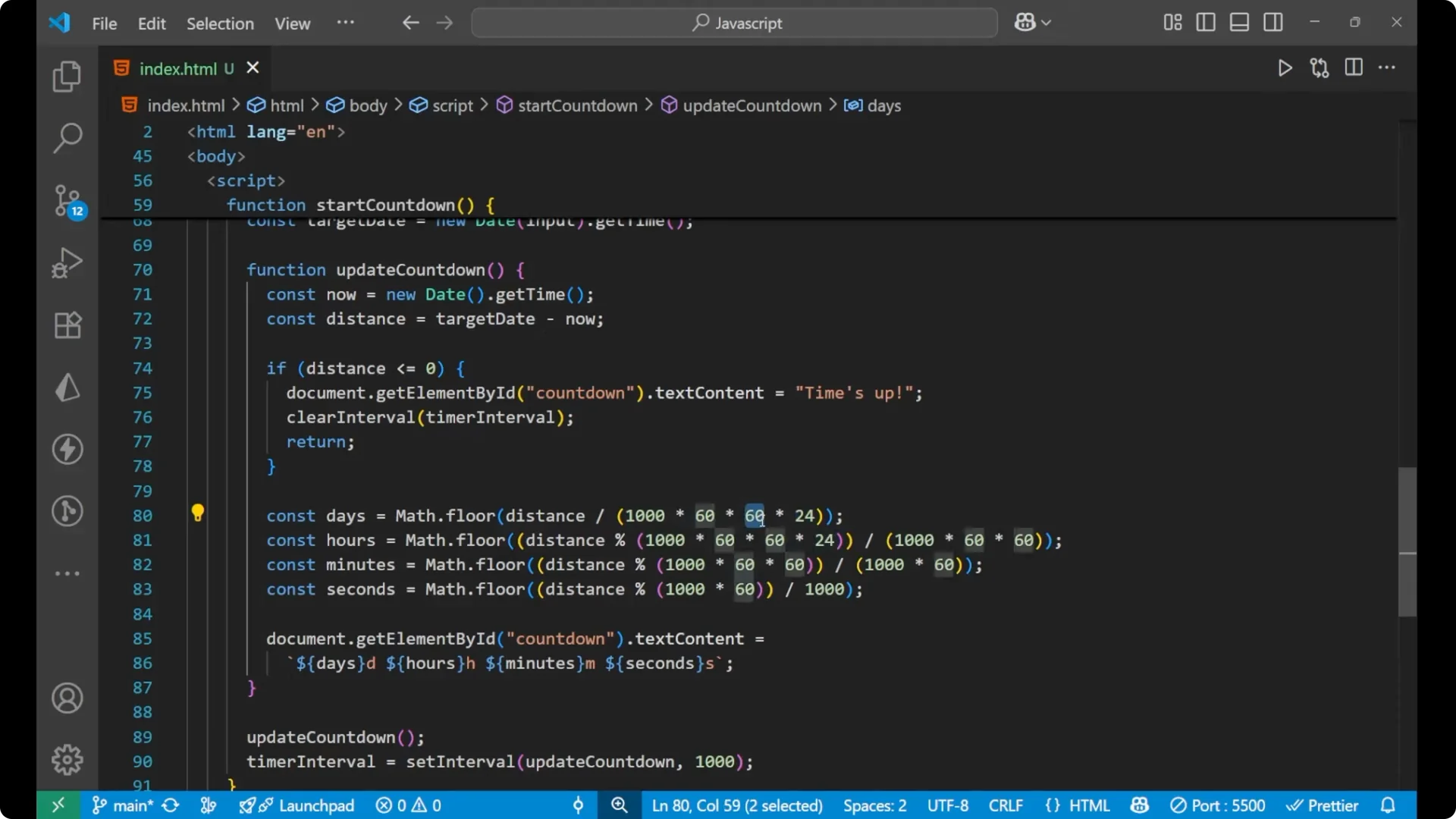
On the basis of the distance you get days, hours, minutes, and seconds.
Rendering the countdown
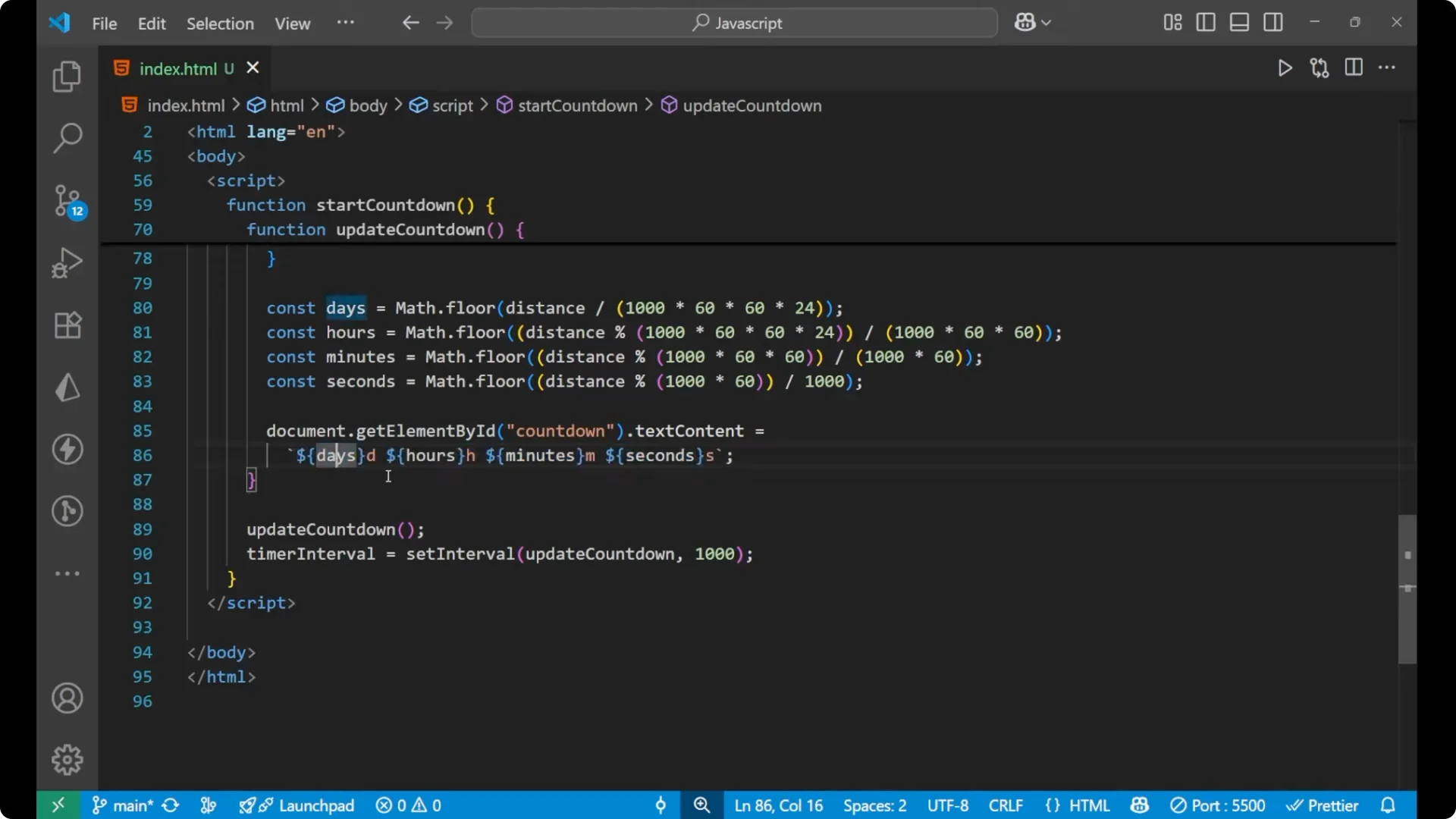
Select the countdown element from the DOM and set its text content with a template literal. The day, hour, minute, and second values are inserted into the string.
JavaScript Countdown Timer: Example run
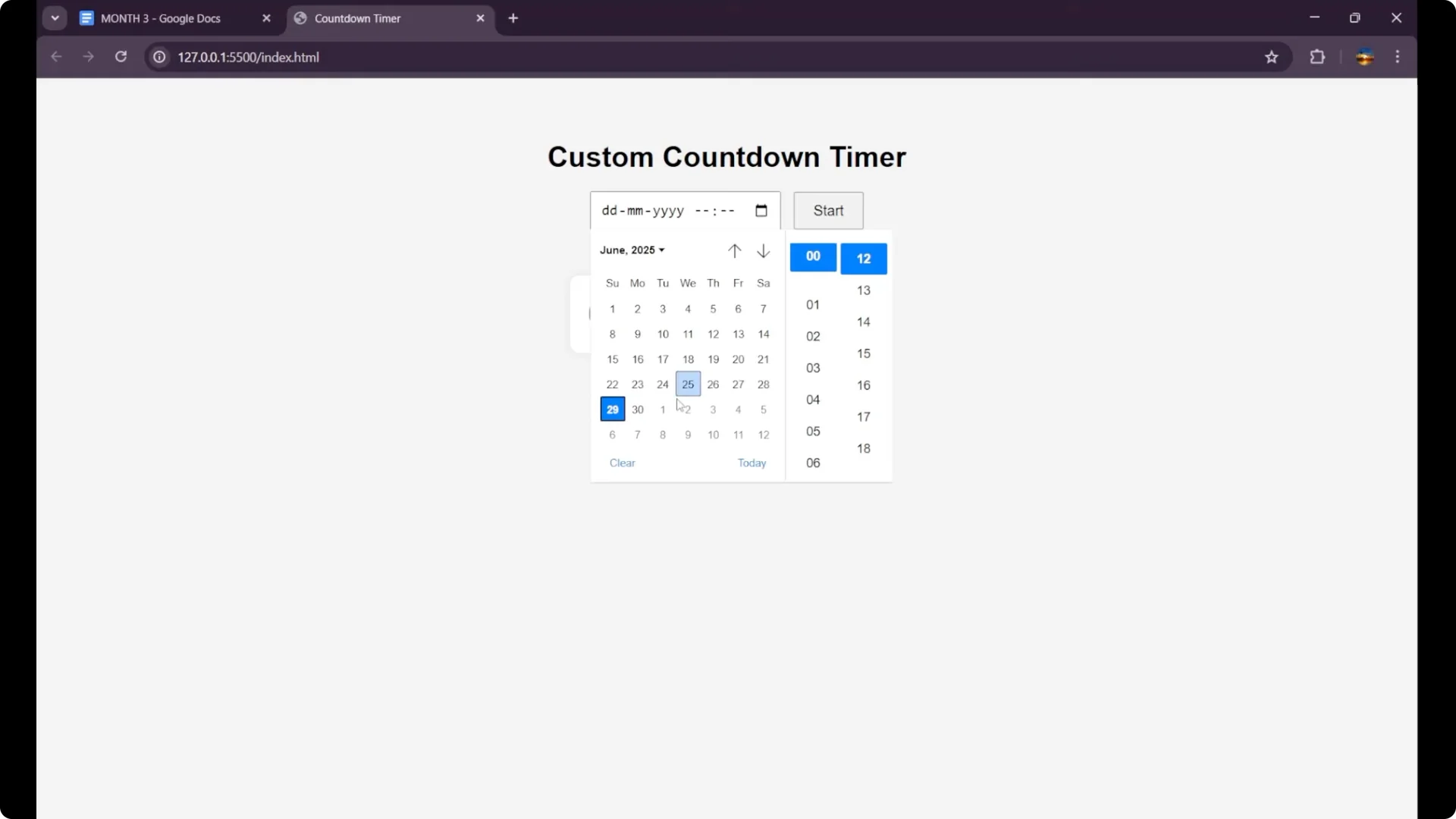
You can select the date and time.
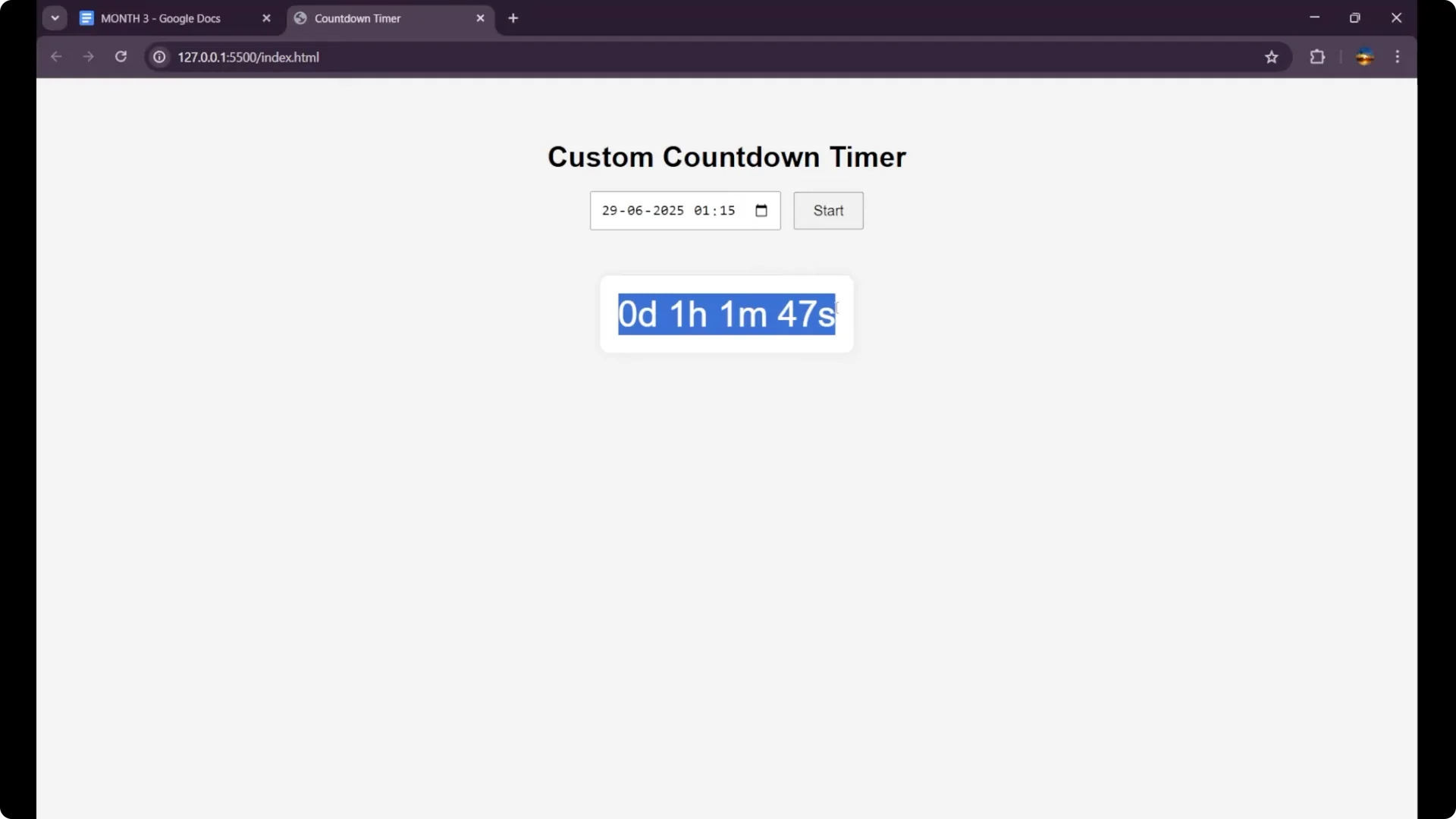
For example, selecting 29 and 1 hour and 15 minutes and clicking Start shows that there is 1 hour 1 minute and 45 second left to the target time.
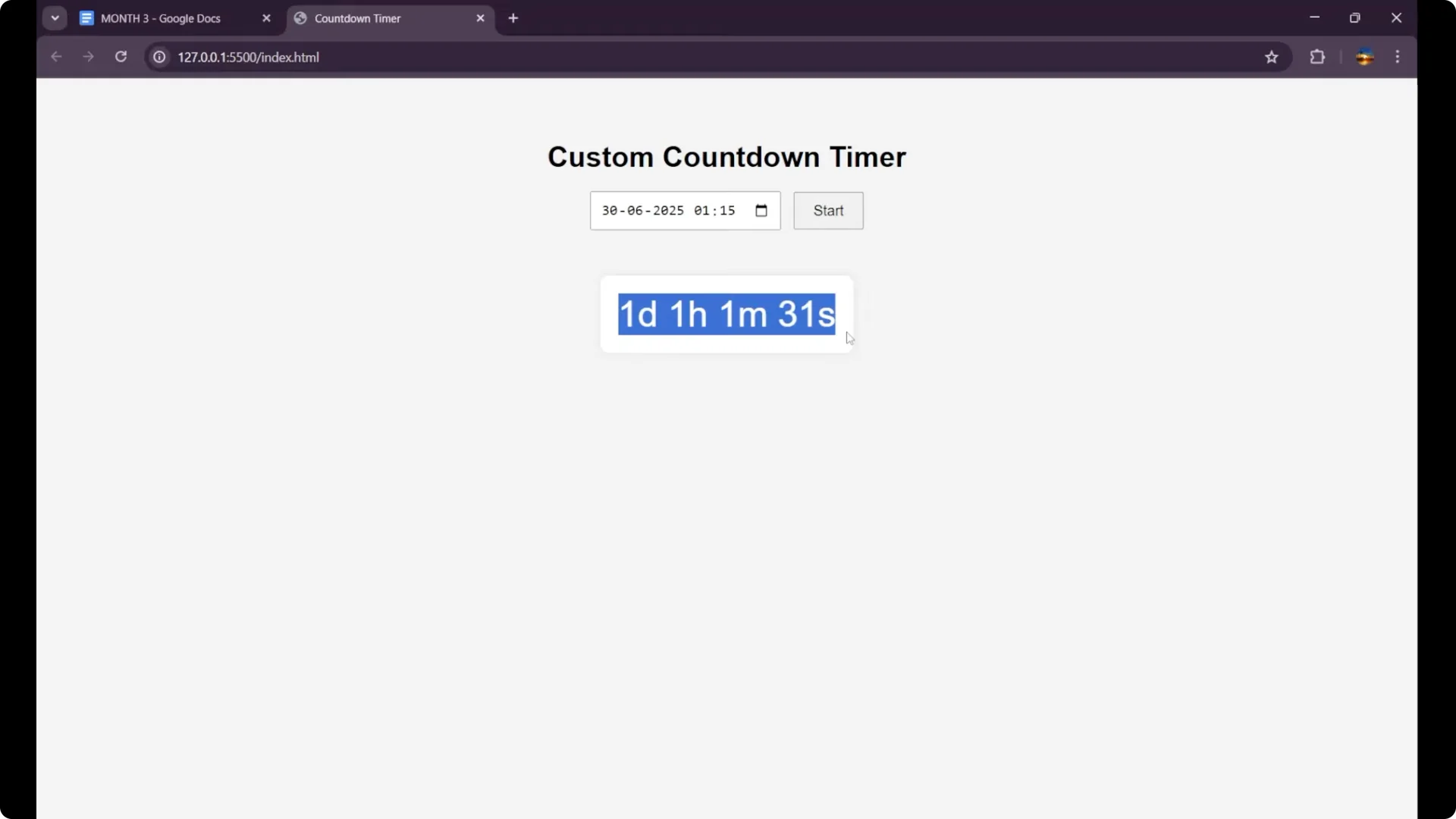
Selecting another day like 30 and clicking Start shows 1 day 1 hour 1 minute and 31 seconds is required to be on 30th of June 1 and 1:00 a.m. and 15 minutes.
Final Thoughts
This is how we can create a custom countdown timer. The key parts are reading the datetime-local input, converting it to milliseconds, computing the distance to now, breaking it down into days, hours, minutes, and seconds, and updating the DOM every second.