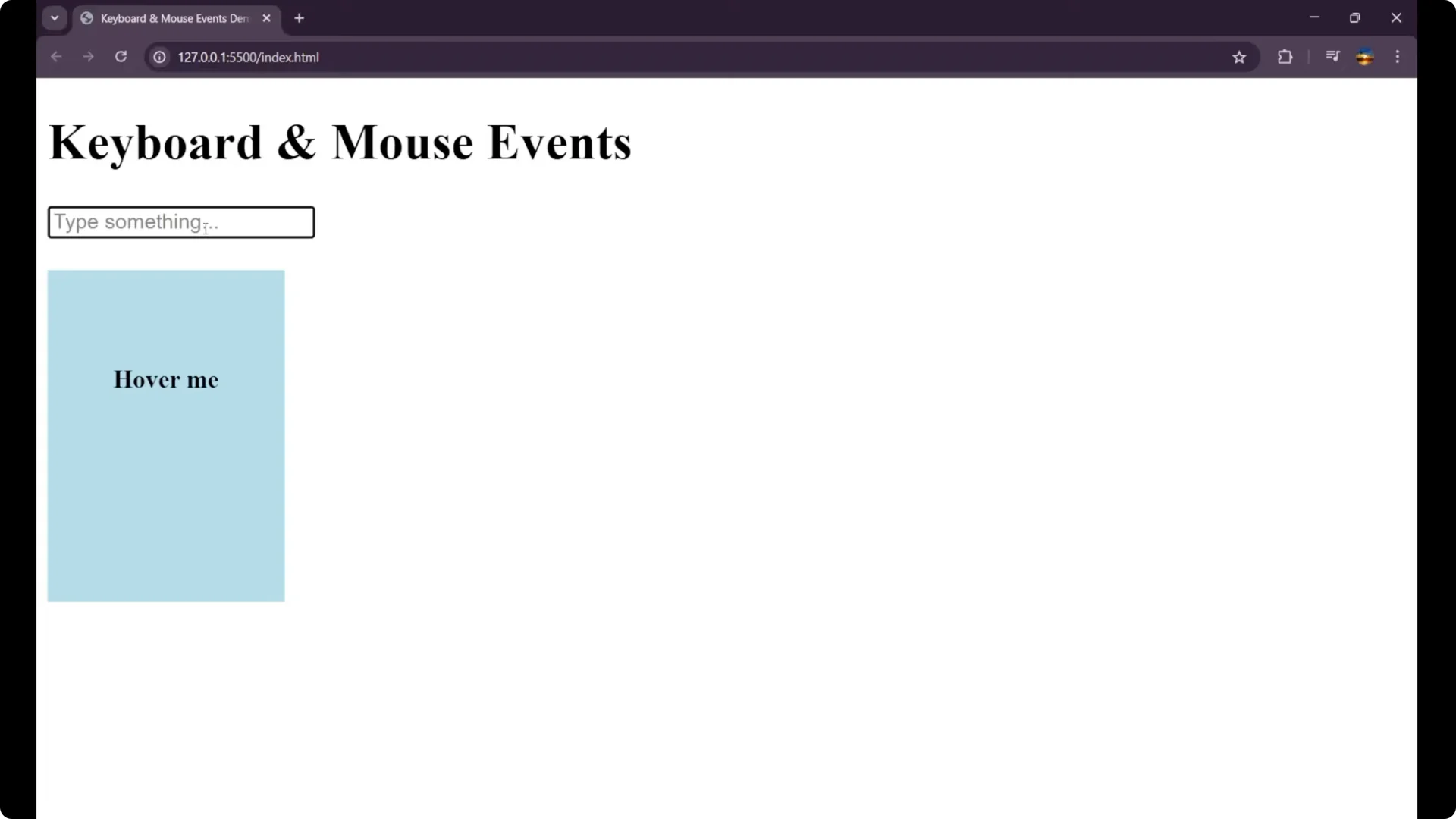
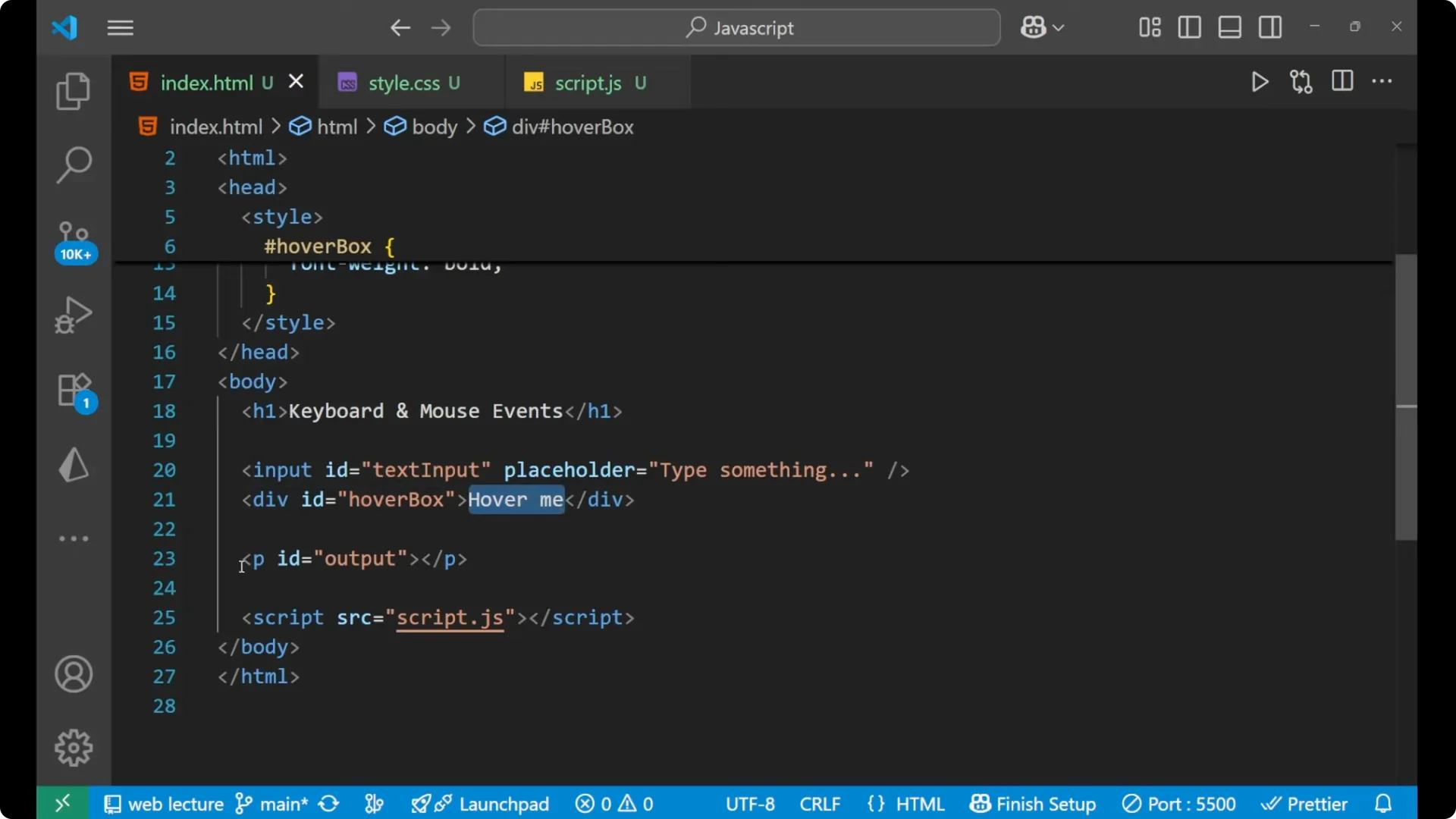
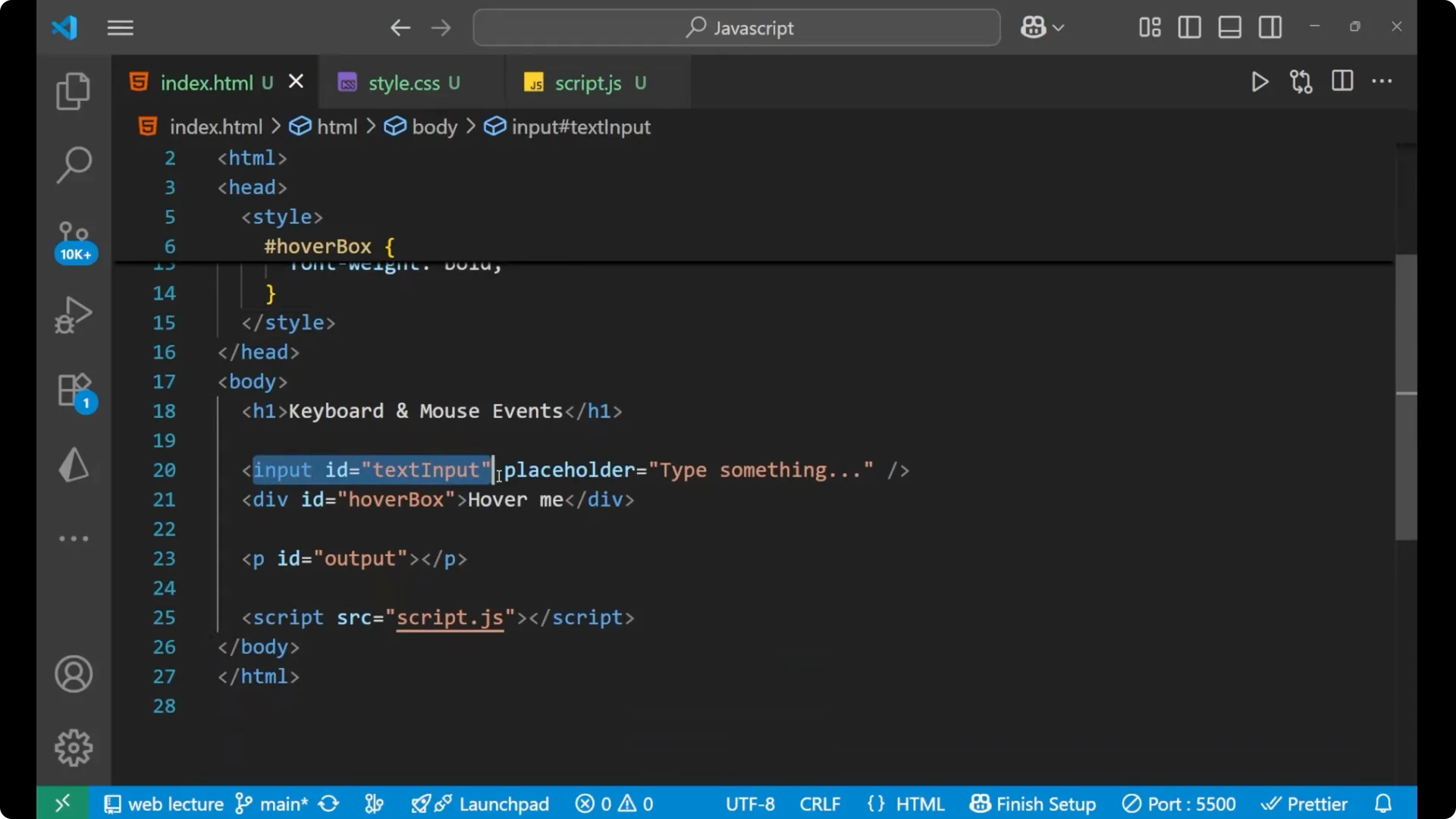
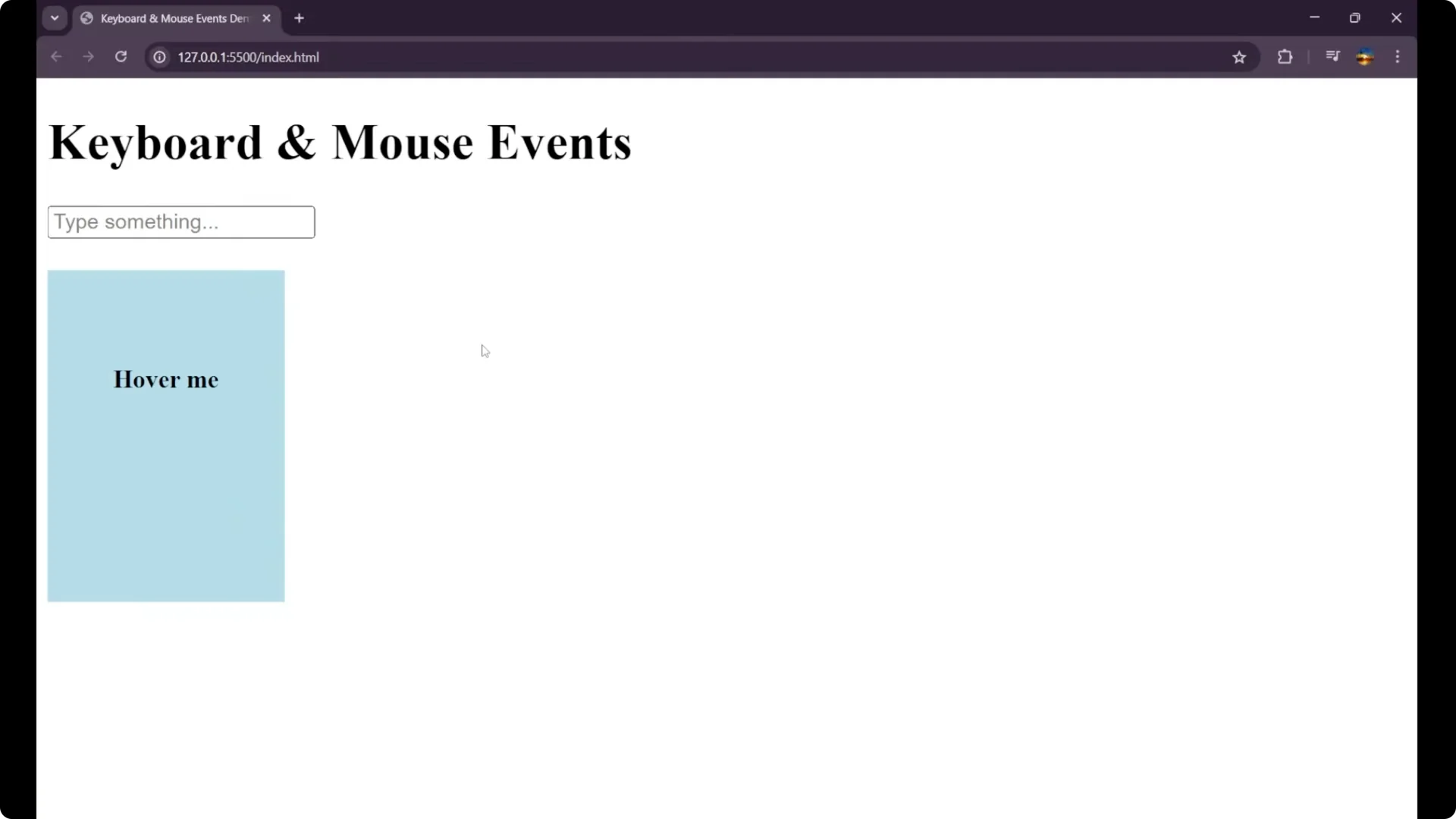
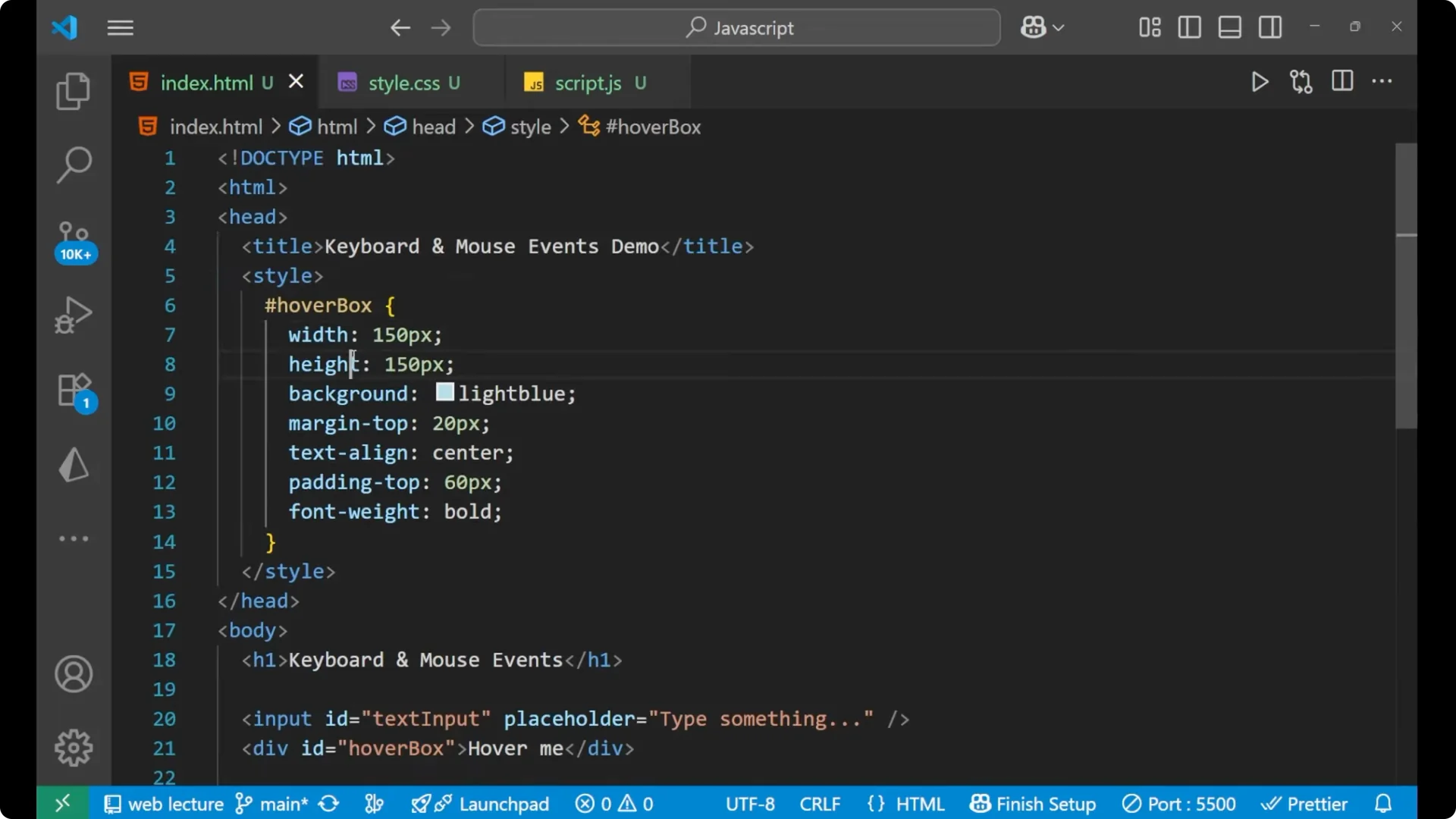
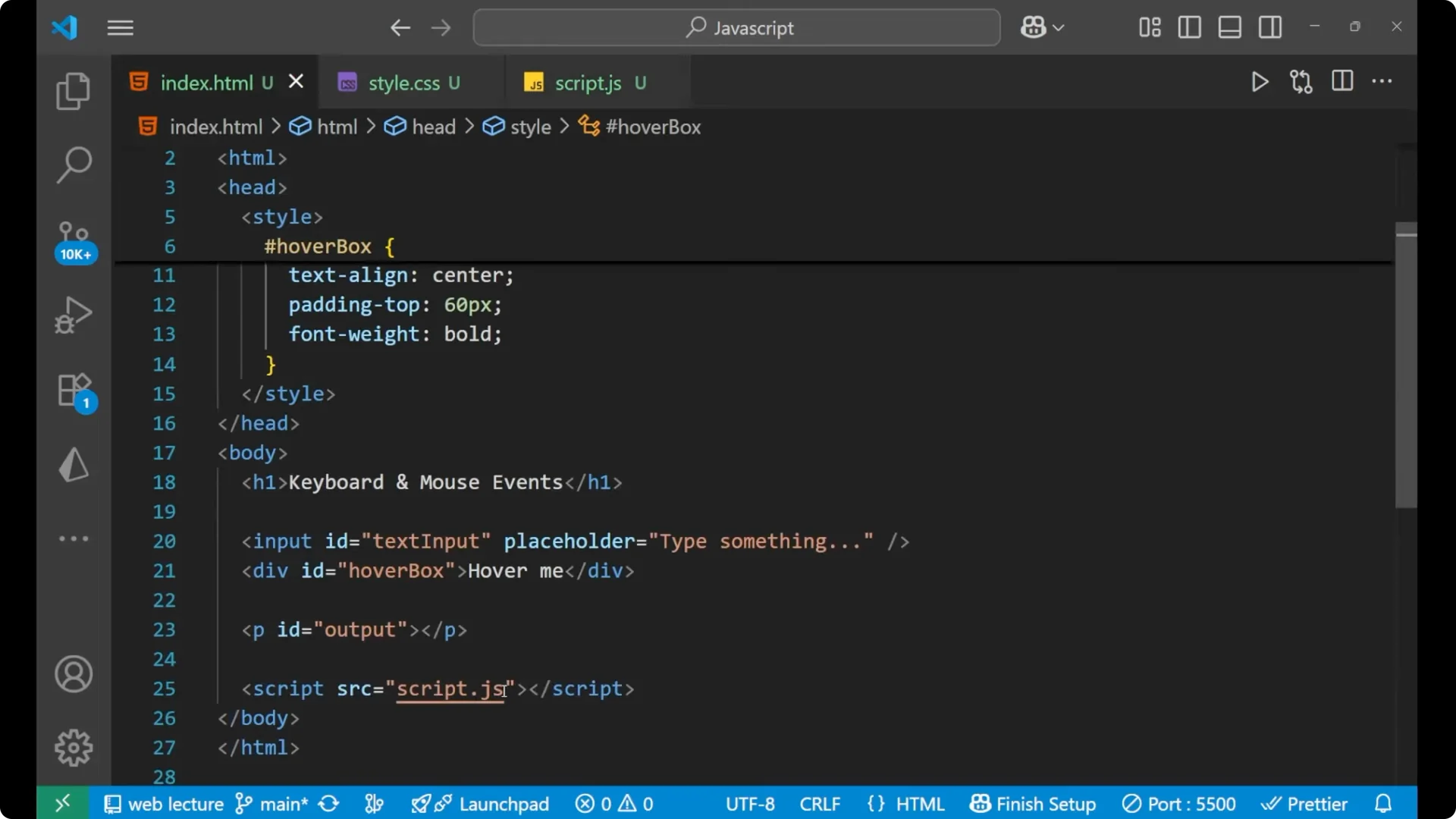
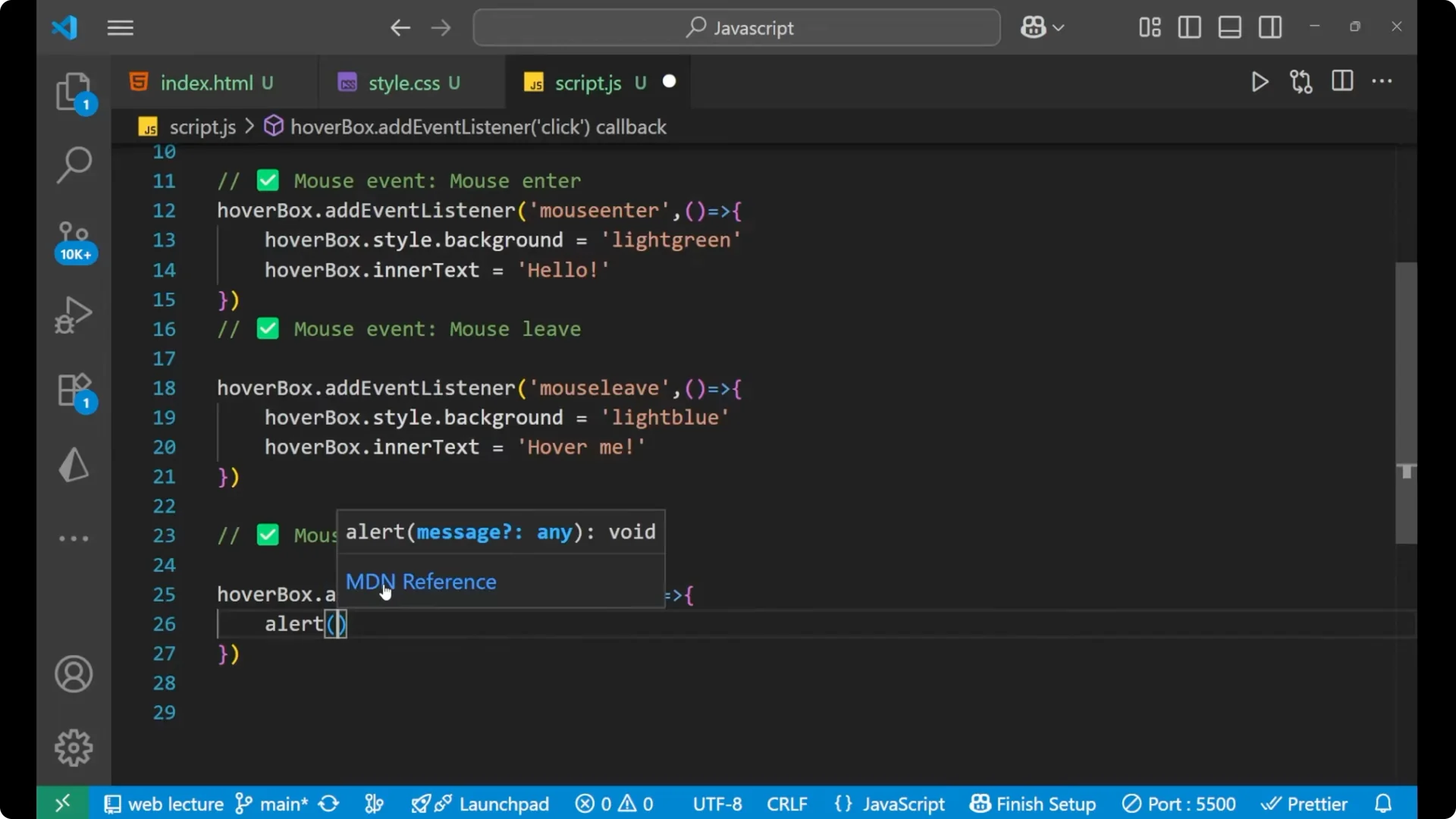
I will explore how to listen for keyboard and mouse action so you can make your web page interactive. I am having a heading, an input whose id is text-input, a div which is a hover box with the text Hover me, and a paragraph which is blank but we will fill it with the help of JavaScript.
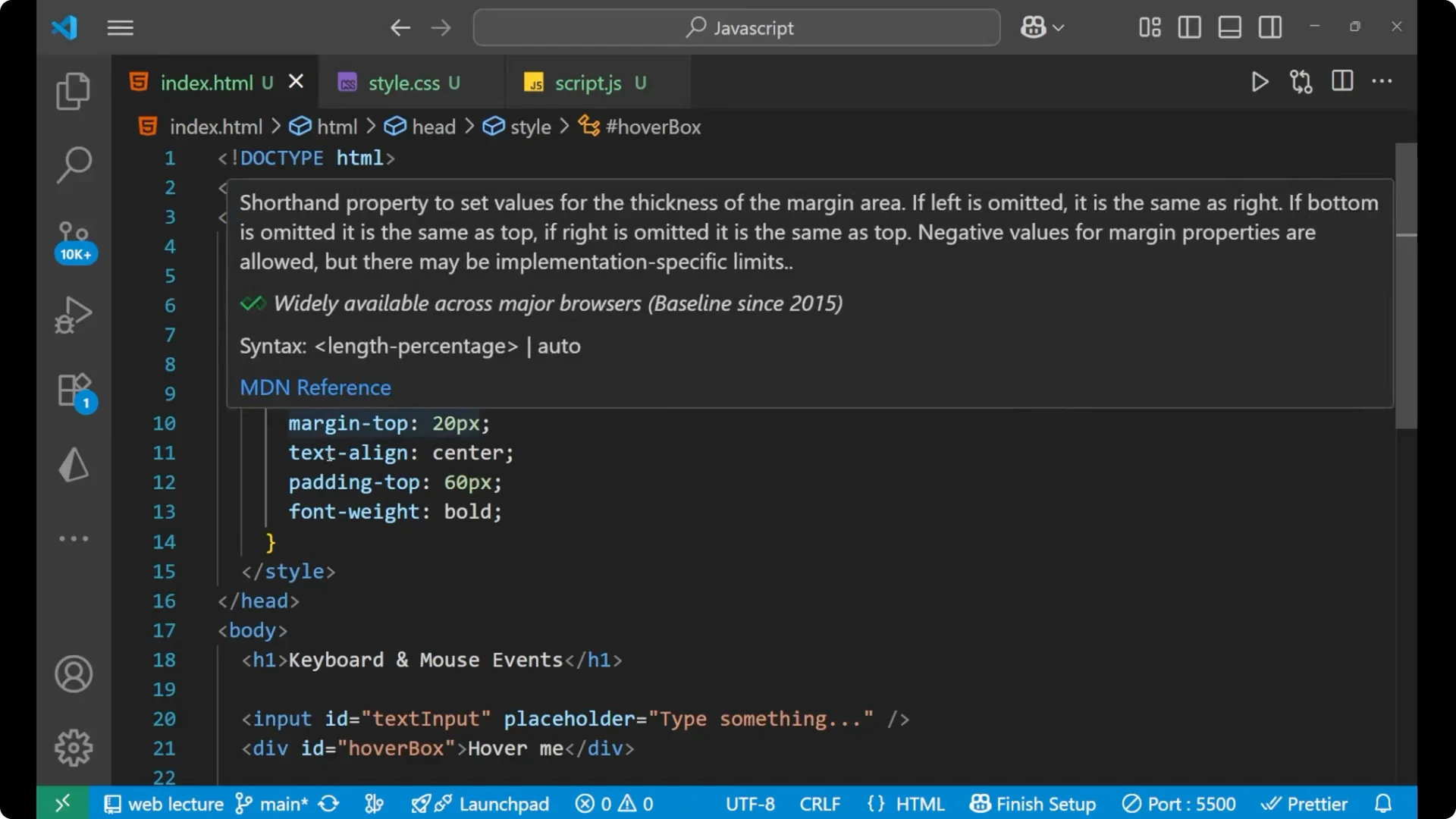
I also have a small CSS part for this hover box with width, height, background color, margin, text alignment, padding, and font weight.
Here is the plan:
- First, select the elements with document.getElementById.
- Deal with the keyboard event using keyup to mirror what you type into the paragraph.
- Deal with the mouse events using mouseenter and mouseleave to change the box style and text.
- Add a click event to show an alert when the hover box is clicked.
Setup for JavaScript Keyboard and Mouse Events
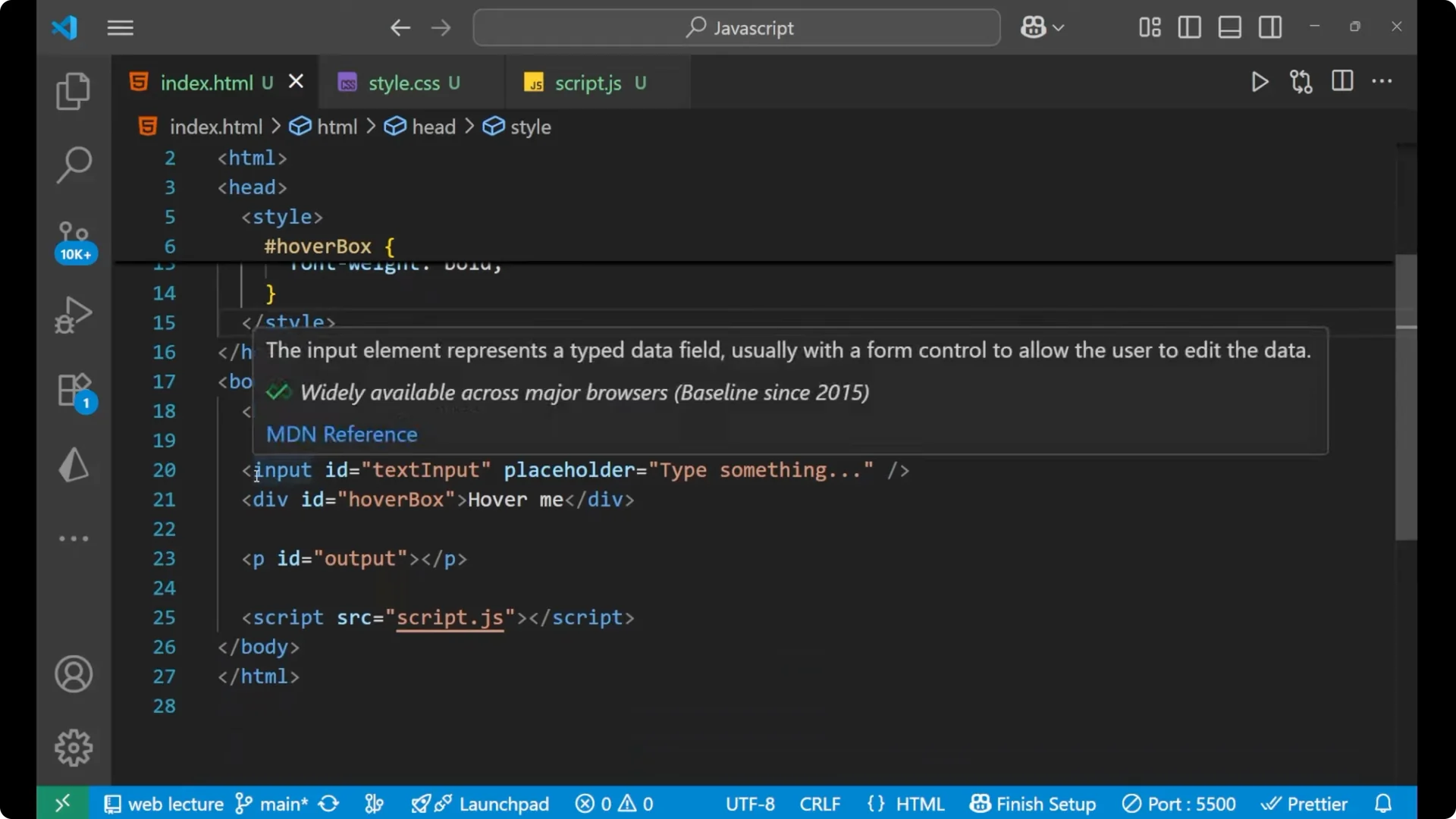
HTML structure:
- A heading
- An input with id text-input
- A div with id hover-box that shows Hover me
- A paragraph with id output
- A script tag to connect JavaScript
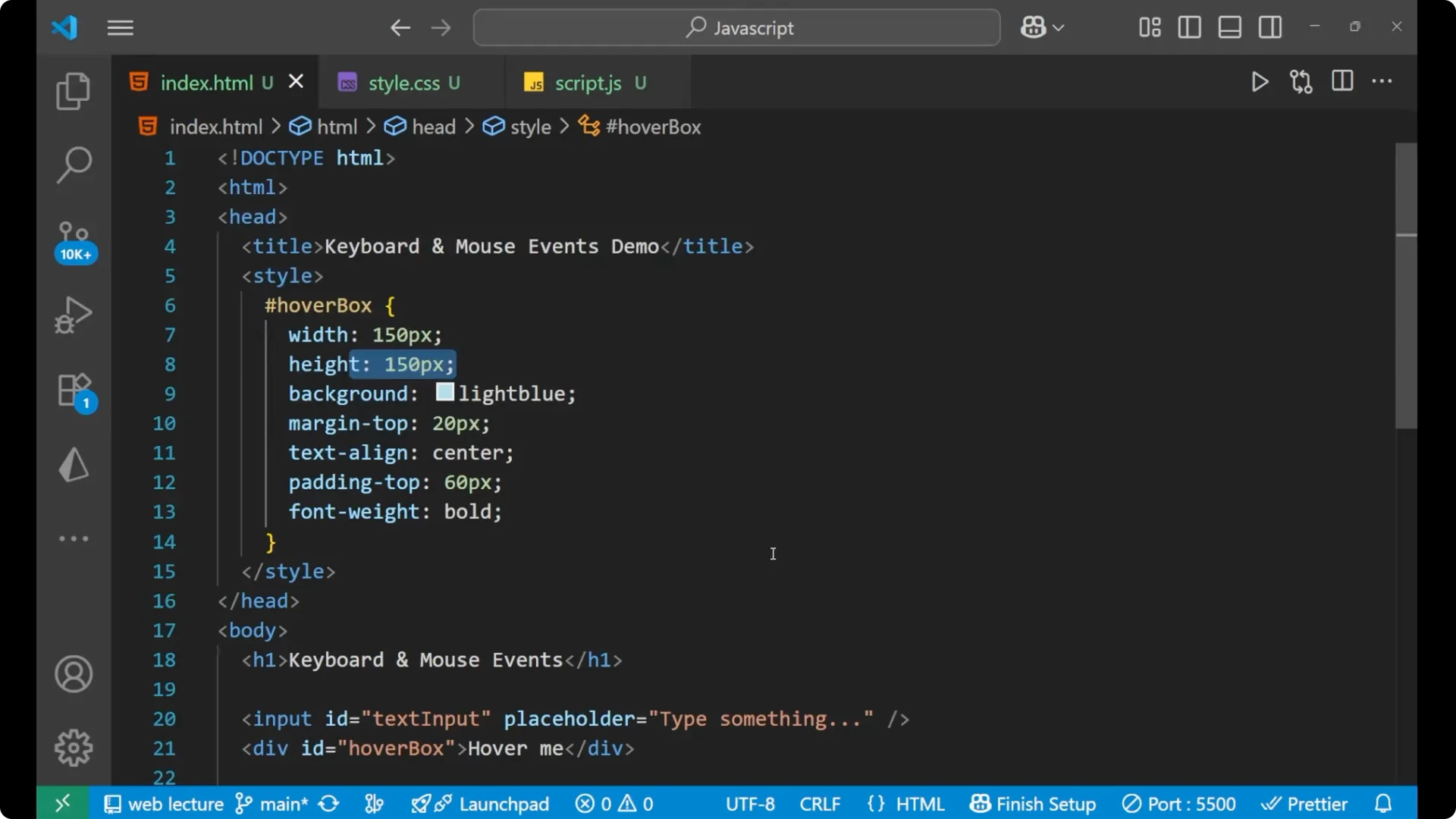
CSS for the hover box:
- Width, height
- Background color
- Margin
- Text alignment
- Padding
- Font weight
Markup and basic styles
<!doctype html>
<html lang="en">
  <head>
    <meta charset="utf-8" />
    <title>JavaScript Keyboard and Mouse Events</title>
    <style>
      .hover-box {
        width: 200px;
        height: 120px;
        background: lightblue;
        margin: 16px 0;
        text-align: center;
        padding: 12px;
        font-weight: 600;
        display: flex;
        align-items: center;
        justify-content: center;
        cursor: pointer;
        user-select: none;
      }
    </style>
  </head>
  <body>
    <h1>Events demo</h1>
    <input id="text-input" type="text" placeholder="Type here" />
    <div id="hover-box" class="hover-box">Hover me</div>
    <p id="output"></p>

    <script src="app.js"></script>
  </body>
</html>
Selecting elements for JavaScript Keyboard and Mouse Events
First, select the items. I am having this const textInput that is document.getElementById(‘text-input’).
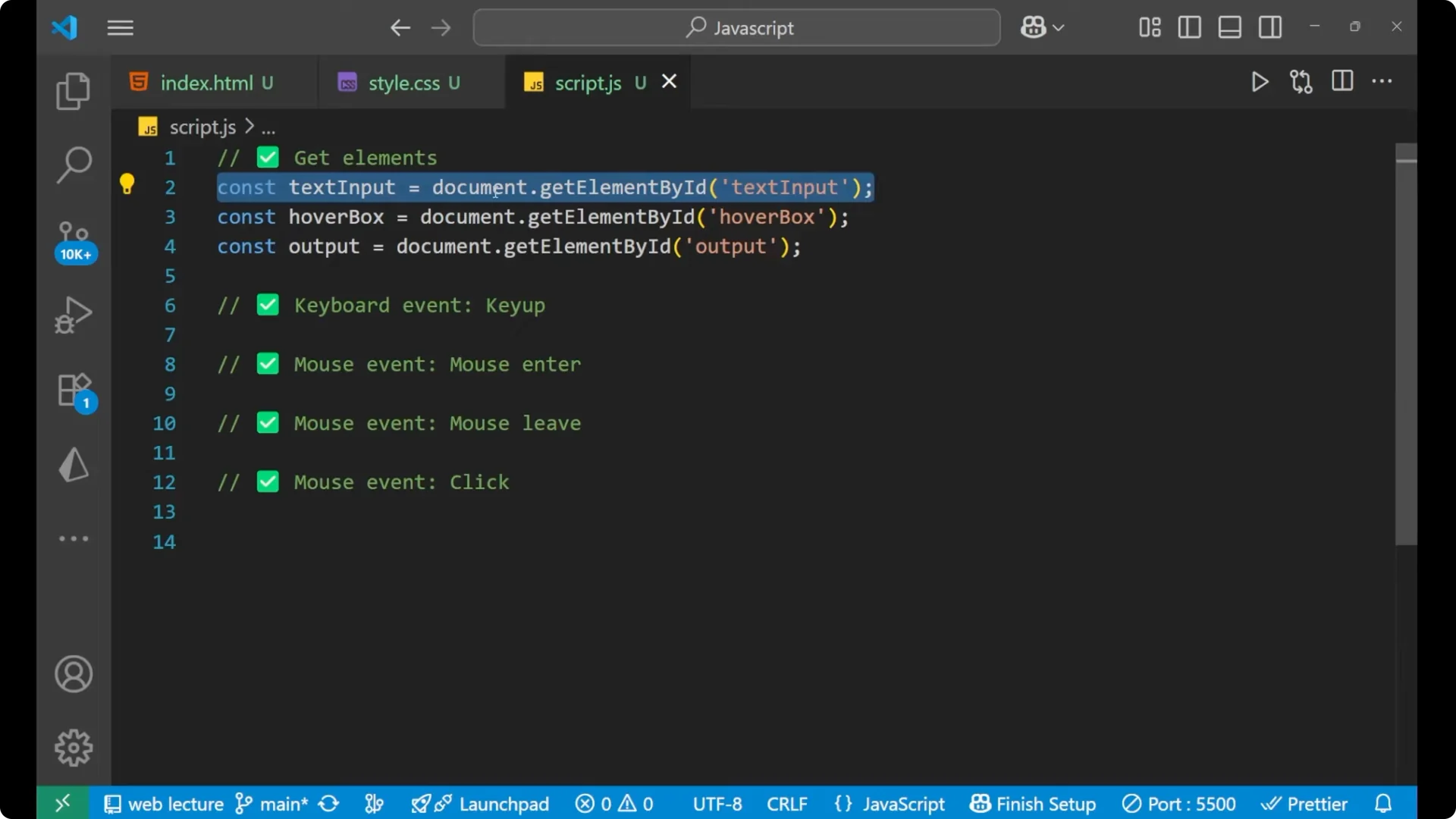
This is the particular input and that we have selected with the help of document.getElementById. The same we have done for the hover box and the output also.
const textInput = document.getElementById('text-input');
const hoverBox = document.getElementById('hover-box');
const output = document.getElementById('output');
Keyboard: keyup in JavaScript Keyboard and Mouse Events
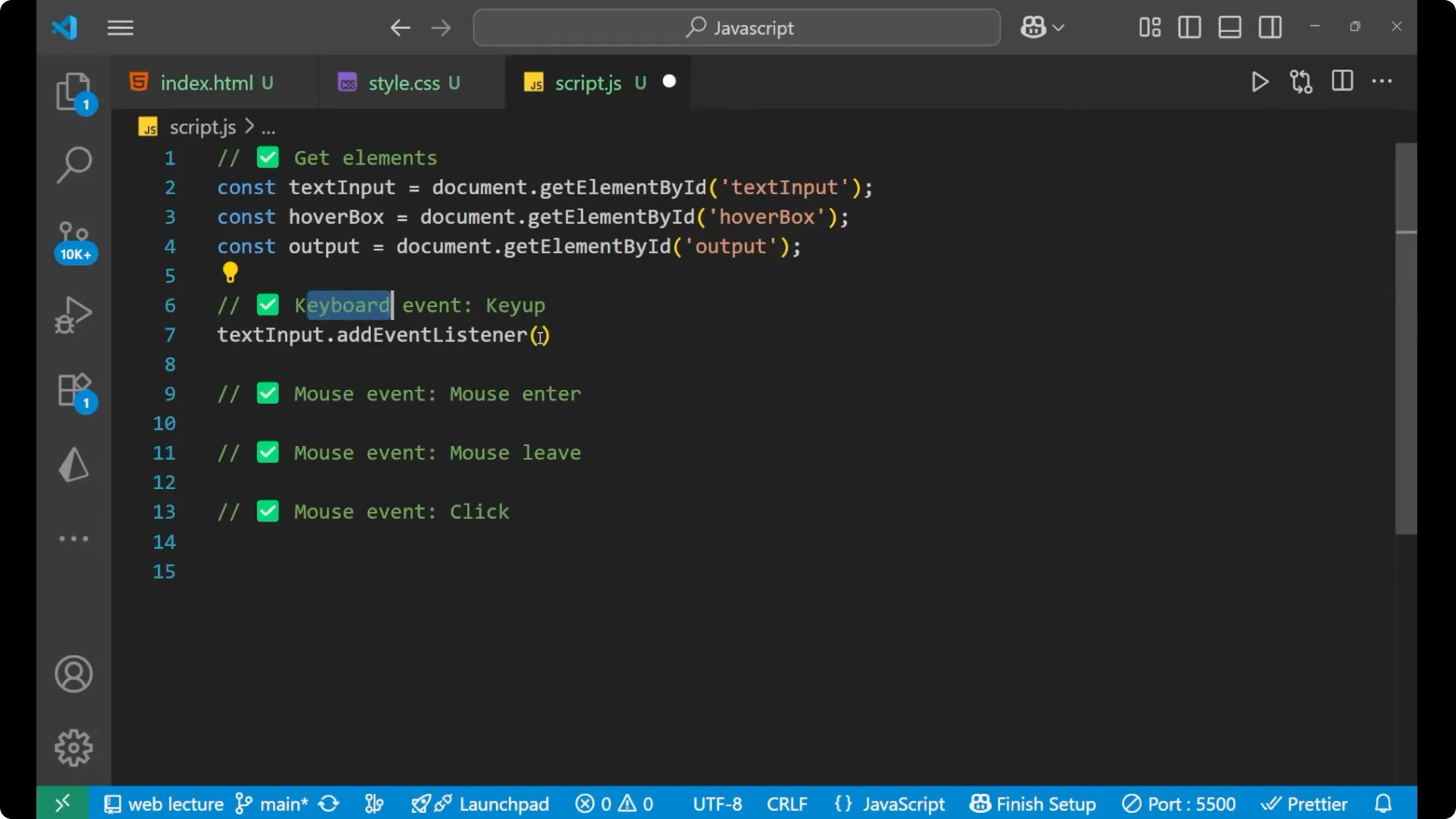
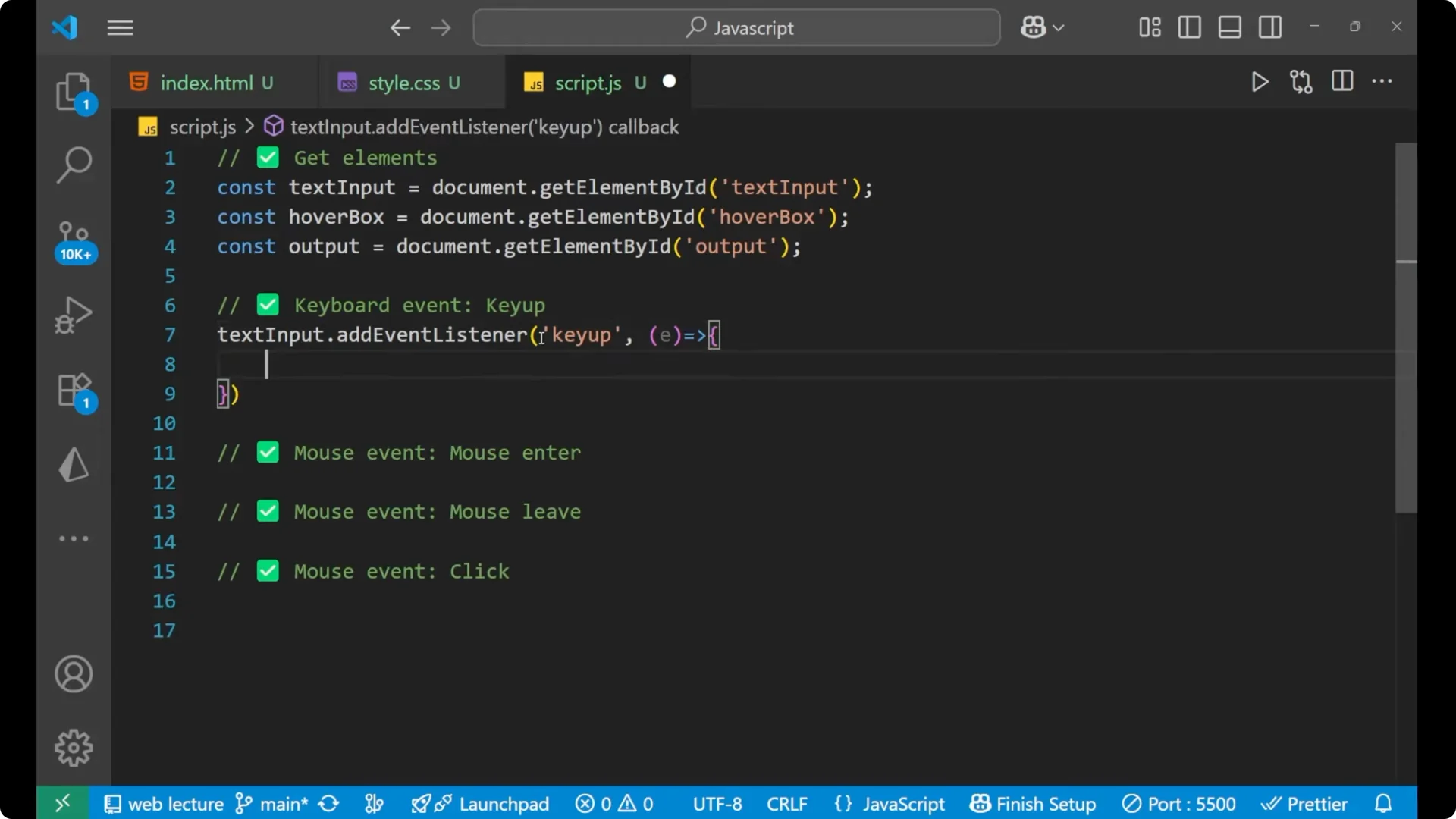
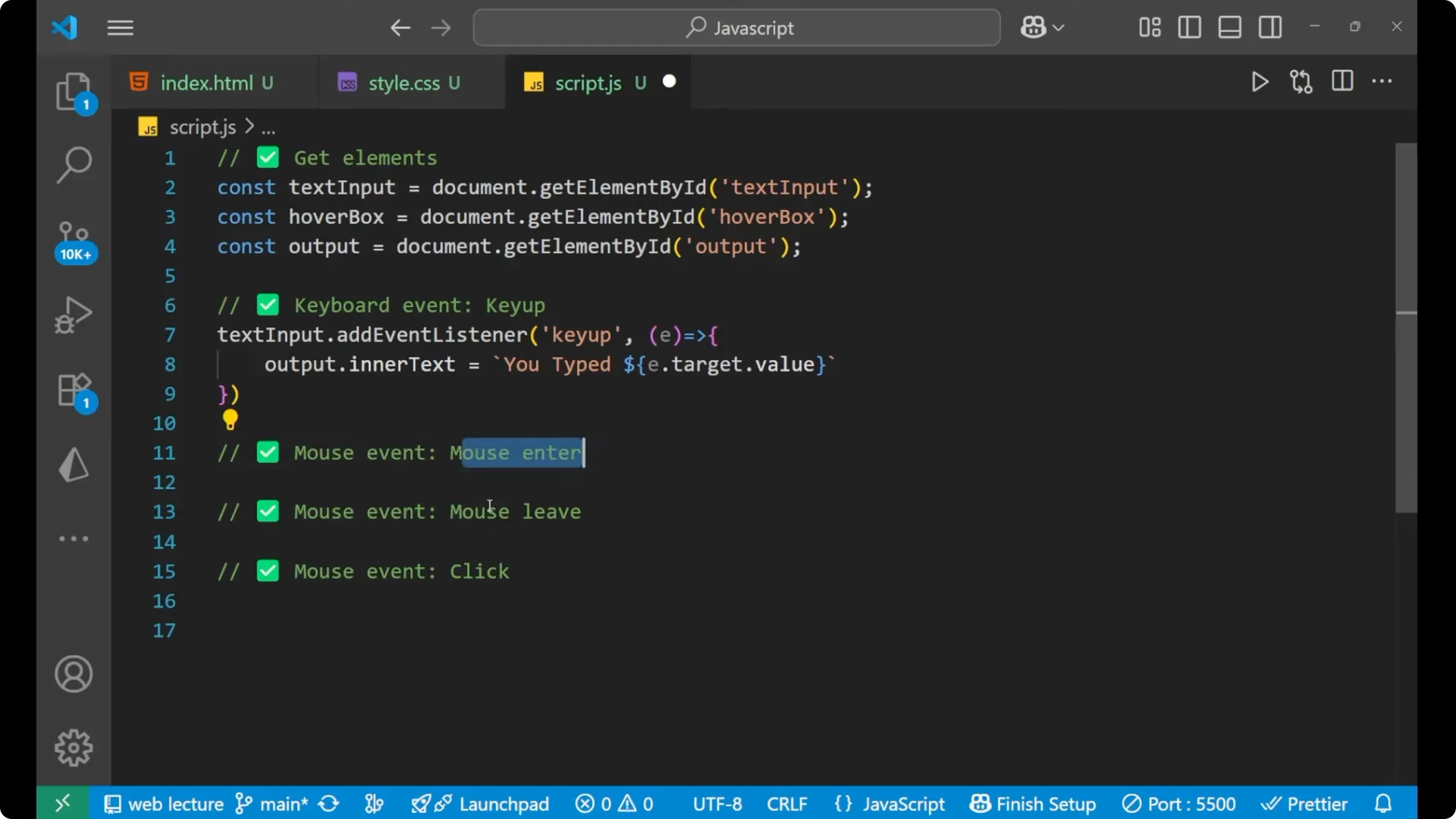
We are going to deal with the keyboard event. For the keyboard event the event is keyup.
- Whatever you have entered inside the text input is stored in e.
- Use e.target to get the particular input field.
- Use e.target.value to get the actual value written inside the input field.
- Set output.innerText to show what you typed.
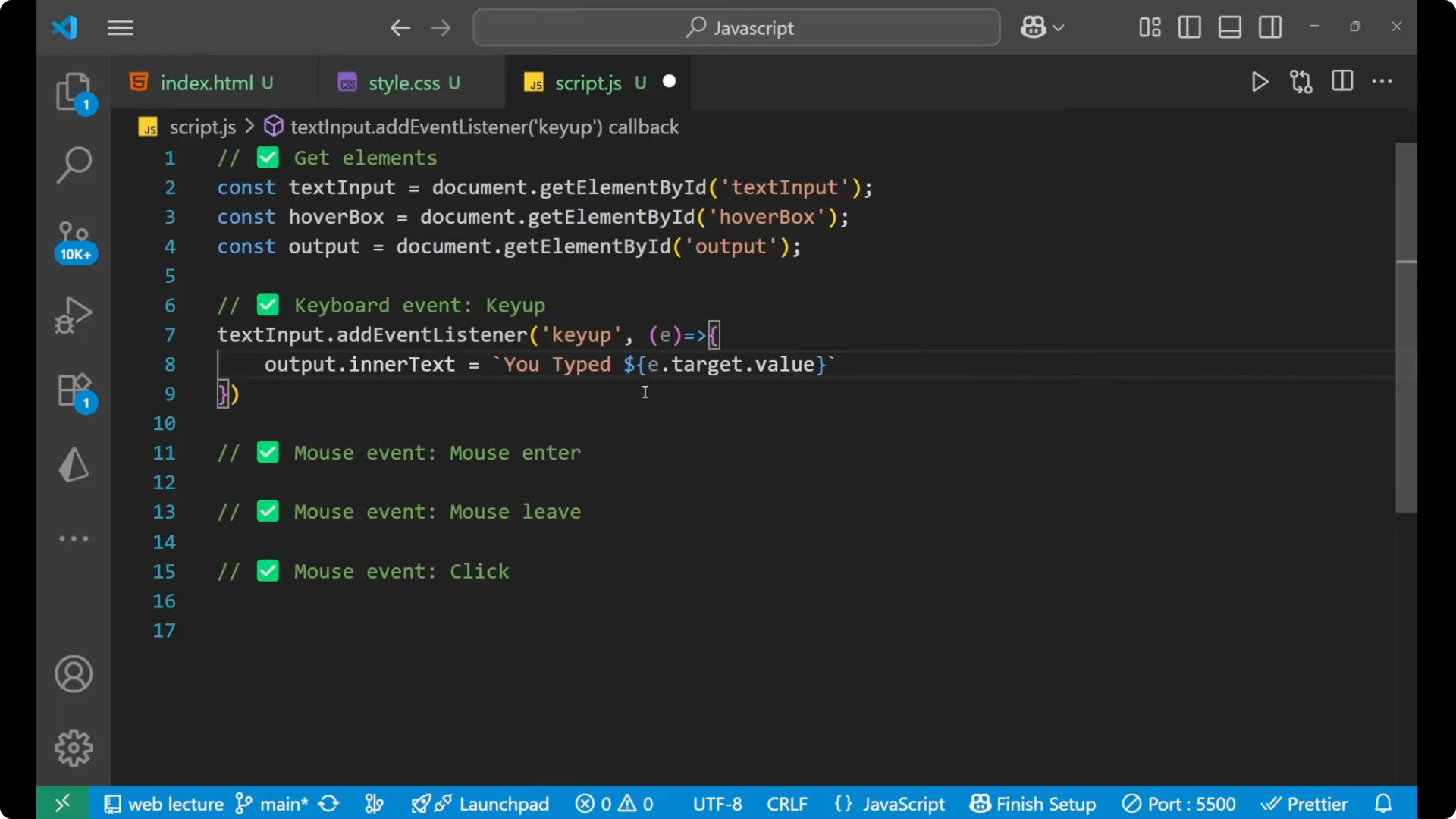
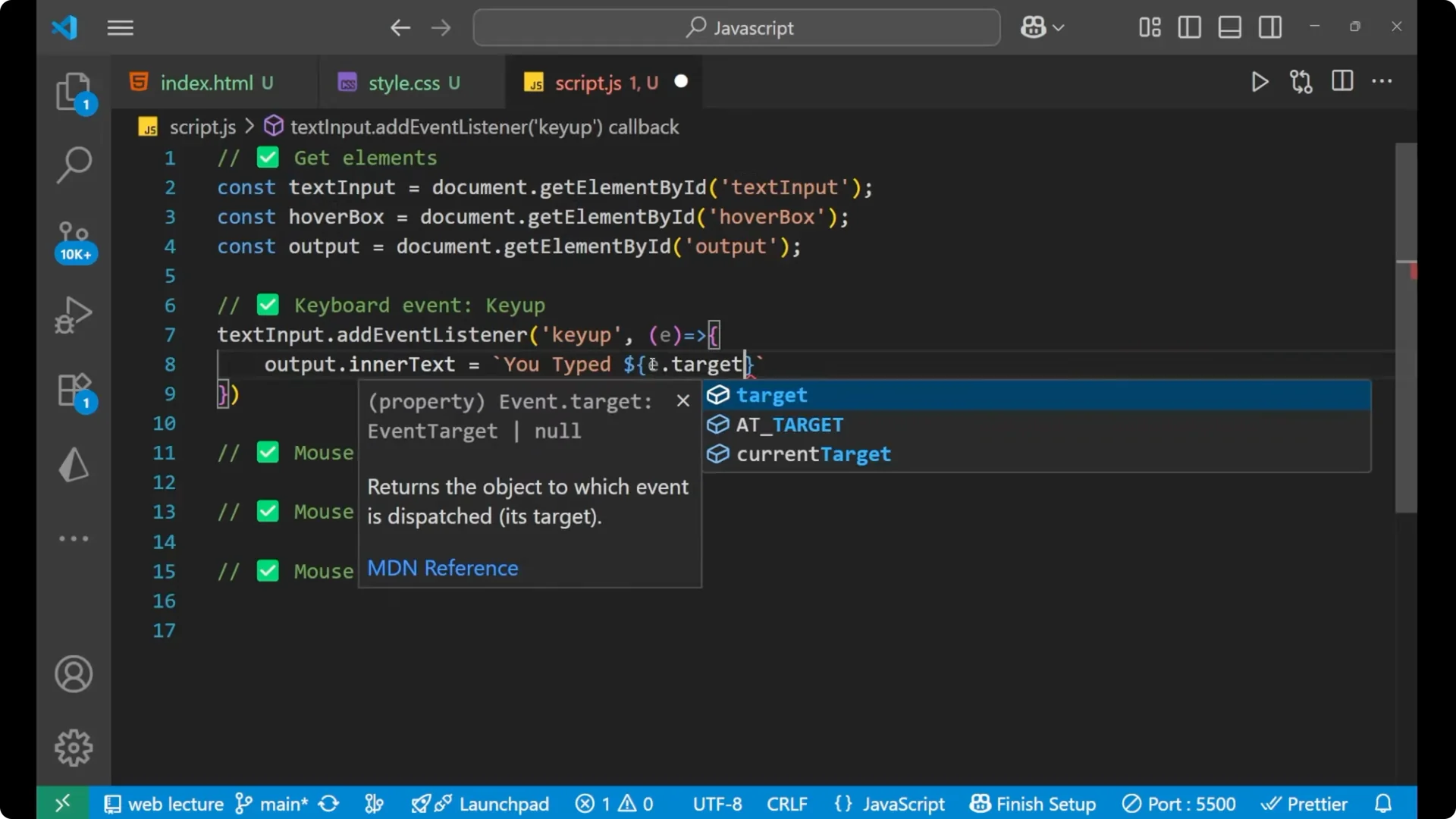
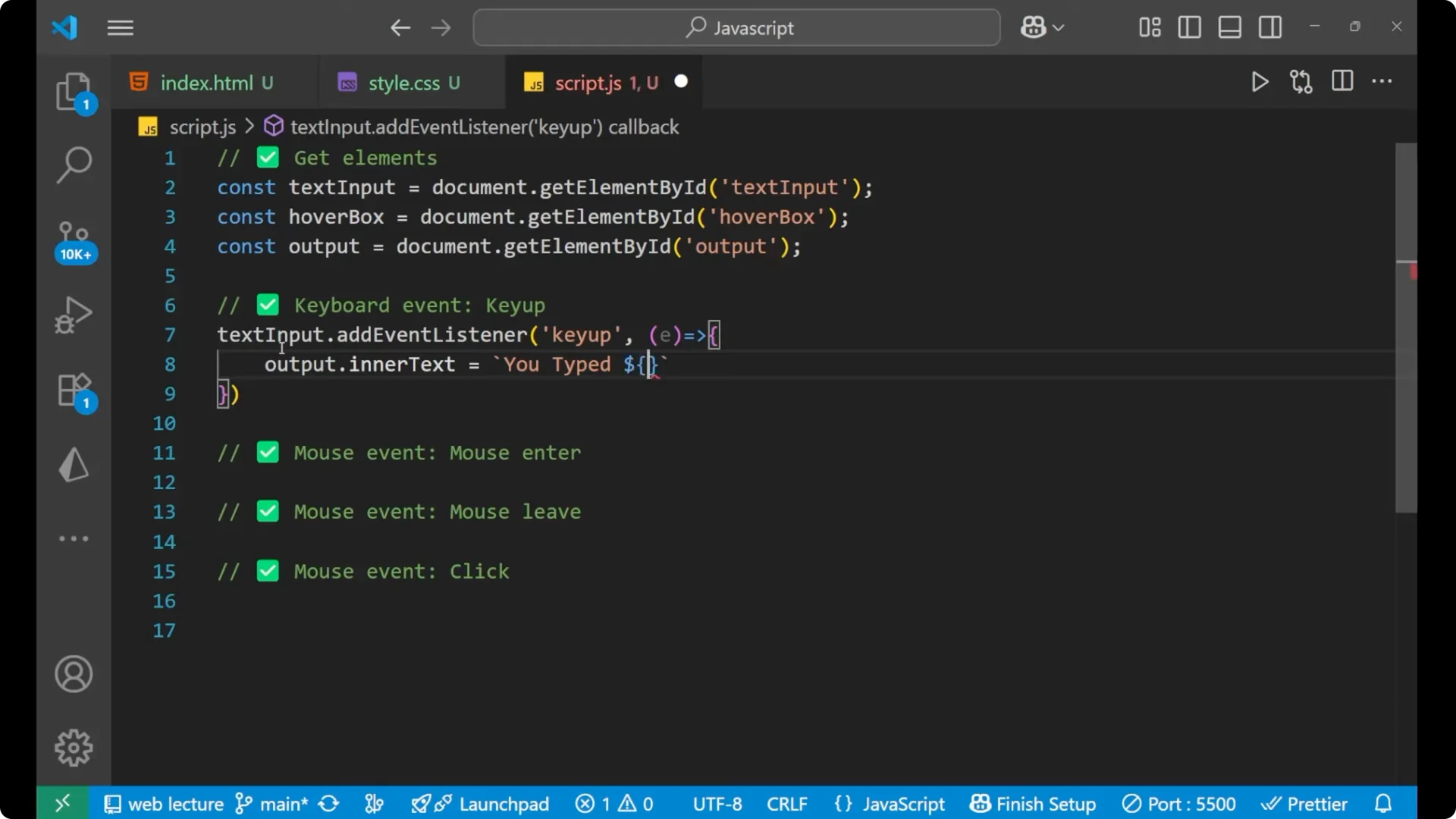
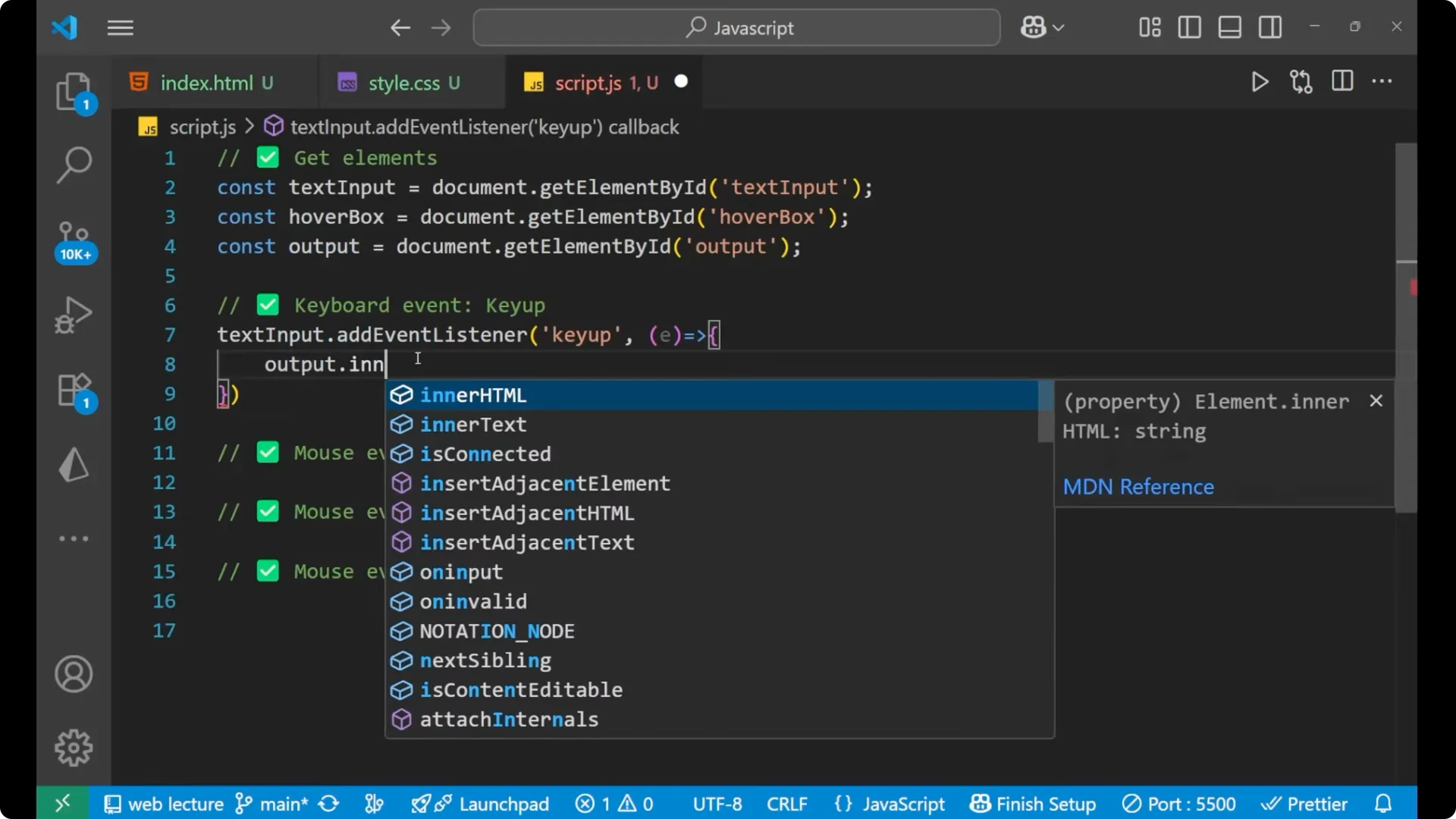
textInput.addEventListener('keyup', e => {
  output.innerText = `You typed: ${e.target.value}`;
});
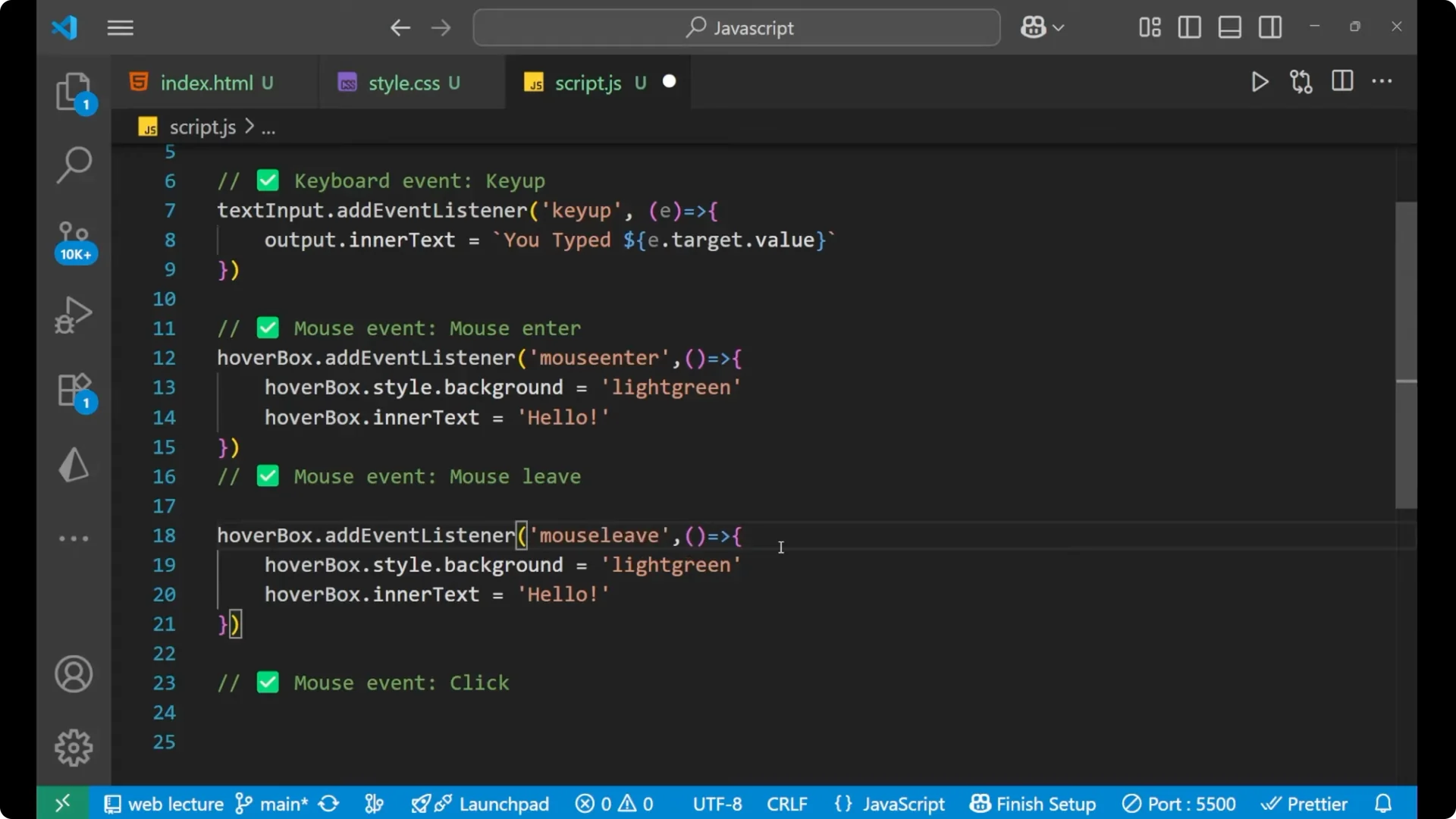
Mouse: mouseenter and mouseleave in JavaScript Keyboard and Mouse Events
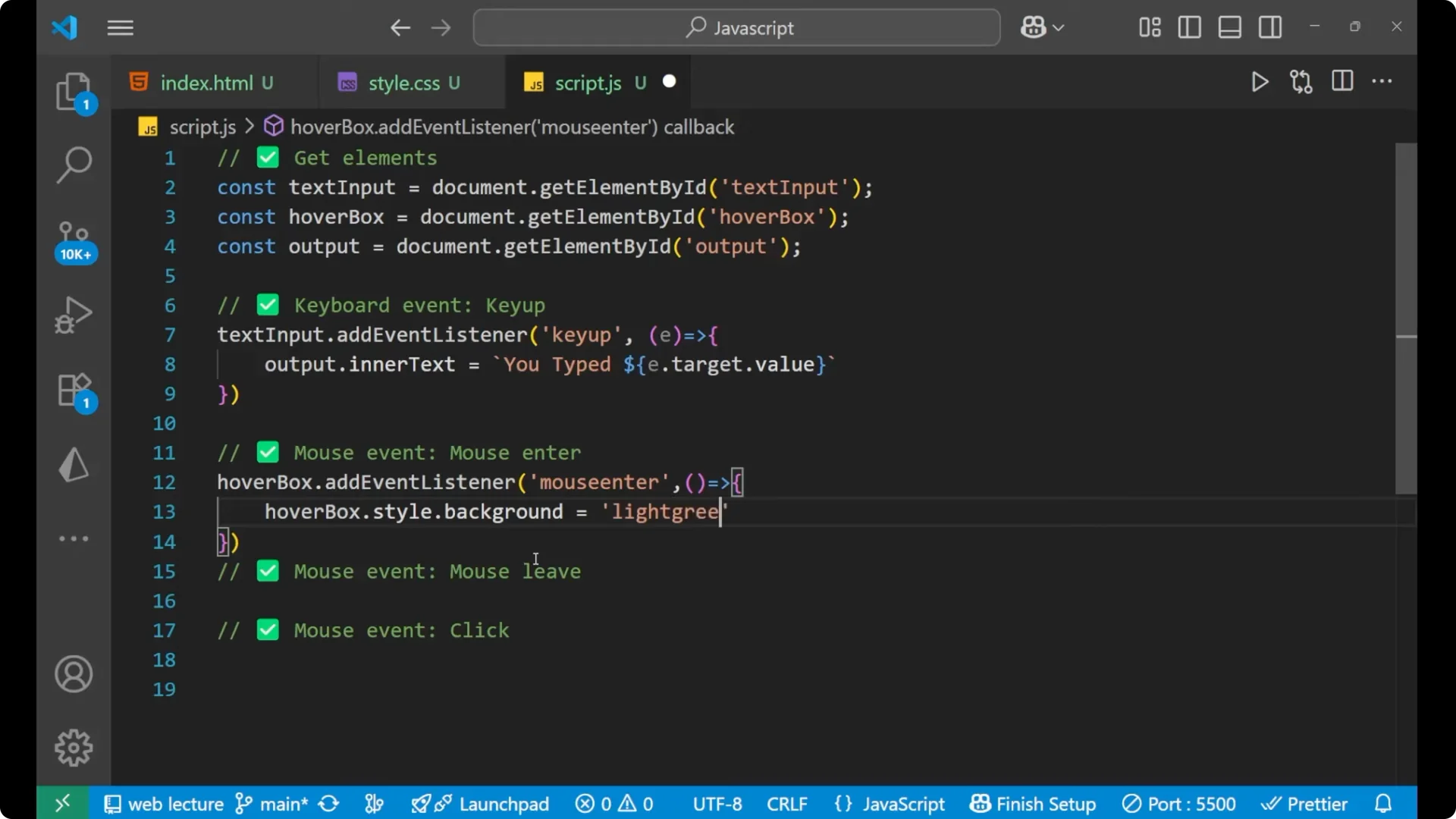
We will do two different things: first for mouseenter and then for mouseleave.
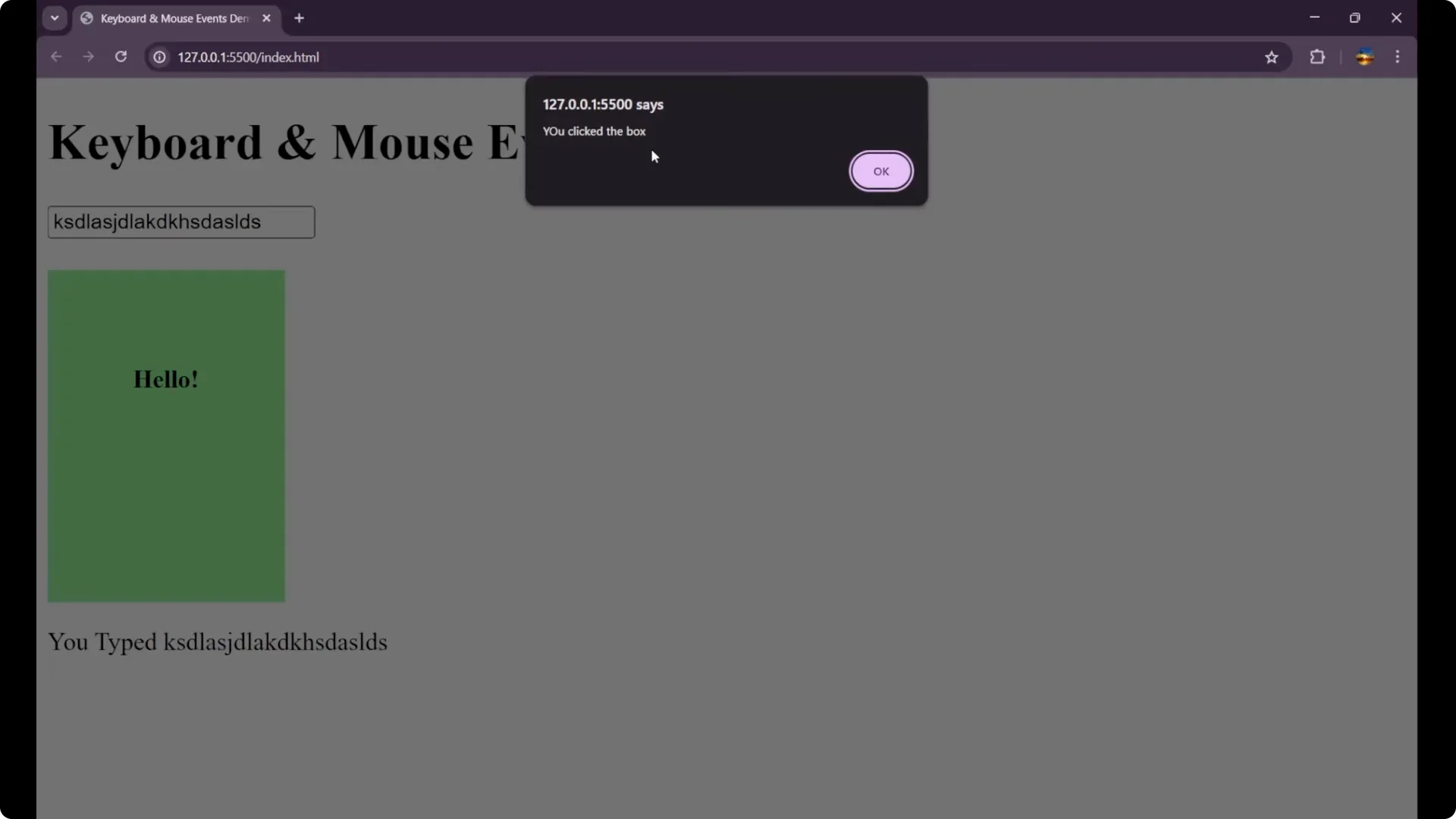
- On mouseenter, change the background to light green and change the inner text to Hello.
- On mouseleave, change the color back to light blue like earlier and the text to Hover me.
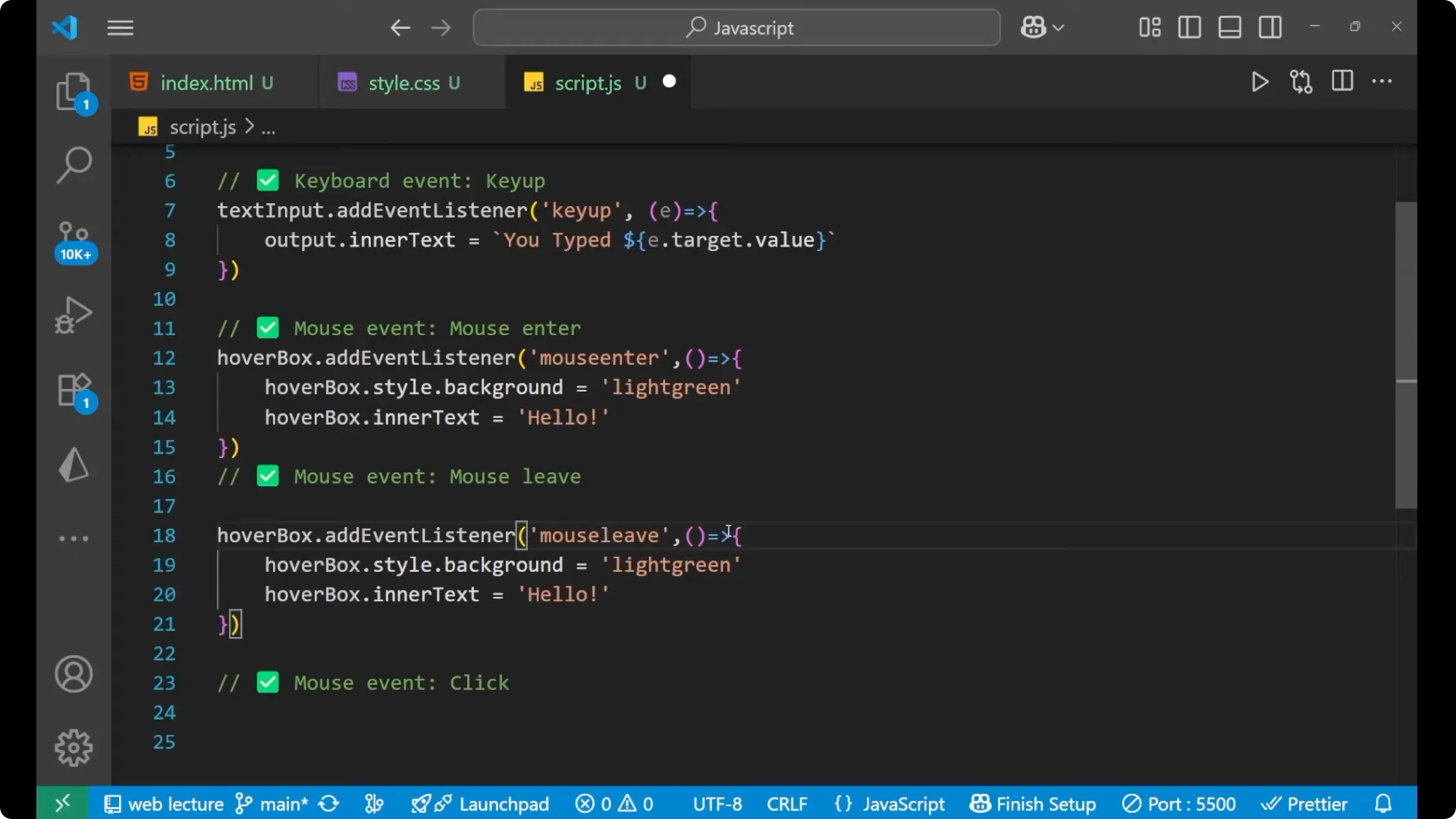
hoverBox.addEventListener('mouseenter', () => {
  hoverBox.style.background = 'lightgreen';
  hoverBox.innerText = 'Hello';
});
hoverBox.addEventListener('mouseleave', () => {
  hoverBox.style.background = 'lightblue';
  hoverBox.innerText = 'Hover me';
});
Mouse: click in JavaScript Keyboard and Mouse Events
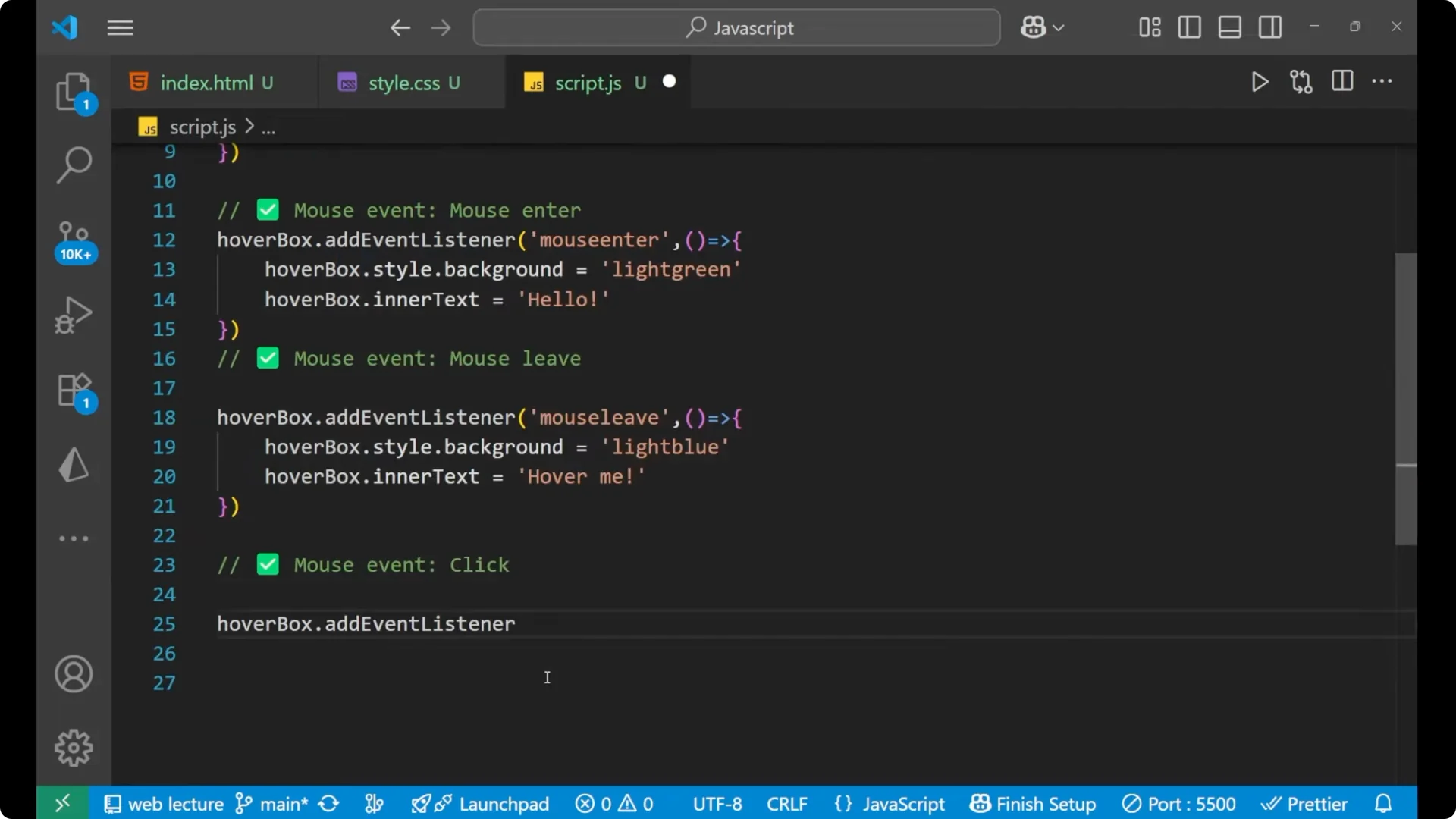
When I click on that particular hover box, I want an alert to come.
hoverBox.addEventListener('click', () => {
  alert('You clicked the box');
});
Full working example for JavaScript Keyboard and Mouse Events
<!doctype html>
<html lang="en">
  <head>
    <meta charset="utf-8" />
    <title>JavaScript Keyboard and Mouse Events</title>
    <style>
      .hover-box {
        width: 200px;
        height: 120px;
        background: lightblue;
        margin: 16px 0;
        text-align: center;
        padding: 12px;
        font-weight: 600;
        display: flex;
        align-items: center;
        justify-content: center;
        cursor: pointer;
        user-select: none;
      }
    </style>
  </head>
  <body>
    <h1>Events demo</h1>
    <input id="text-input" type="text" placeholder="Type here" />
    <div id="hover-box" class="hover-box">Hover me</div>
    <p id="output"></p>
    <script>
      const textInput = document.getElementById('text-input');
      const hoverBox = document.getElementById('hover-box');
      const output = document.getElementById('output');
      // Keyboard: keyup
      textInput.addEventListener('keyup', e => {
        output.innerText = `You typed: ${e.target.value}`;
      });
      // Mouse: enter and leave
      hoverBox.addEventListener('mouseenter', () => {
        hoverBox.style.background = 'lightgreen';
        hoverBox.innerText = 'Hello';
      });
      hoverBox.addEventListener('mouseleave', () => {
        hoverBox.style.background = 'lightblue';
        hoverBox.innerText = 'Hover me';
      });
      // Mouse: click
      hoverBox.addEventListener('click', () => {
        alert('You clicked the box');
      });
    </script>
  </body>
</html>
Final Thoughts
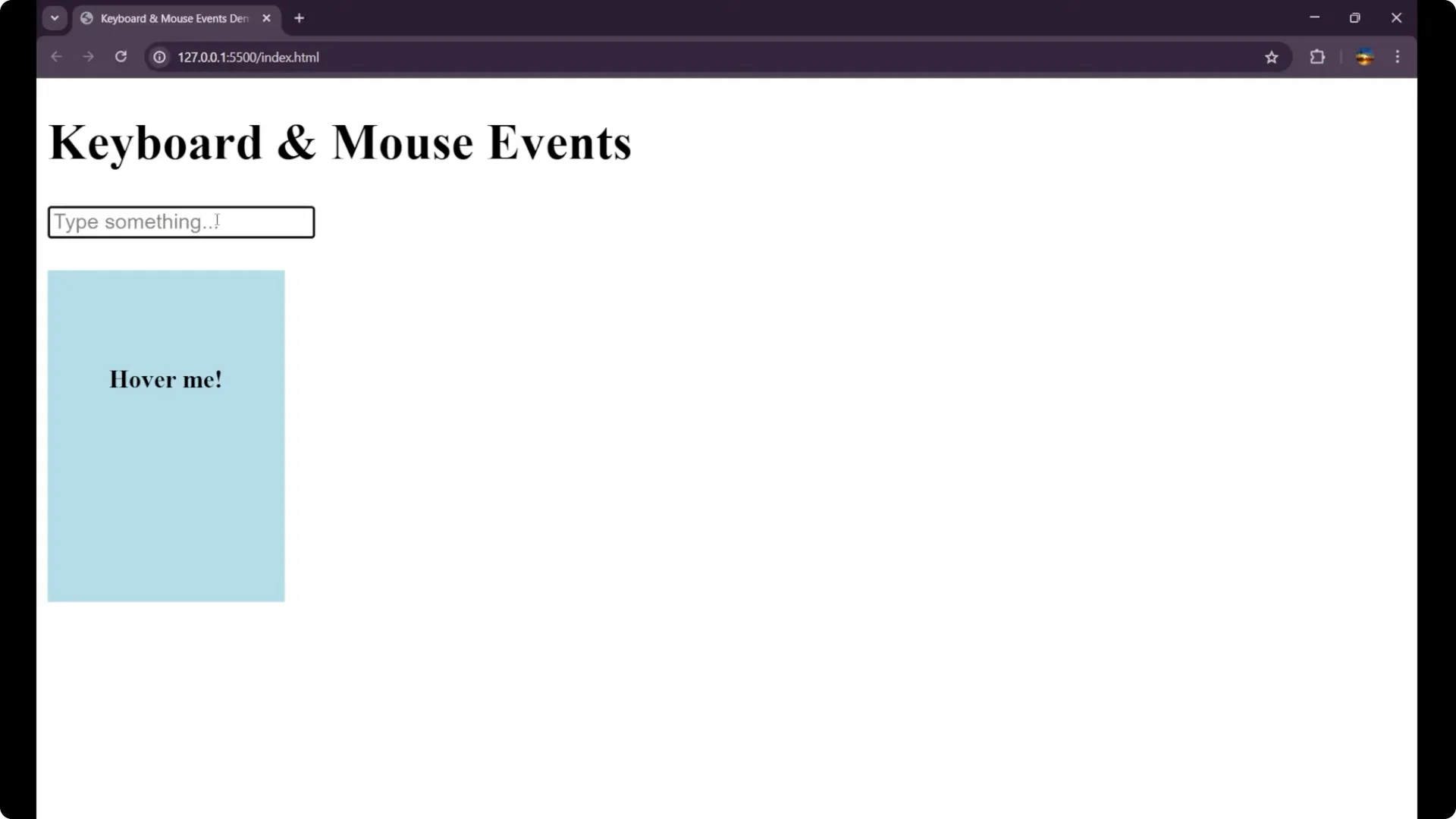
By this we deal with the mouse and the keyboard events in JavaScript. Keyup updates the paragraph with what you type using e.target.value, mouseenter and mouseleave change styles and content, and click triggers an alert. This simple setup shows how to make an interactive page by listening to user actions.