I’m going to show how to show or hide elements with JavaScript. I’ll start with a basic HTML setup: a button that says “Show or Hide Text” and a paragraph that says “Hello, I can be hidden or shown.”
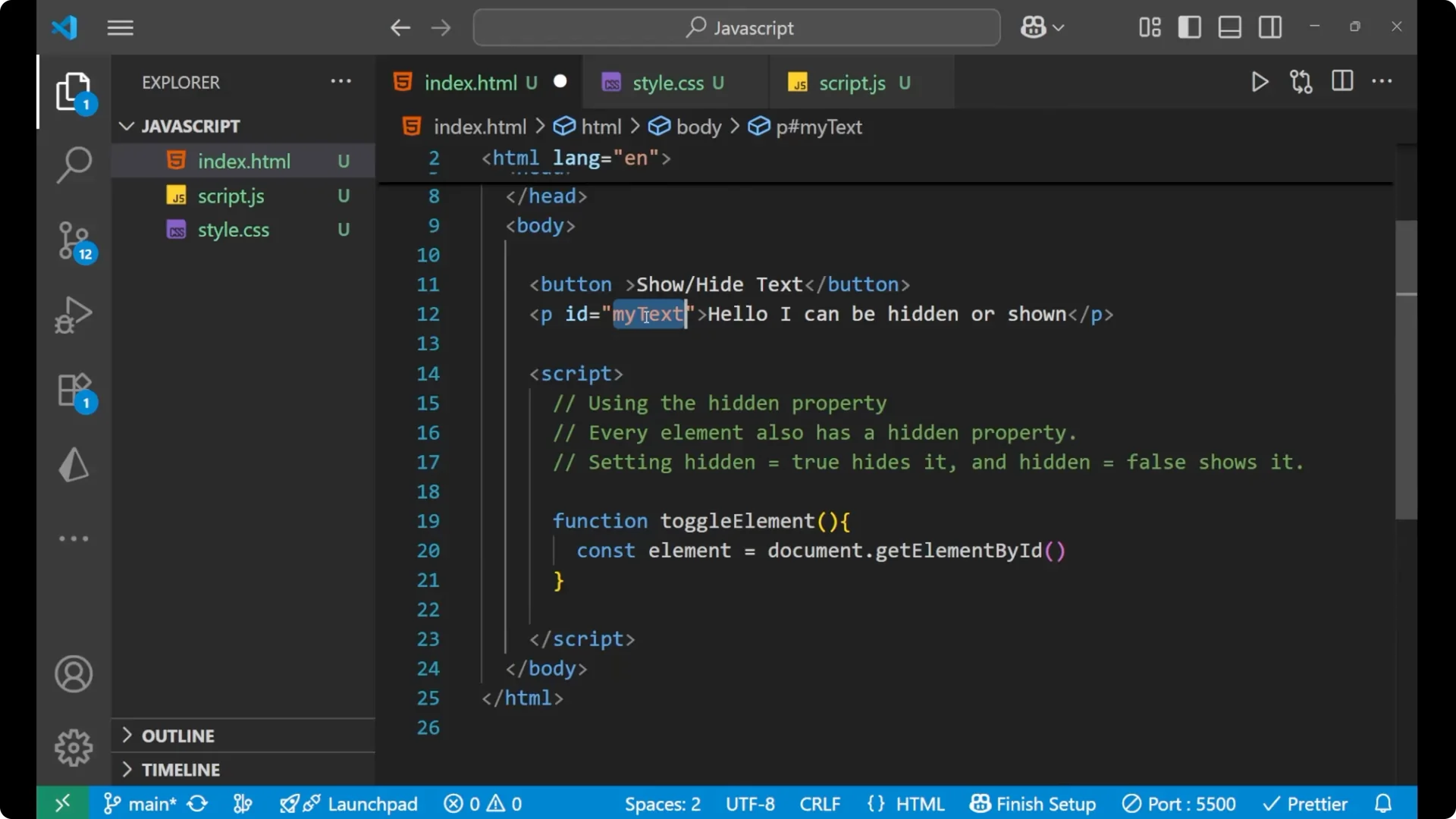
I’ll give the paragraph an id – I’ll call it myText.
I’ll create the function first, then wire it up to the button.
JavaScript Toggle Visibility
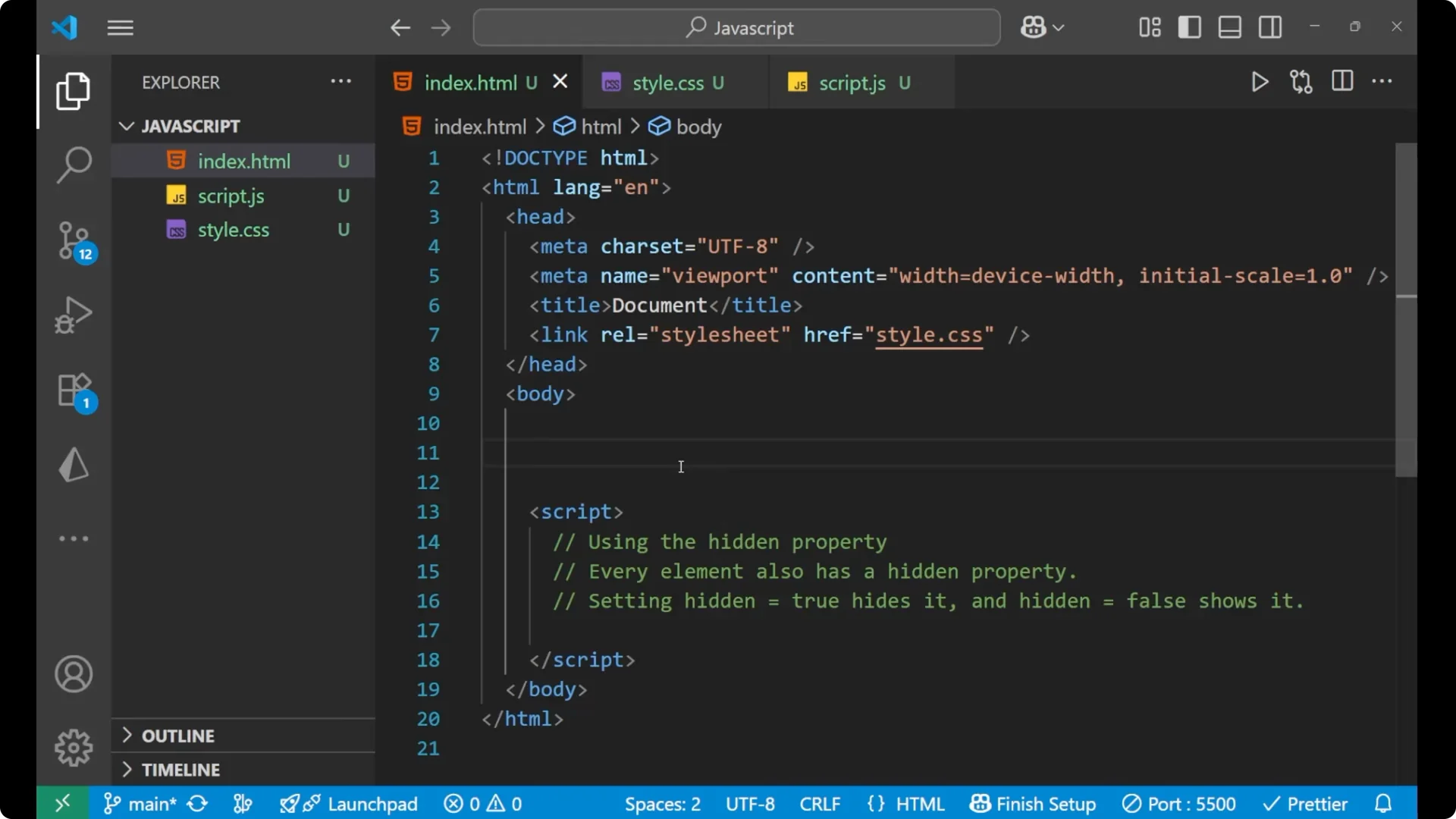
Basic HTML
Here is the minimal markup I’m working with.
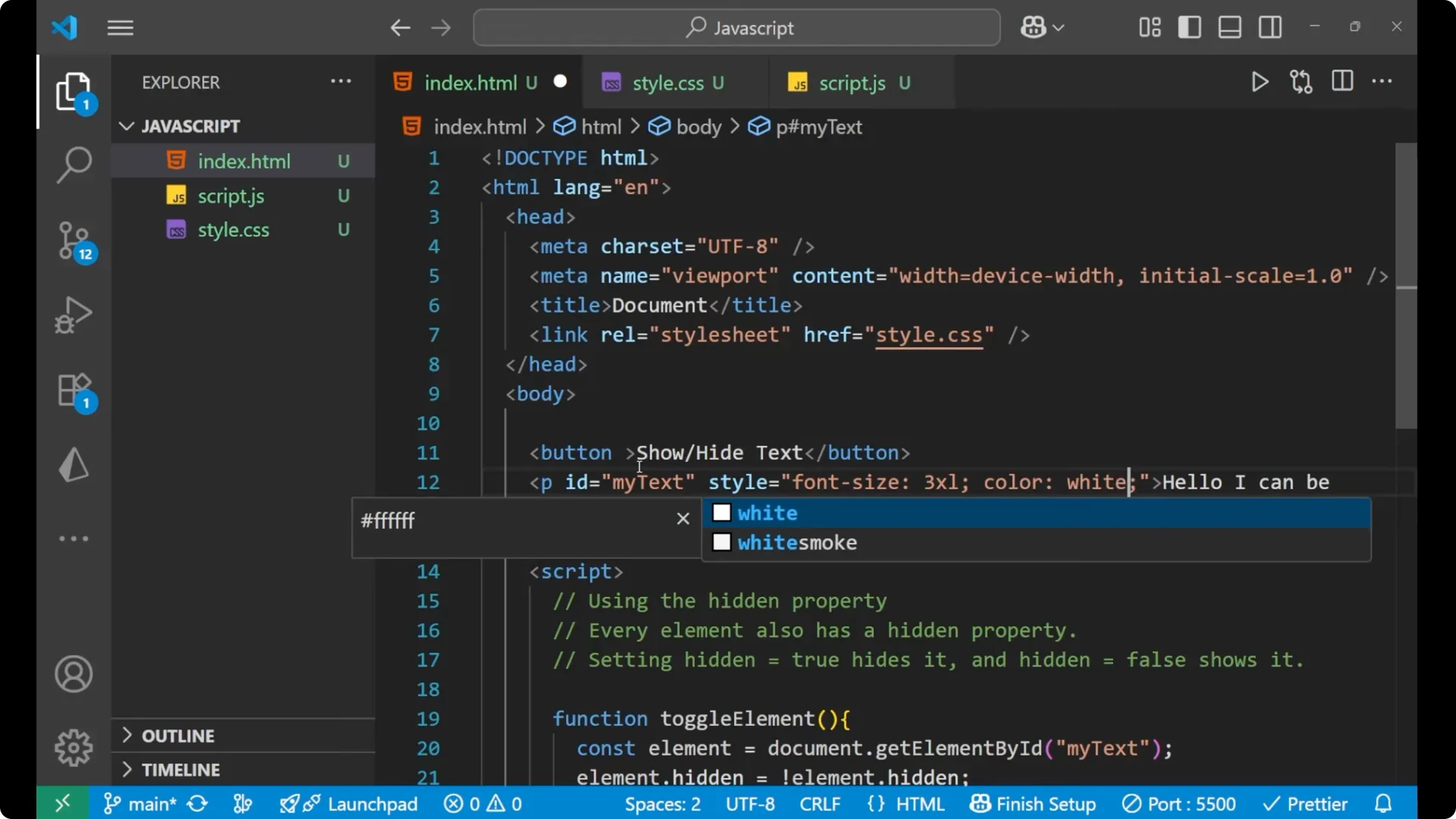
I’m also adding a small bit of inline CSS so the text stands out – a larger font size and white color.
<button onclick="toggleElement()">Show or Hide Text</button>
<p id="myText" style="font-size: 3rem; color: white;">
  Hello, I can be hidden or shown.
</p>
Method 1 – using the hidden property
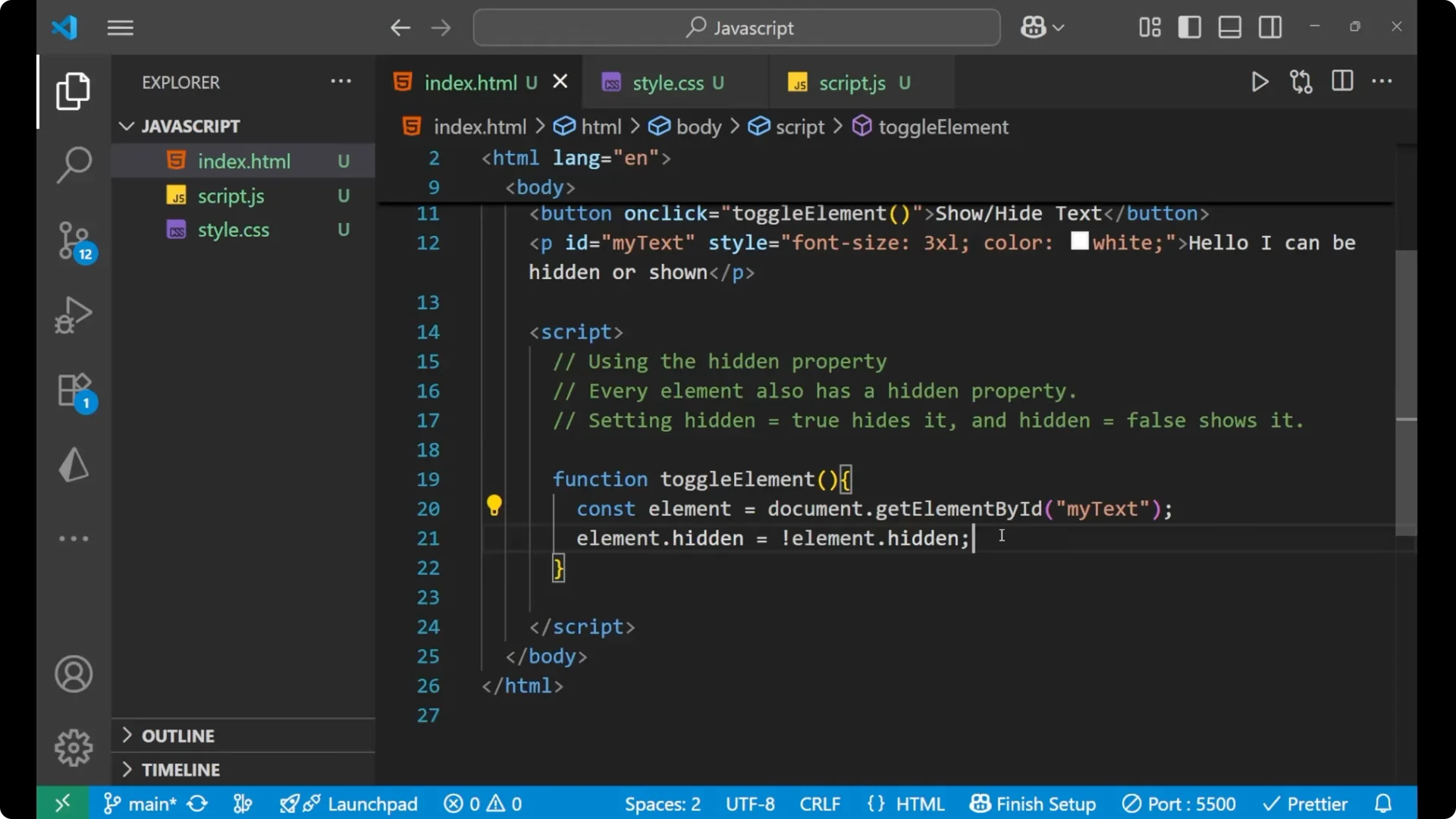
I’m going to use the element’s built-in hidden property. Every element has it. Set it to true to hide the element, and set it to false to show it.
Step 1: Create a function named toggleElement.
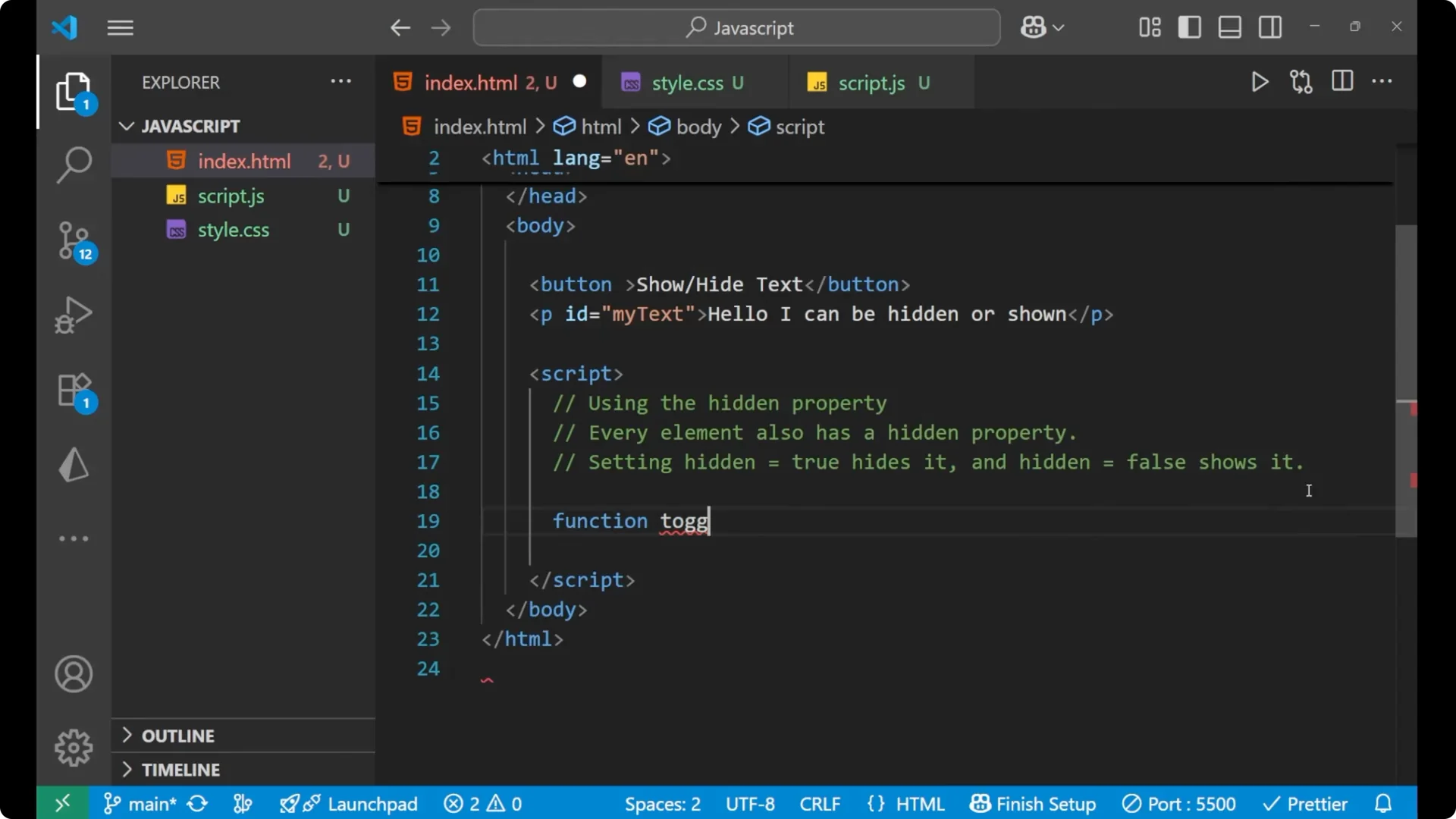
Step 2: Inside it, grab the paragraph with document.getElementById(‘myText’).
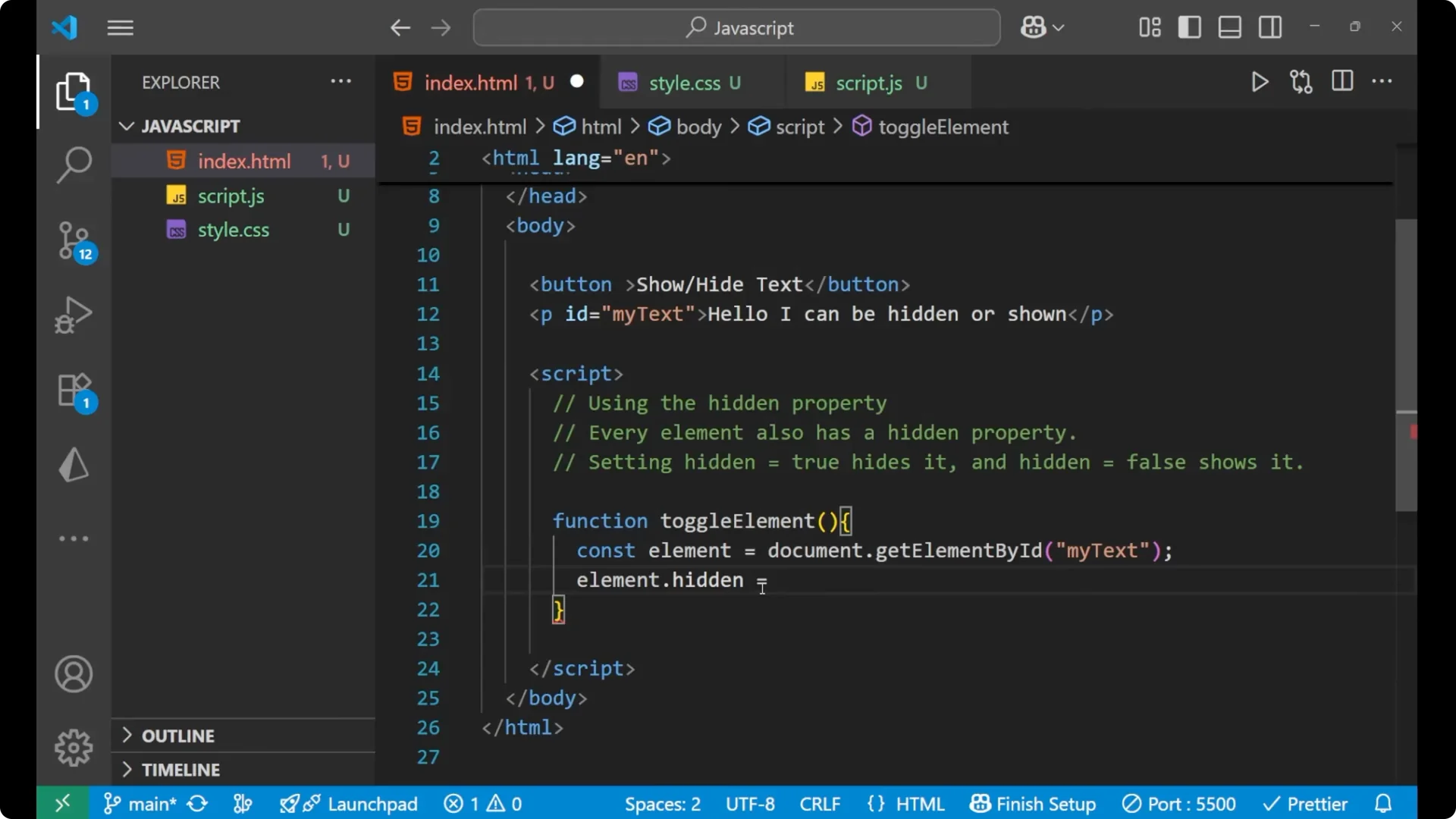
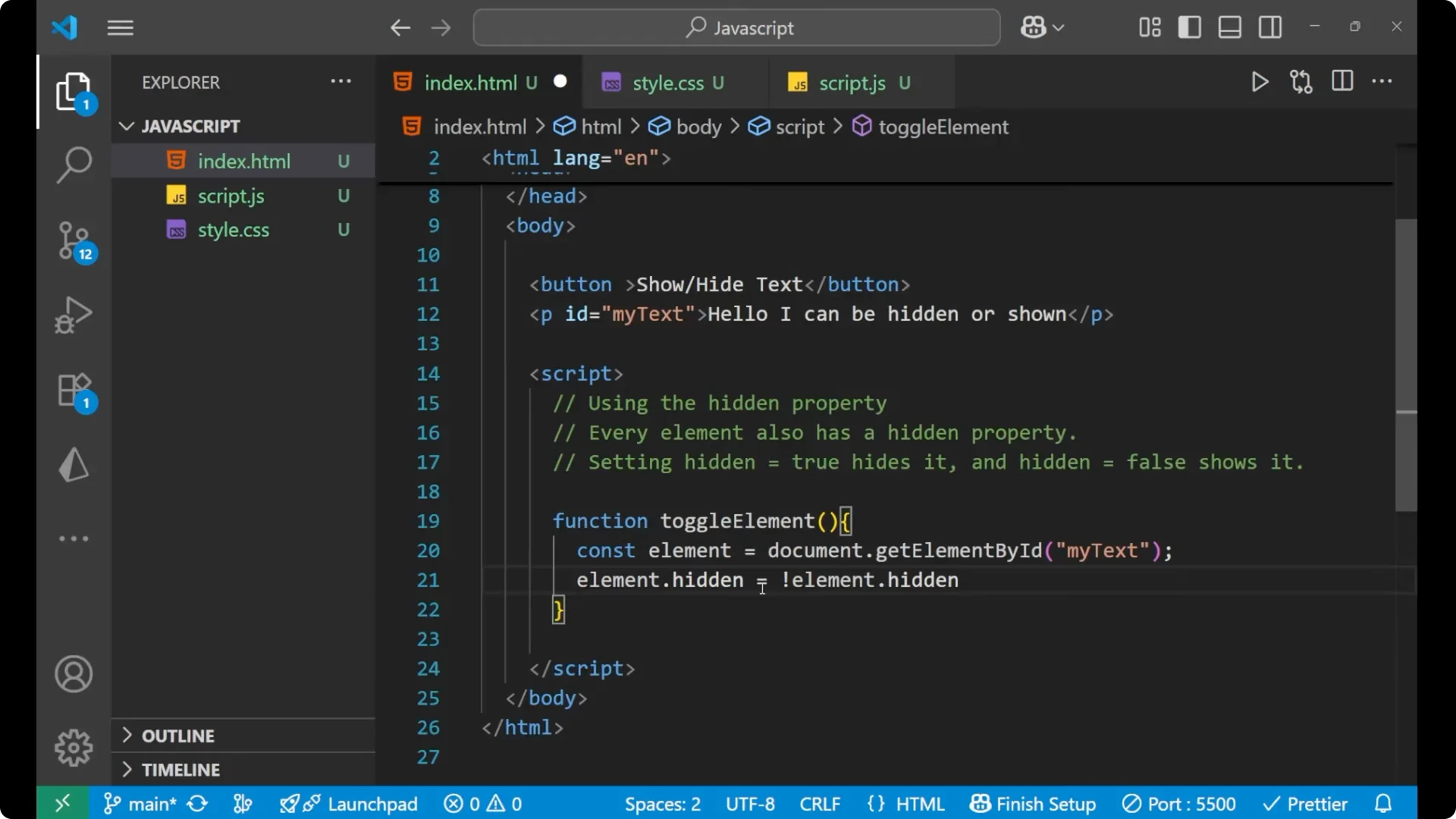
Step 3: Toggle the property with element.hidden = !element.hidden.
<script>
  function toggleElement() {
    const element = document.getElementById('myText');
    element.hidden = !element.hidden;
  }
</script>
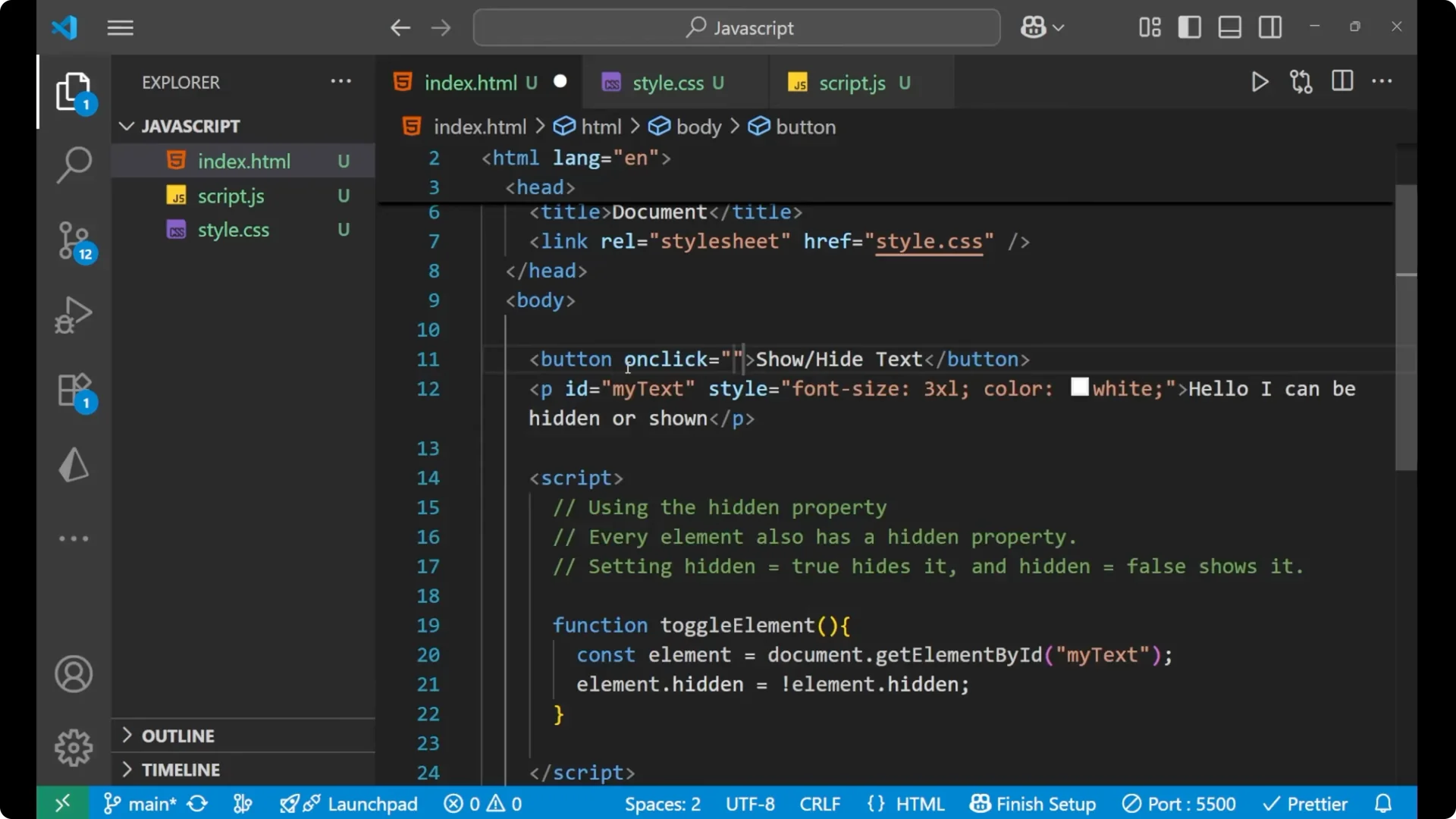
Attach the function to the button’s click handler so it actually runs when you click.
<button onclick="toggleElement()">Show or Hide Text</button>
How it works?
By default, an element’s hidden is false, which means it’s visible. When the function runs, it flips whatever the current value is. If hidden is false, it becomes true.
If it’s true, it becomes false. That’s the entire toggle.
Method 2 – using style.display
You can also do this by changing the element’s CSS with plain DOM manipulation.
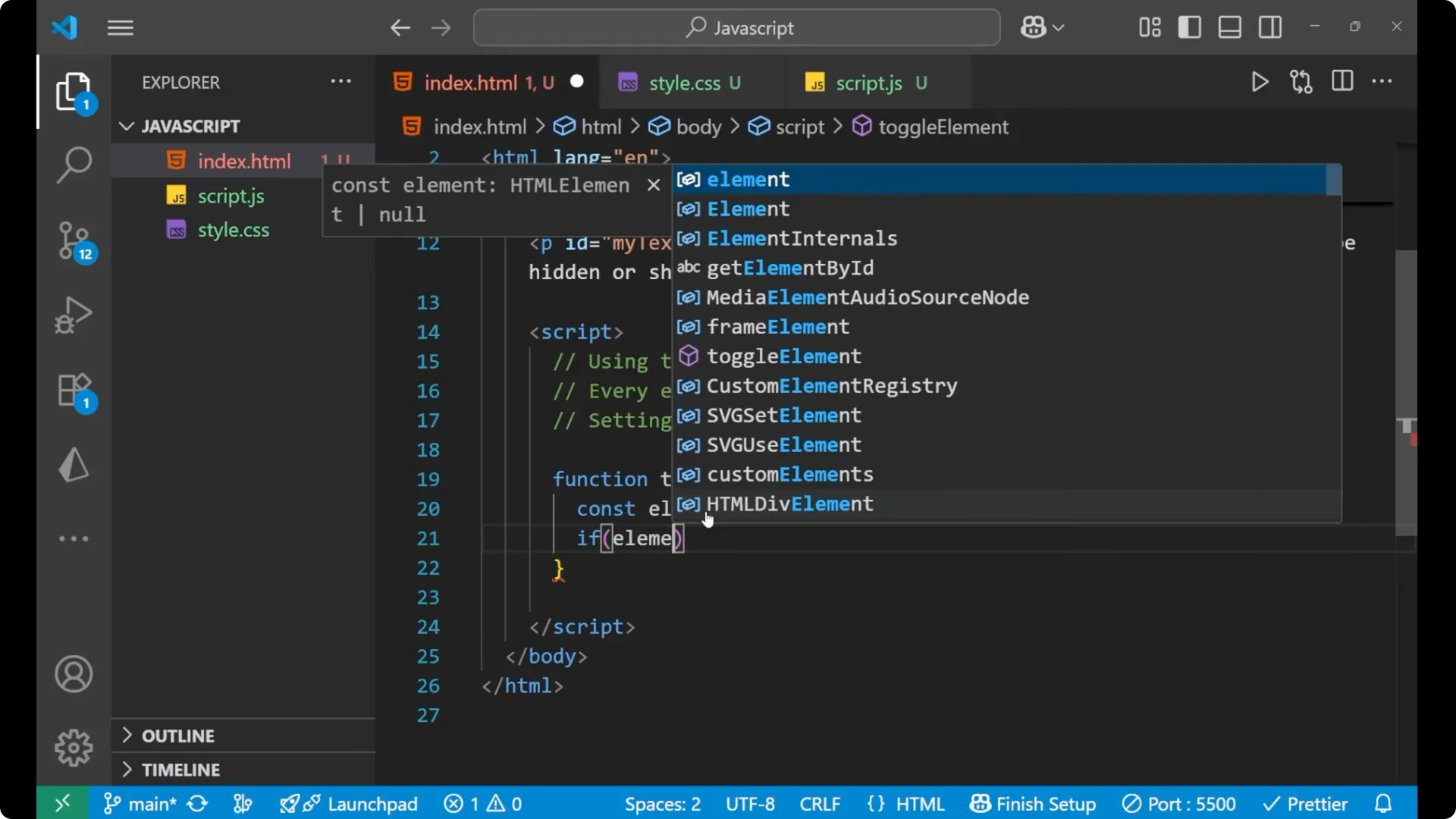
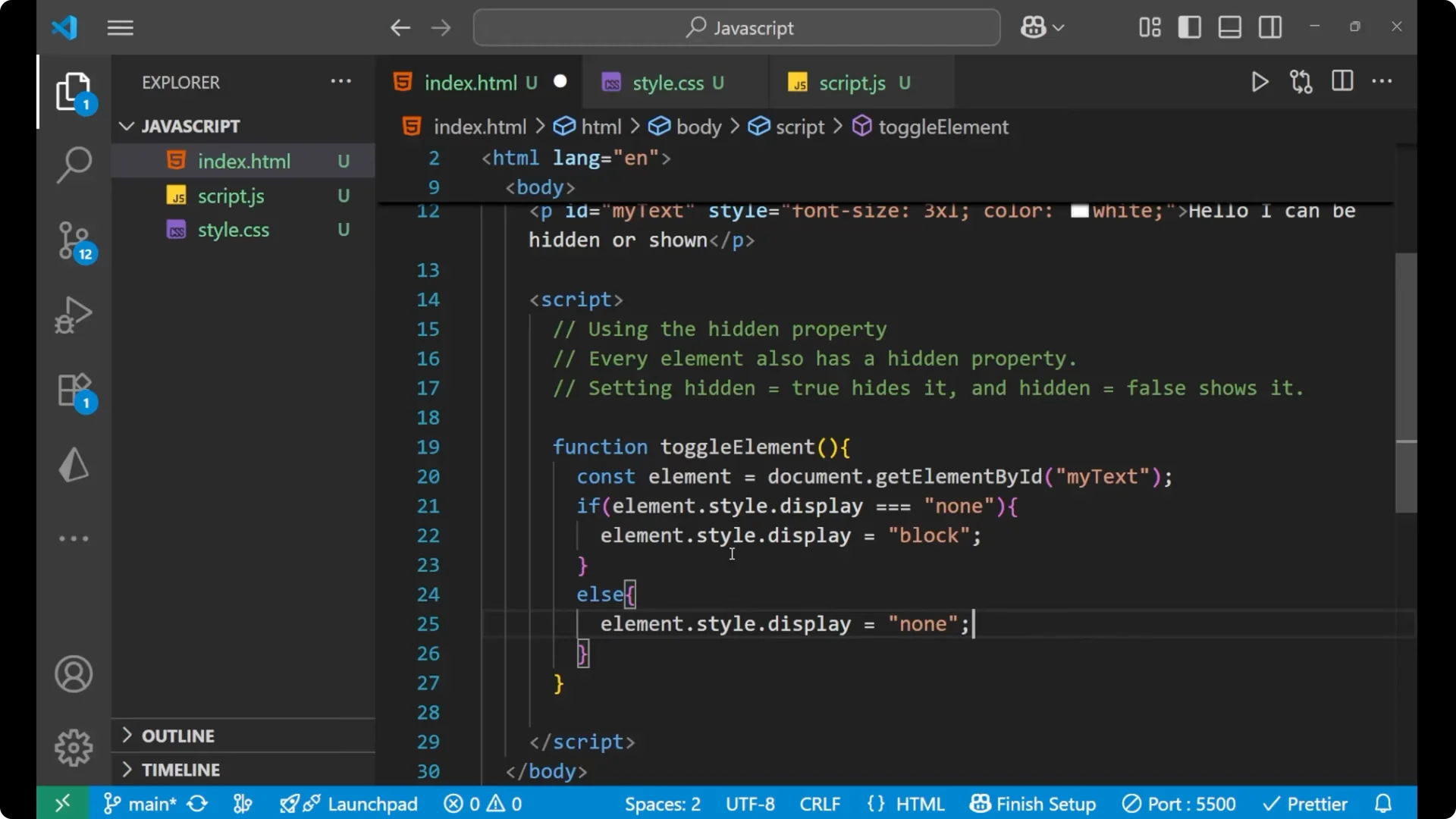
This checks the element’s inline style and swaps its display between none and block.
Step 1: Keep the same HTML structure and id.
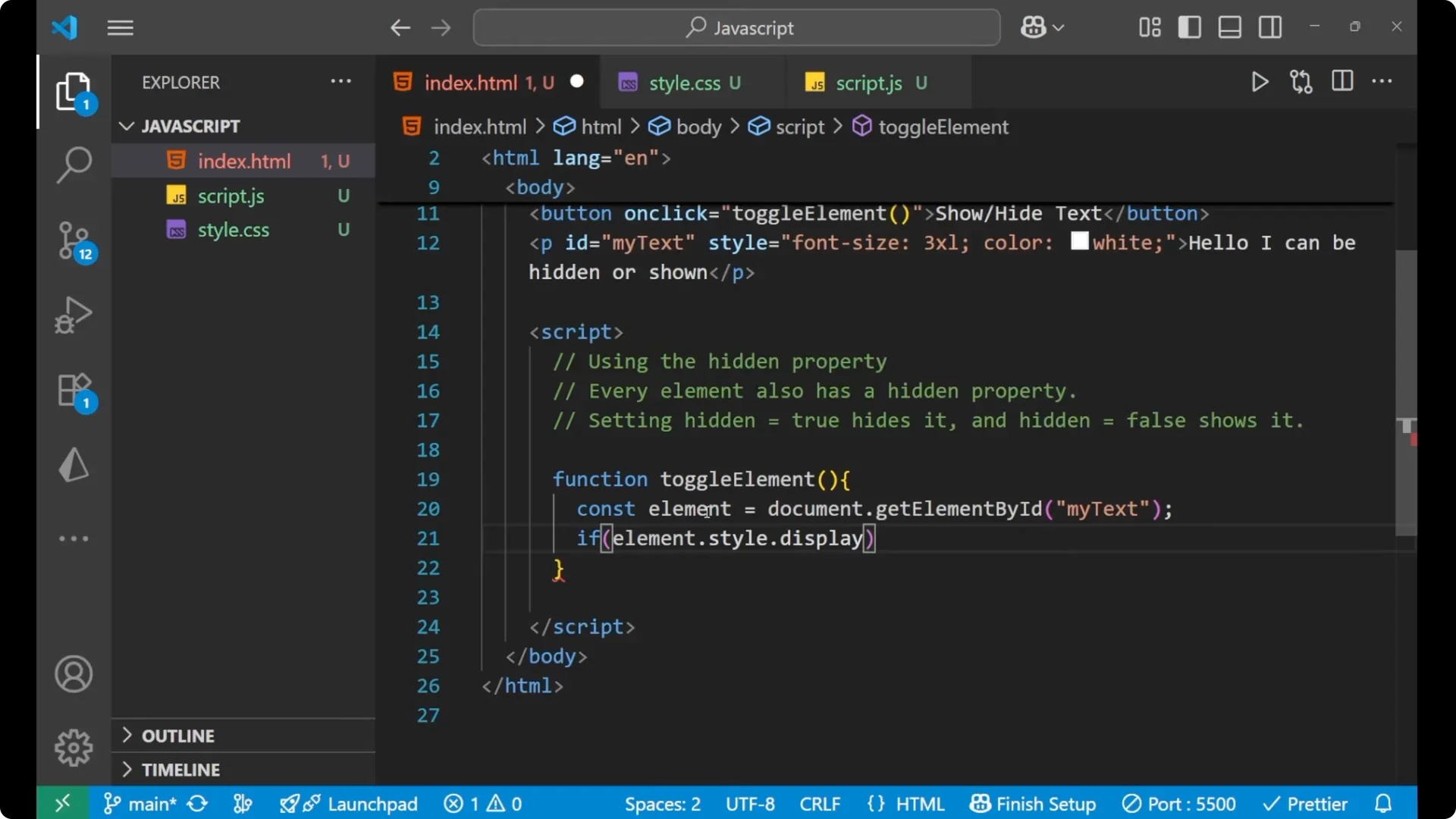
Step 2: In the function, read element.style.display and compare it to ‘none’.
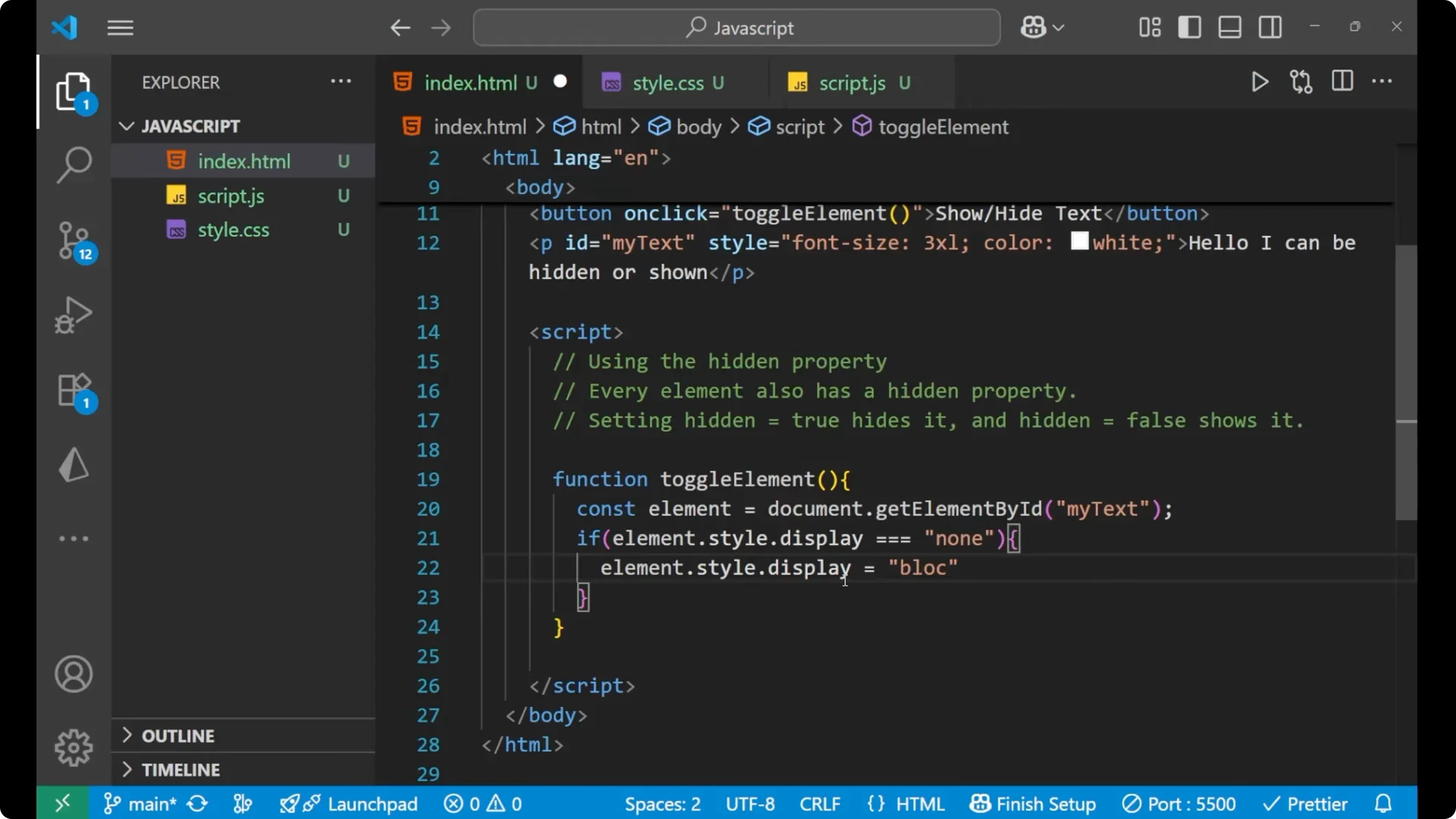
Step 3: If it is ‘none’, set it to ‘block’. Otherwise, set it to ‘none’.
<script>
  function toggleElement() {
    const element = document.getElementById('myText');
    if (element.style.display === 'none') {
      element.style.display = 'block';
    } else {
      element.style.display = 'none';
    }
  }
</script>
What the code checks?
The function first checks if the element’s display is none. If it is none, it makes it block. Otherwise, it makes it none. With this approach, you’re directly changing the CSS of the paragraph each time you click the button.
Final Thoughts
You can implement JavaScript toggle visibility with either the element’s built-in hidden property or by switching style.display between none and block. The first option is concise and semantic. The second gives explicit control over layout. Both approaches let you wire a simple button to show or hide any element on the page.