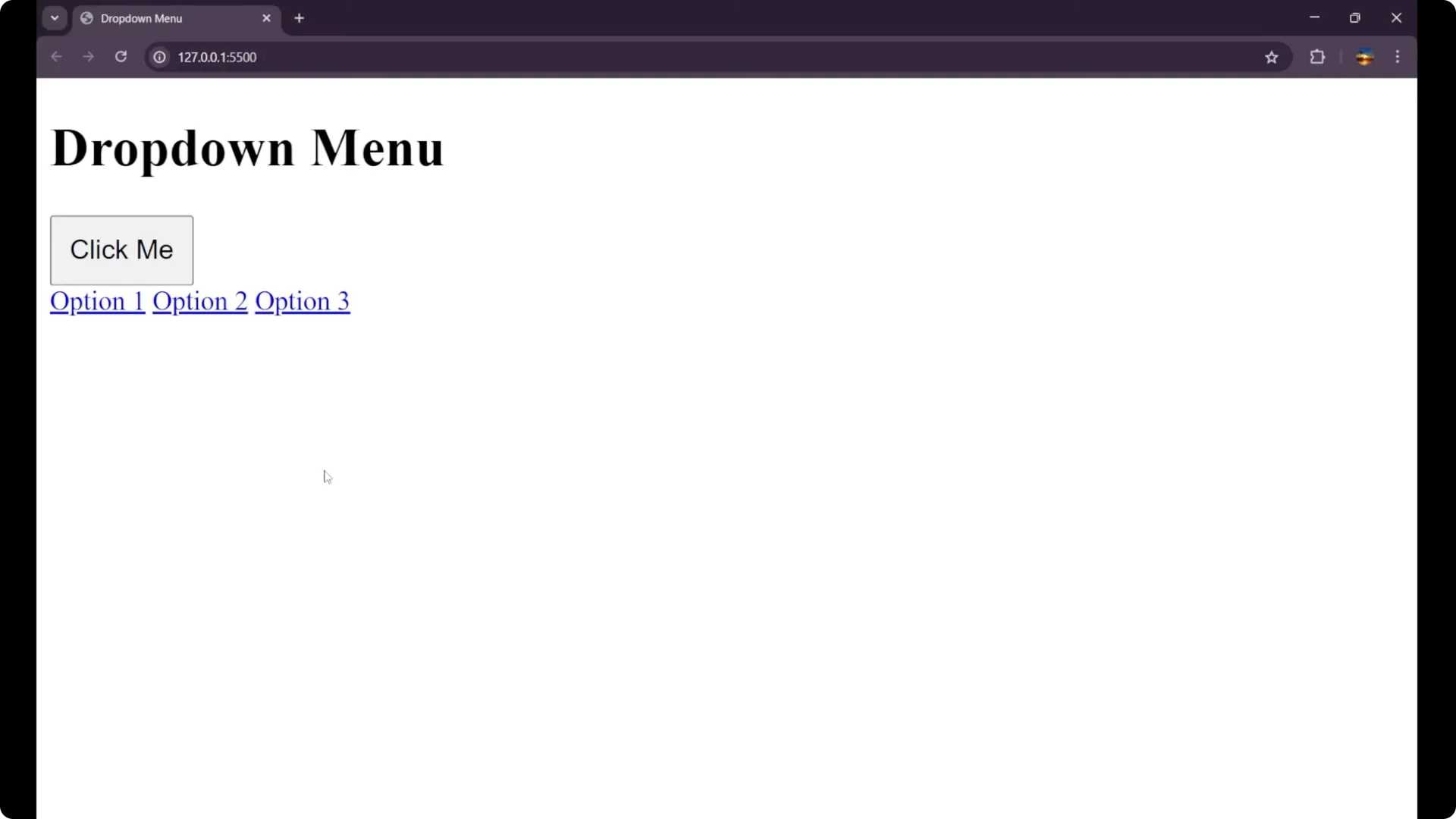
I’m going to show how to create a drop-down in JavaScript. I start with a basic HTML structure: a heading at the top, a main div whose class is drop-down, a button with the id drop-down-button that says “Click me,” and a div with the id and class drop-down-content.
Inside this div there are three anchor tags: Option 1, Option 2, and Option 3.
The goal is simple: when you click the button, the options appear; click again and they hide.
I’ll also improve the UI a bit and then add the core functionality.
Starter HTML for a JavaScript Dropdown Menu
Here’s the basic HTML:
<h1>Heading</h1>
<div class="drop-down">
  <button id="drop-down-button">Click me</button>
  <div id="drop-down-content" class="drop-down-content">
    <a href="#">Option 1</a>
    <a href="#">Option 2</a>
    <a href="#">Option 3</a>
  </div>
</div>
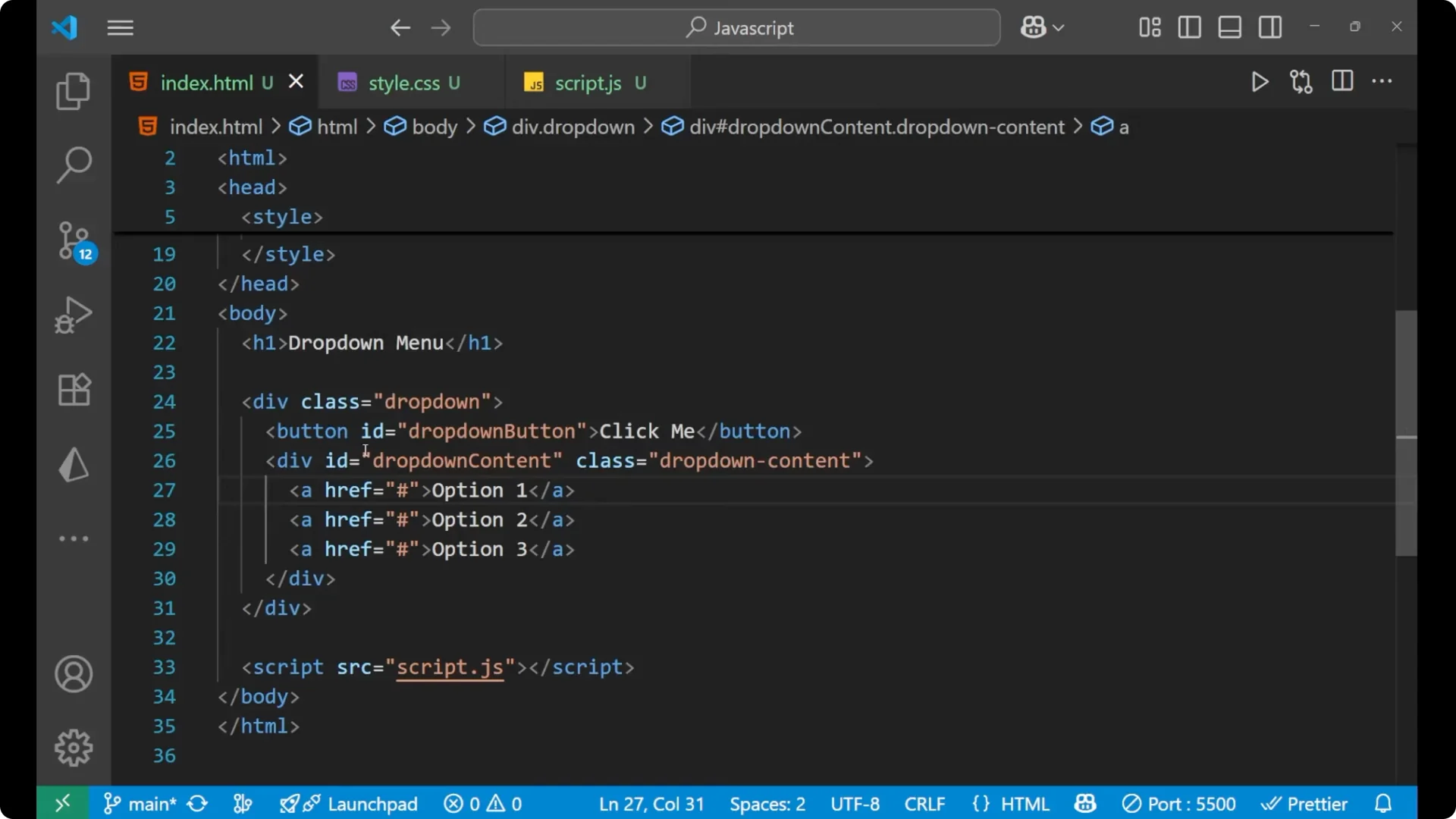
This is the structure I’ll work with. The button controls visibility of the inner content div that holds the three links.
Style the JavaScript Dropdown Menu
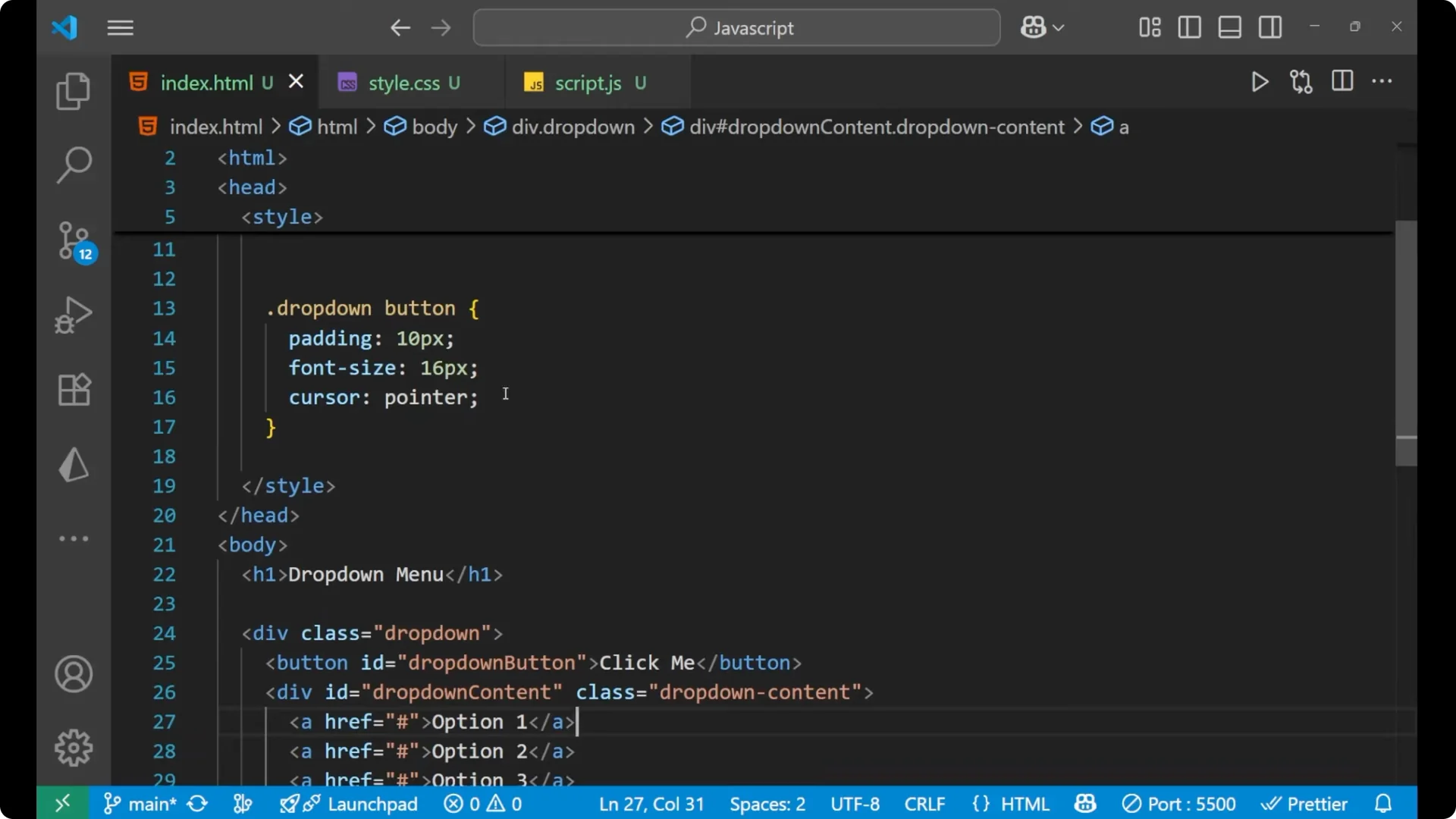
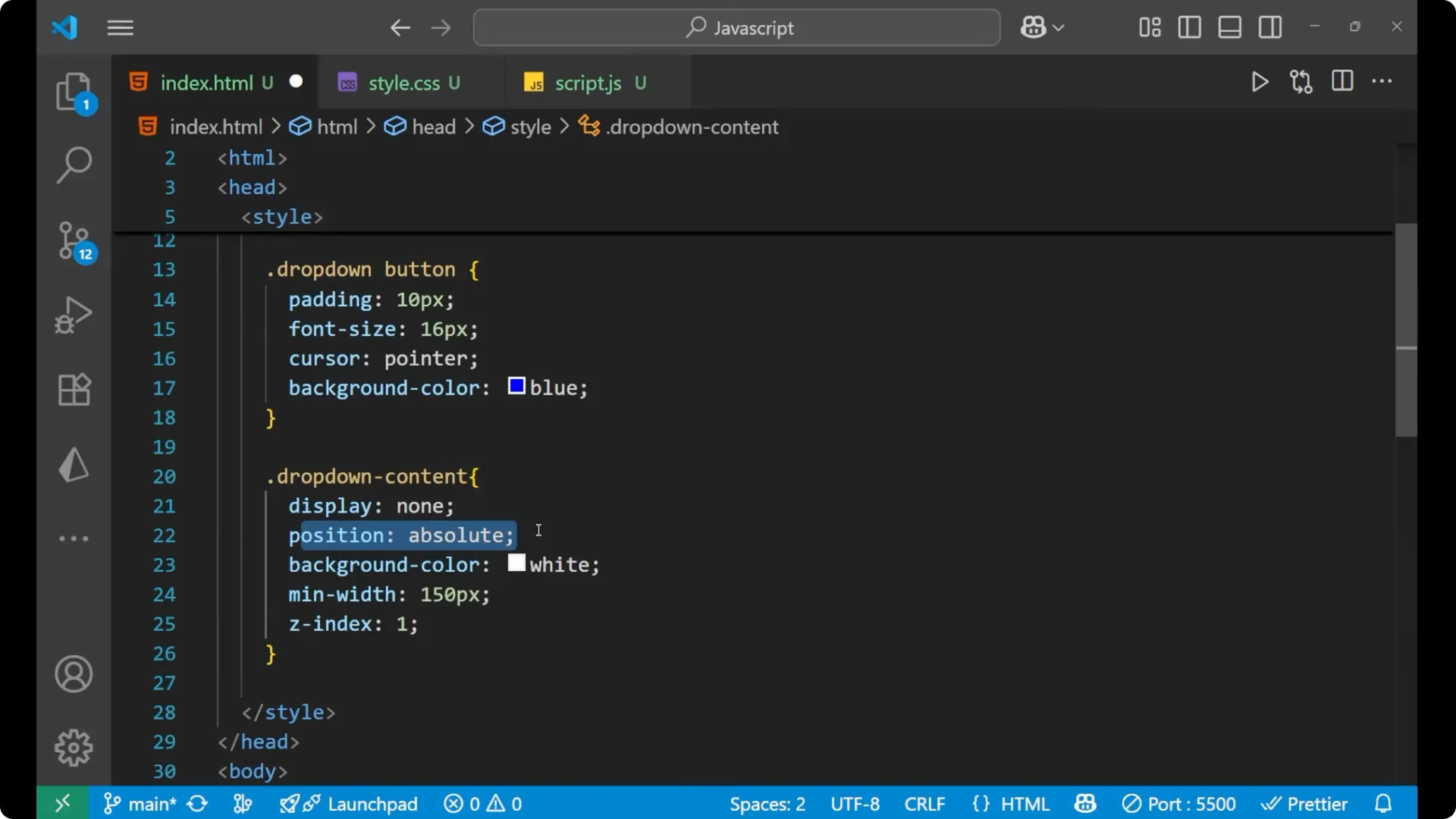
I’ll give the button a blue background to make it stand out, and then write the CSS for the drop-down-content.
The content should be hidden by default, absolutely positioned, with a white background and a minimum width so it looks like a menu.
#drop-down-button {
  background-color: blue;
}
.drop-down-content {
  display: none;
  position: absolute;
  background-color: white;
  min-width: 150px;
  z-index: 1;
}
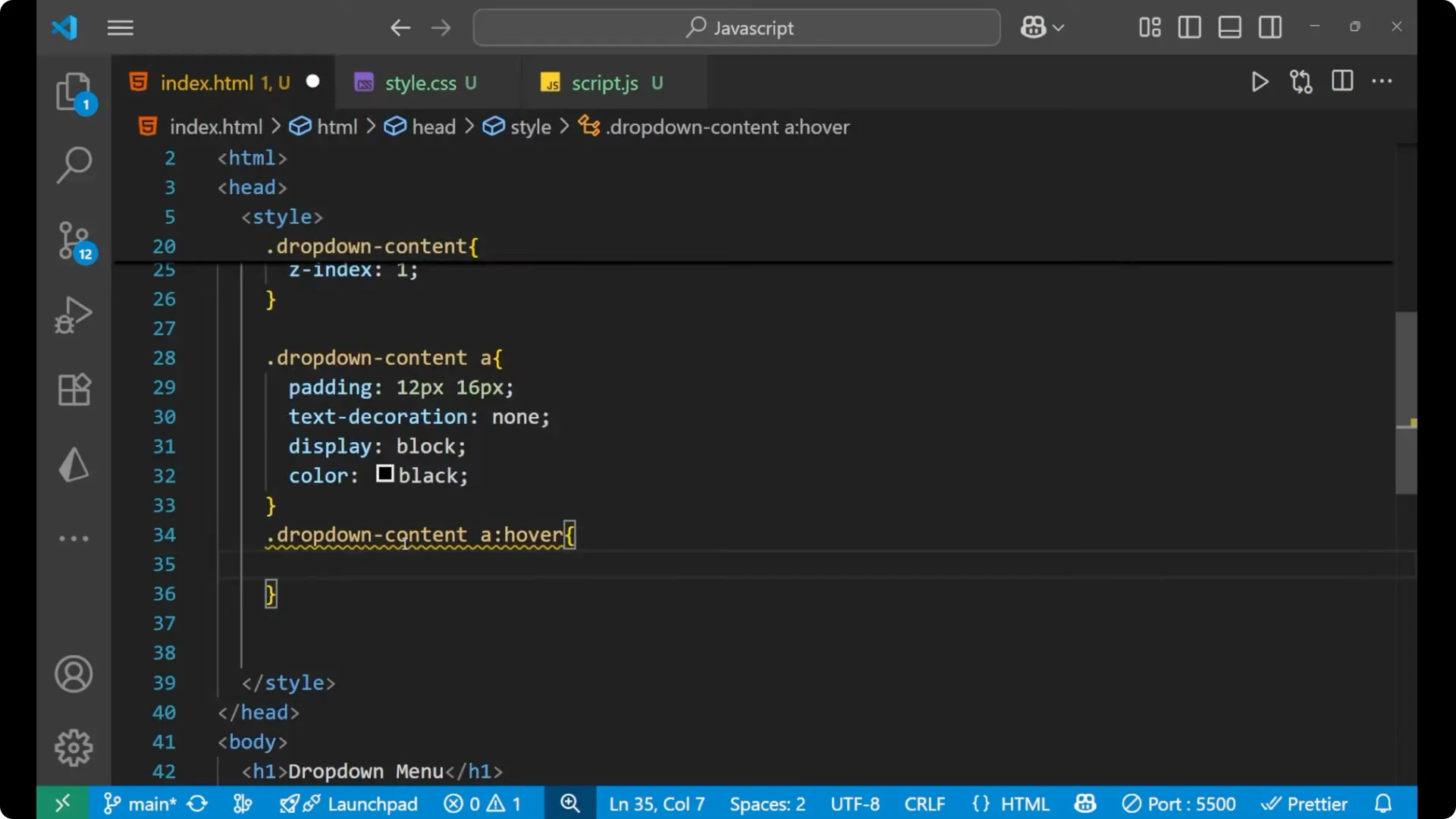
Each item inside the menu is just an anchor tag, so I’ll style those to look like menu items.
I’ll remove the underline, make them block-level, and add padding.
I’ll also add a simple hover effect so there’s visual feedback.
.drop-down-content a {
  padding: 12px 16px;
  text-decoration: none;
  display: block;
  color: black;
}
.drop-down-content a:hover {
  background-color: yellow;
}
Keeping `display: none` on the menu means it won’t appear on initial page load.
It should only appear when the button is clicked.
JavaScript Dropdown Menu behavior
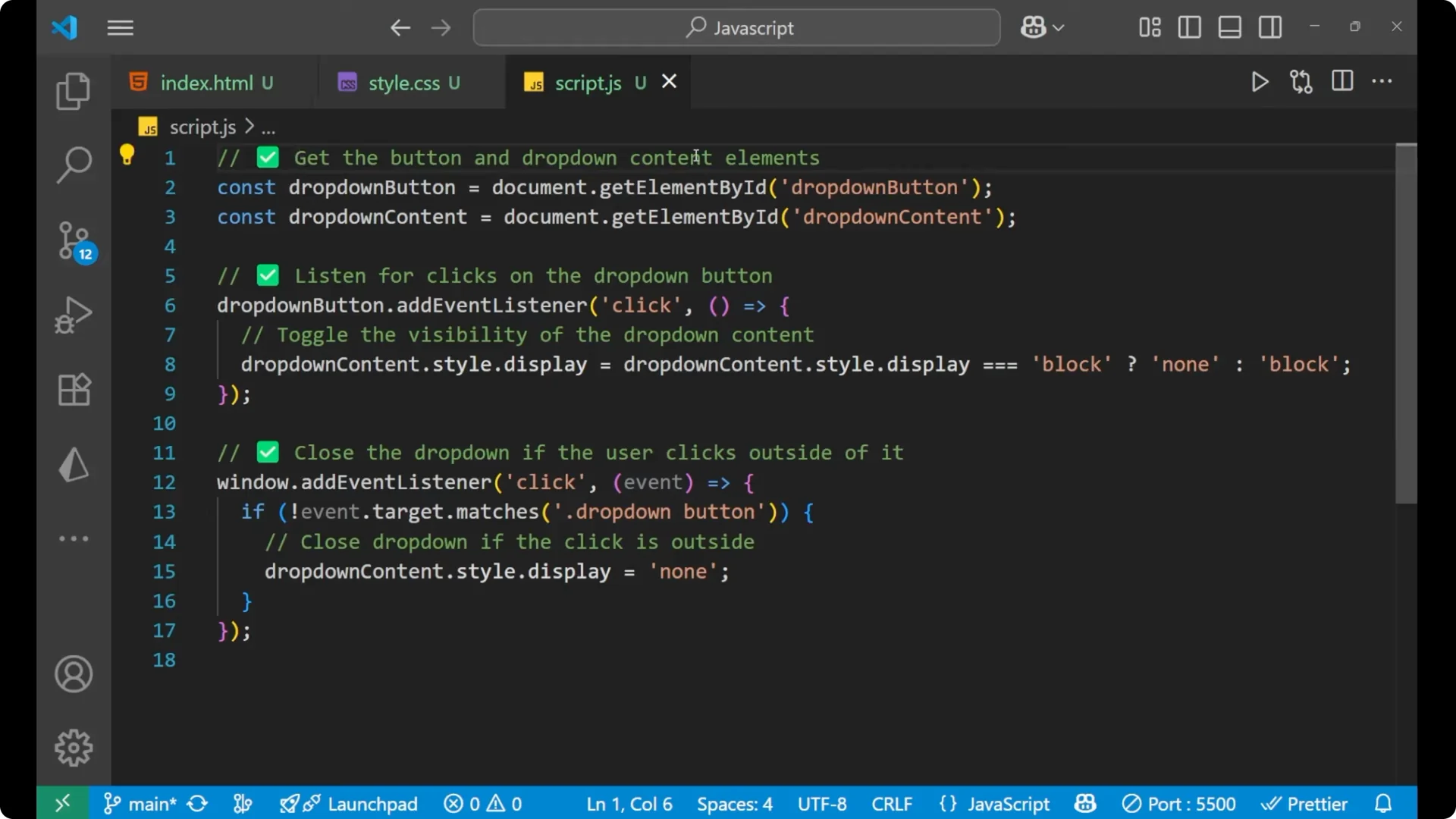
Here’s the JavaScript part of the functionality. First, I select the button and the drop-down content using `getElementById`.
As I often remind beginners in Important Javascript Methods Beginners, these DOM methods are the building blocks of interactive UI.
const dropDownButton = document.getElementById('drop-down-button');
const dropDownContent = document.getElementById('drop-down-content');
Toggle the menu on button click
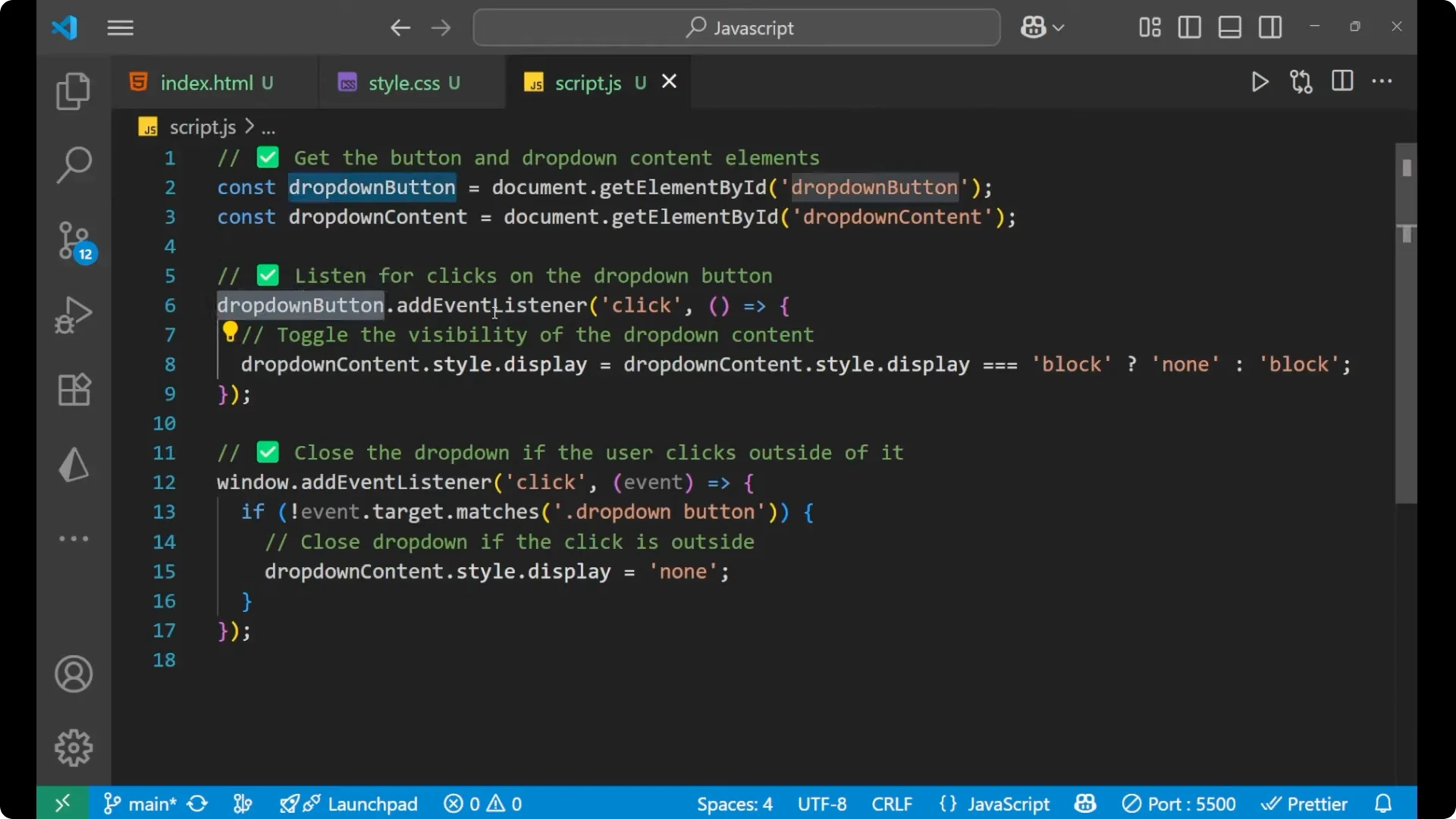
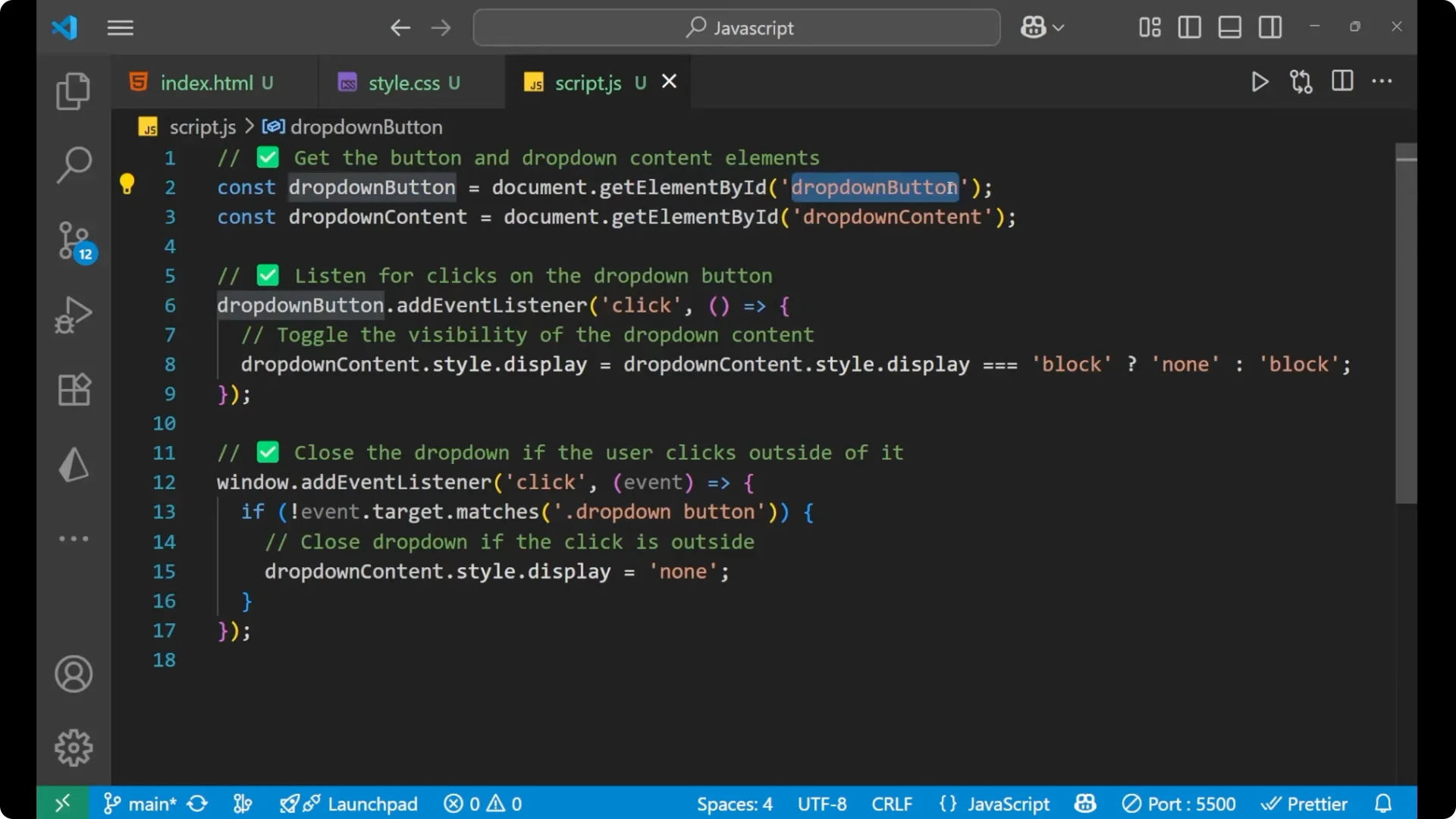
I listen for the click event on the button and toggle the display style of the content. If it’s block, make it none; otherwise, make it block.
dropDownButton.addEventListener('click', function () {
  if (dropDownContent.style.display === 'block') {
    dropDownContent.style.display = 'none';
  } else {
    dropDownContent.style.display = 'block';
  }
});
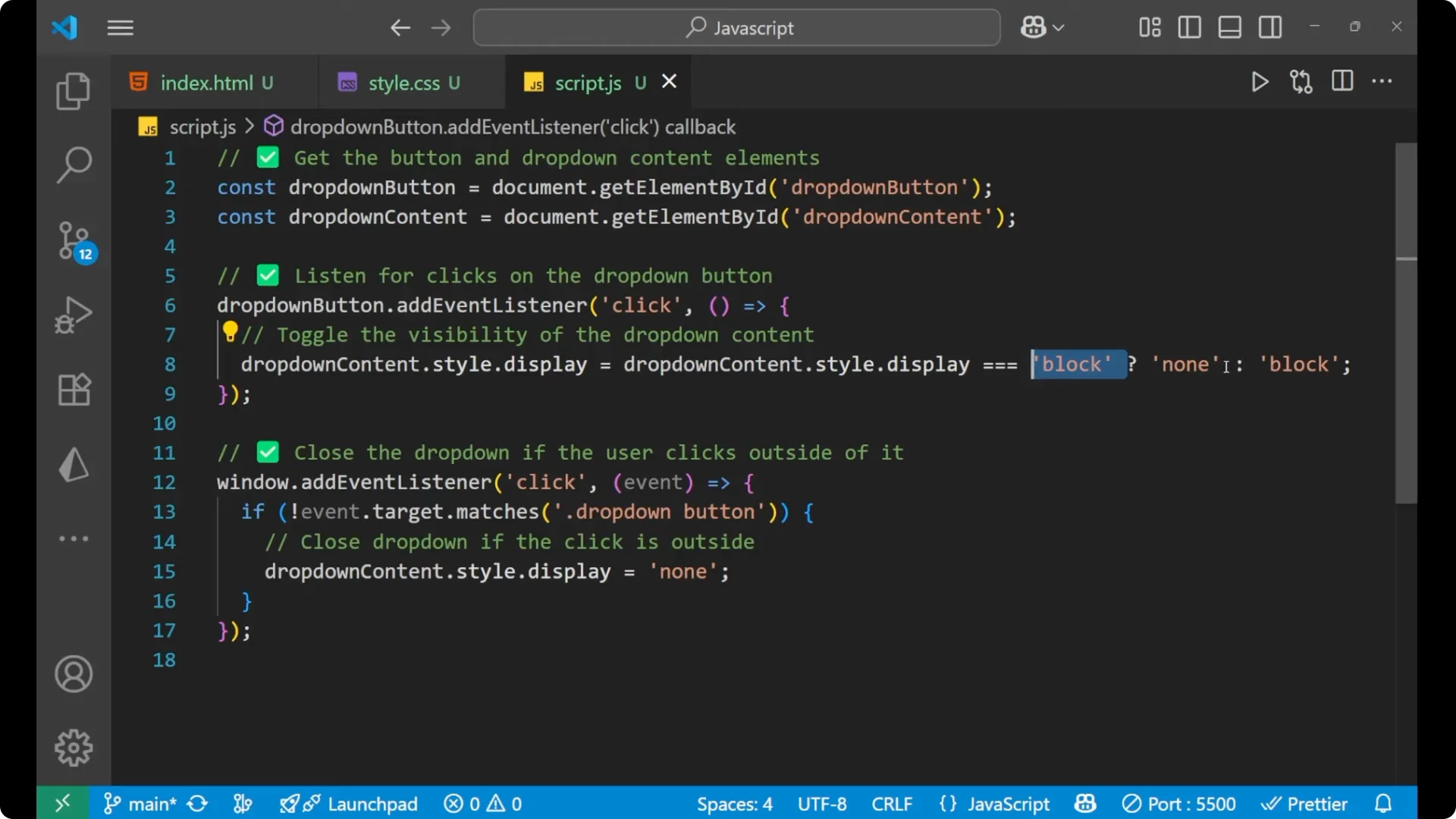
This is the core toggle. The idea is simple: check the current display and flip it.
Close the JavaScript Dropdown Menu on outside click
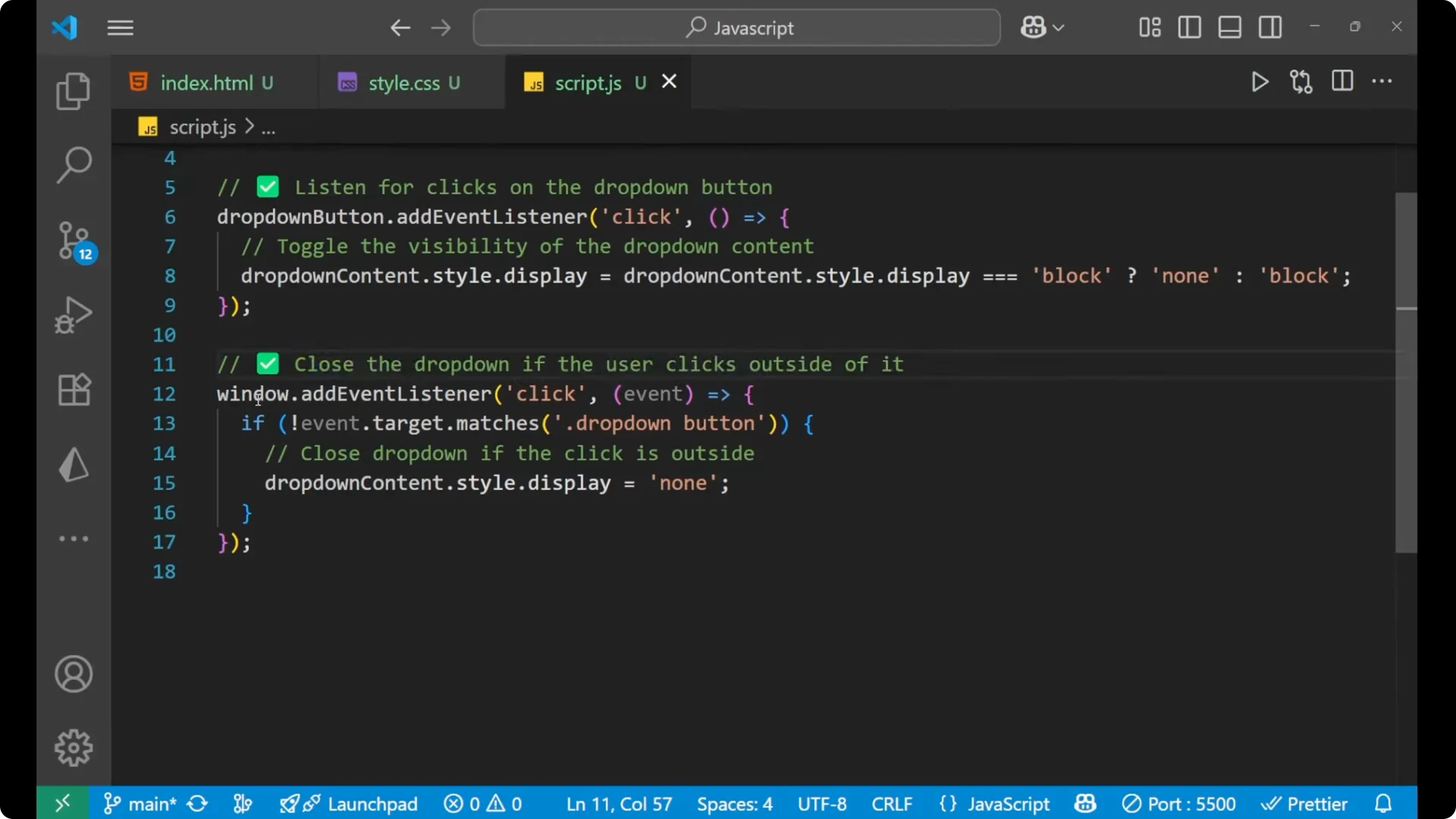
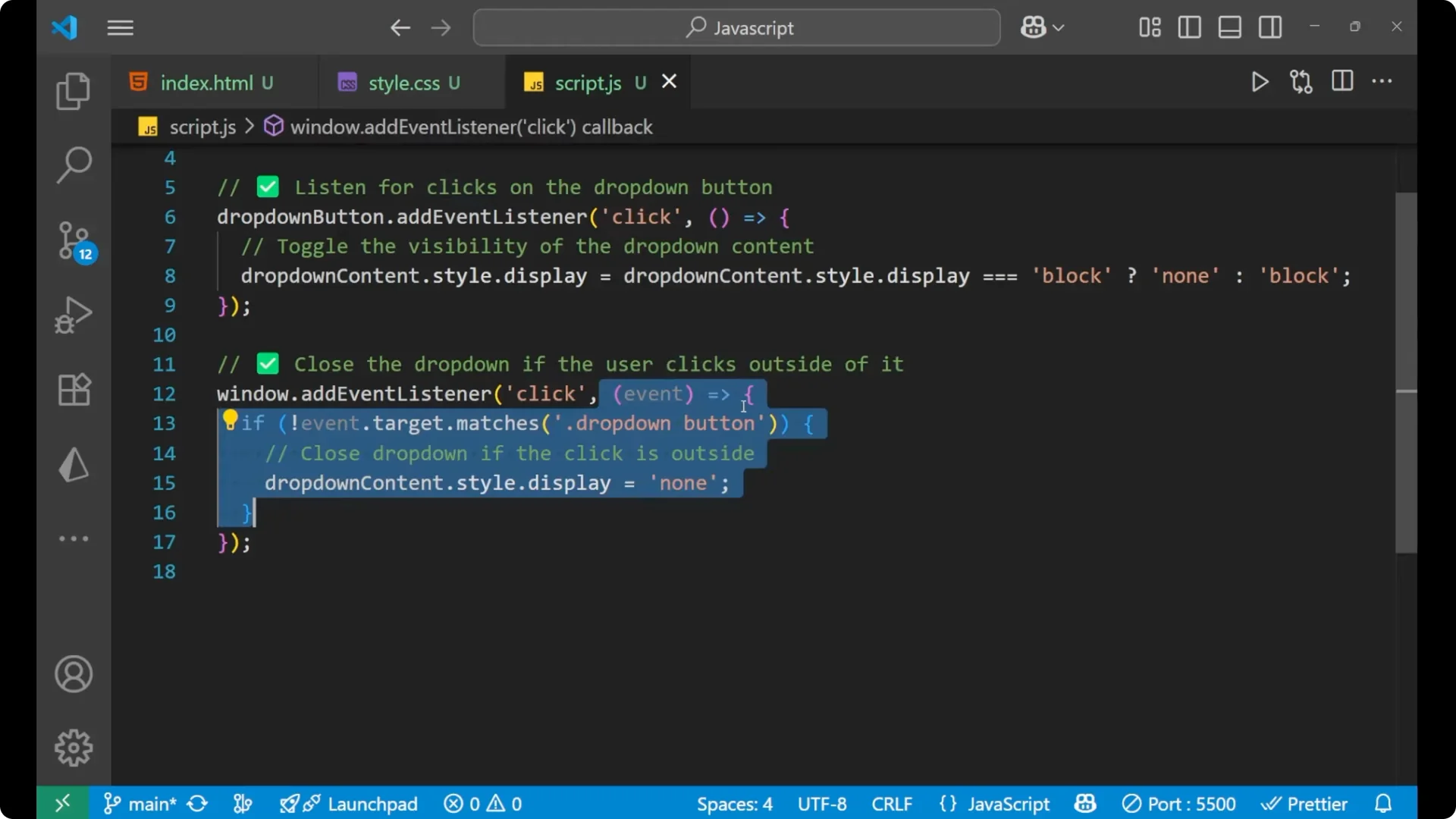
I also want to close the drop-down if the user clicks outside of it. For that, I put a click event listener on the `window`.
If the click target is not the drop-down button, I hide the content.
This is the main logic many students ask about: how to close the menu when clicking outside.
window.addEventListener('click', function (event) {
  if (!event.target.matches('#drop-down-button')) {
    dropDownContent.style.display = 'none';
  }
});
Click the button and the drop-down is present. Click somewhere else and it disappears.
Click the button again and the options appear; click the button once more and it disappears.
For heavier or frequent event scenarios, controlling how often event handlers run can be important, as discussed in Debounce Javascript Functions Performance.
The same DOM event patterns show up in many small projects, like the timer in Stopwatch Javascript Dom Start Stop Reset.
Final thoughts
That’s the complete logic for a simple JavaScript Dropdown Menu: hide the menu by default with CSS, toggle it on button click by switching display between none and block, and close it on outside clicks by listening on `window`. This approach is straightforward, and the outside-click handler is the key piece that makes the menu feel complete.