We will build a form where you can add a new input field or remove them anytime. It is super useful for dynamic forms.
When I click on Add field a new input should appear, and when I click on Remove then that particular input field to which this button is attached should get disappeared.
You will learn how to work with DOM manipulation and how to do the append work.
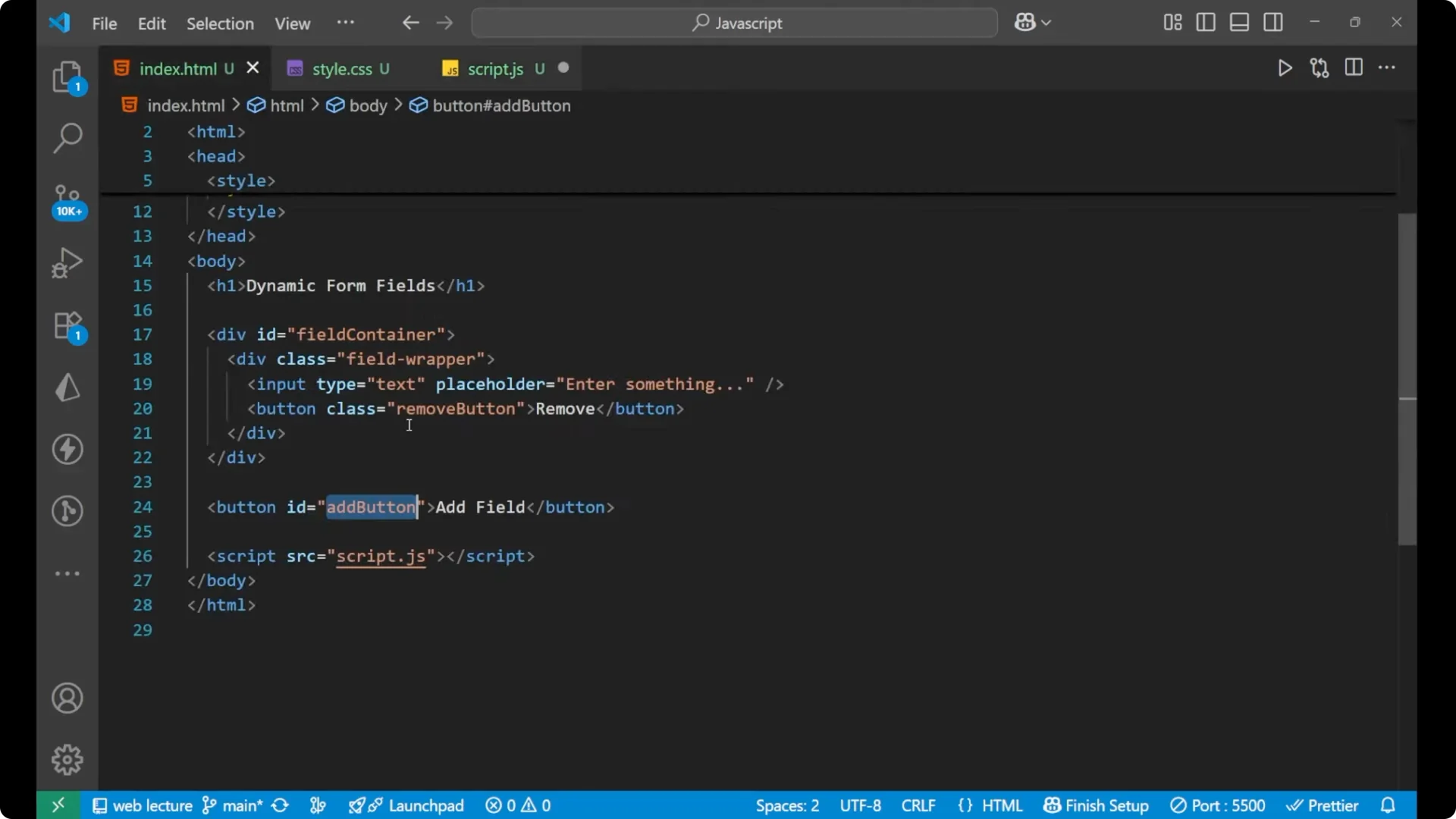
JavaScript Dynamic Form Fields: Markup
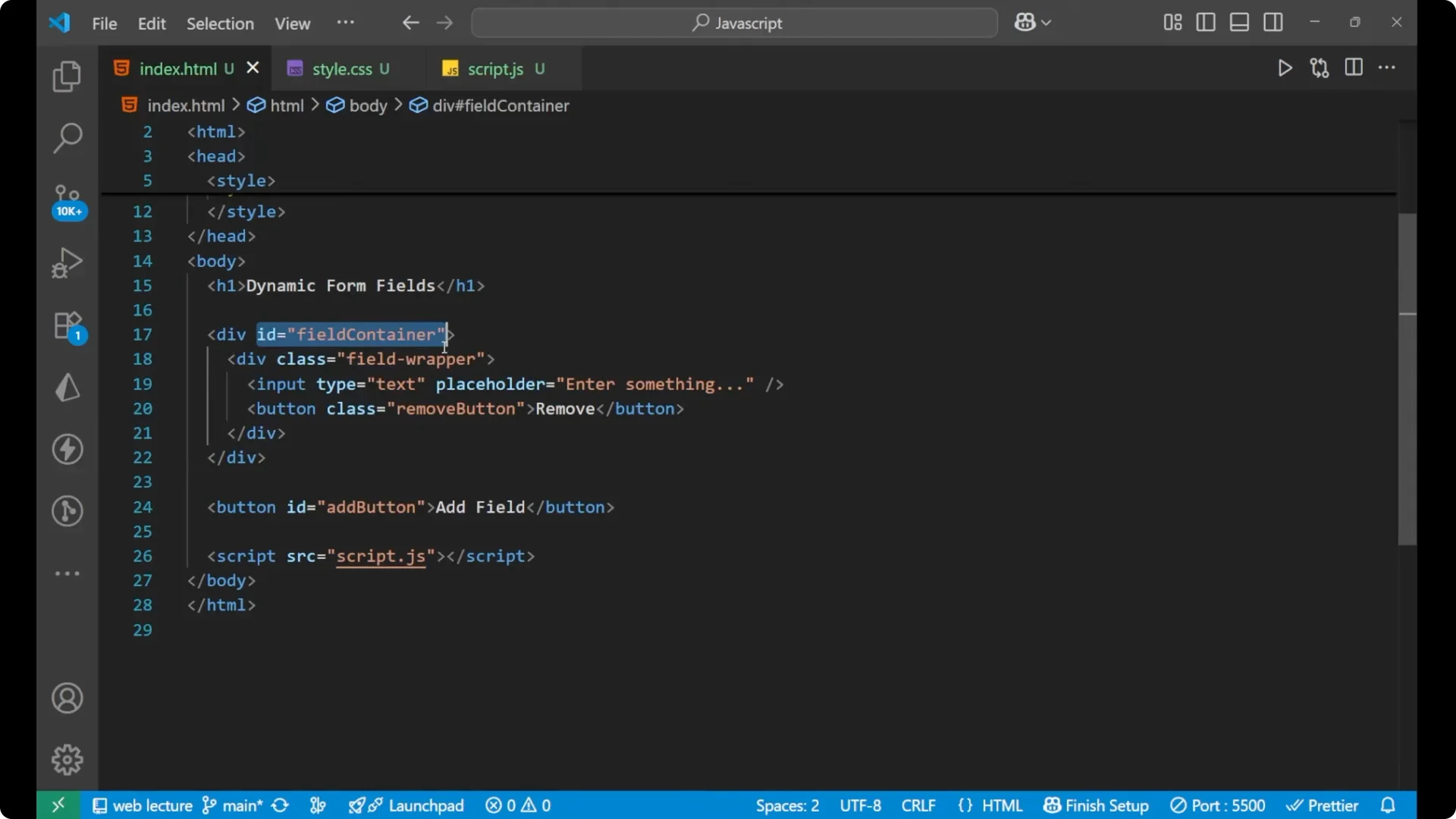
I have a heading with content as Dynamic Form Fields. After that we are having a main div. Inside this we are having an id as field-container. I
nside of this we are again having a div whose class is field-wrapper. Inside of it we are having an input and a button.
The input type is text with a placeholder, and the class of the button is remove-button. In the end we are having an Add field button whose id is add.
HTML structure
<h1>Dynamic Form Fields</h1>

<div id="field-container">
  <div class="field-wrapper">
    <input type="text" placeholder="Enter something" />
    <button class="remove-button">Remove</button>
  </div>
</div>

<button id="add">Add field</button>
JavaScript Dynamic Form Fields: Selecting elements
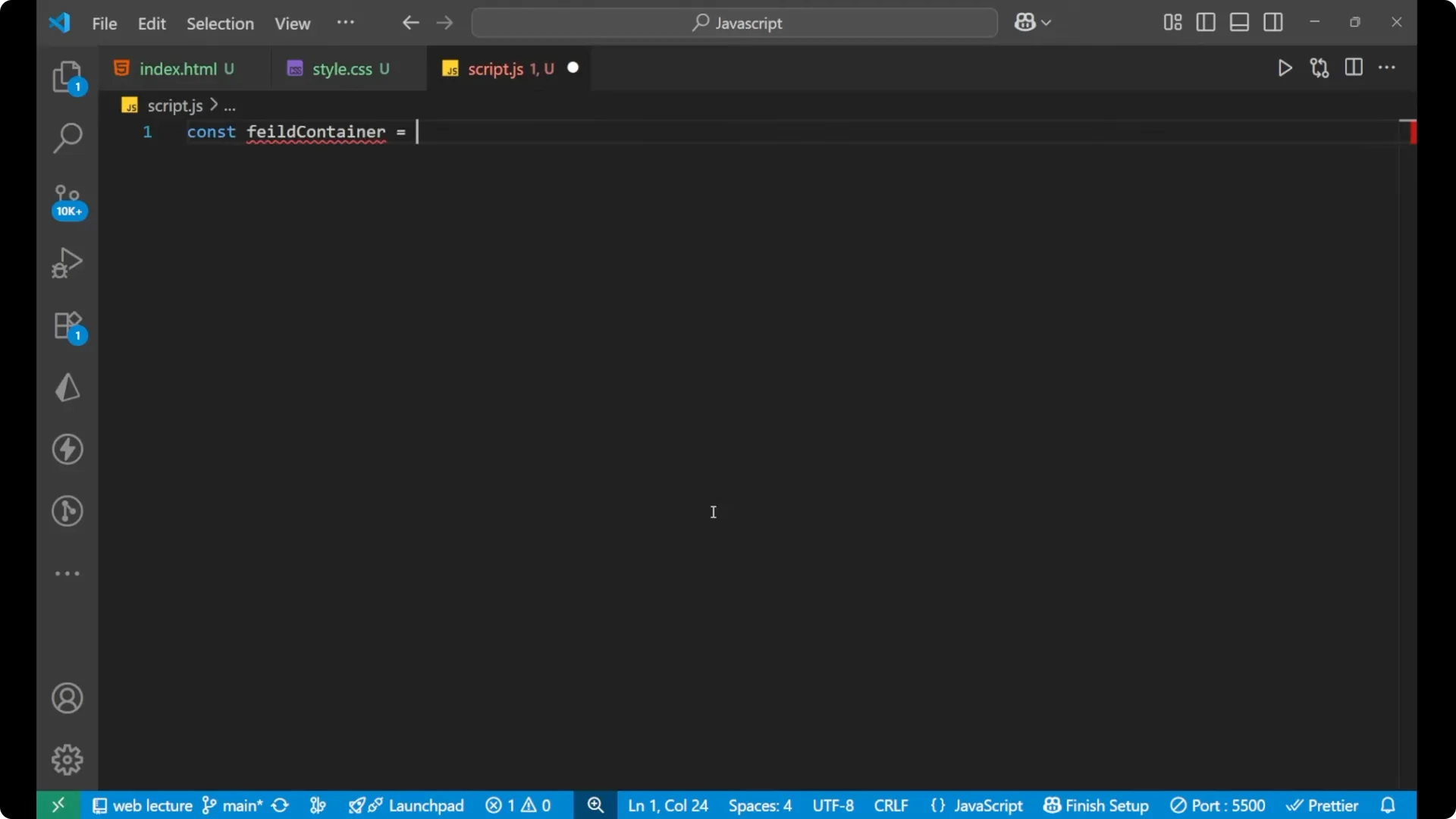
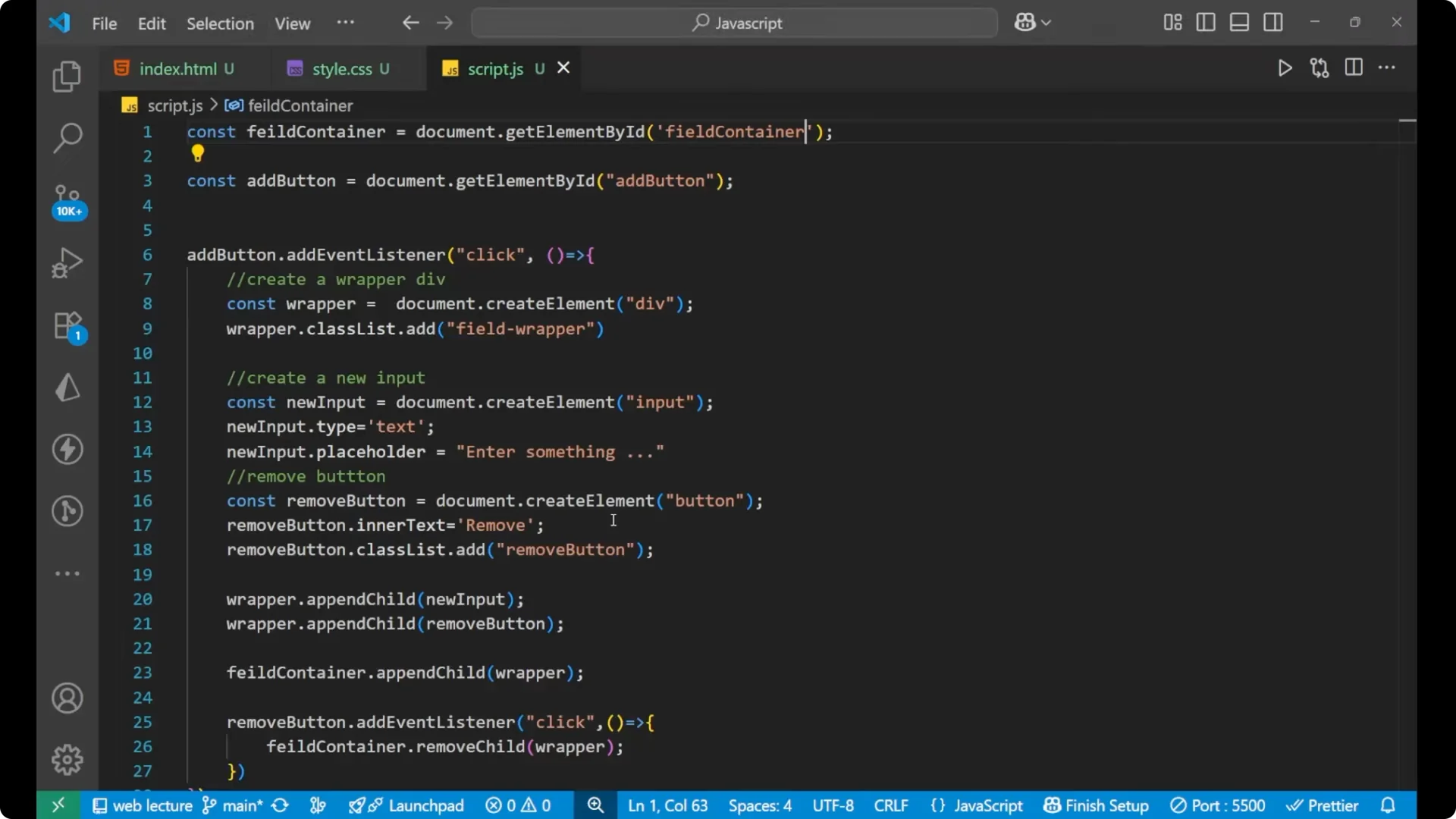
First we will get the container and the Add button.
const fieldContainer = document.getElementById('field-container');
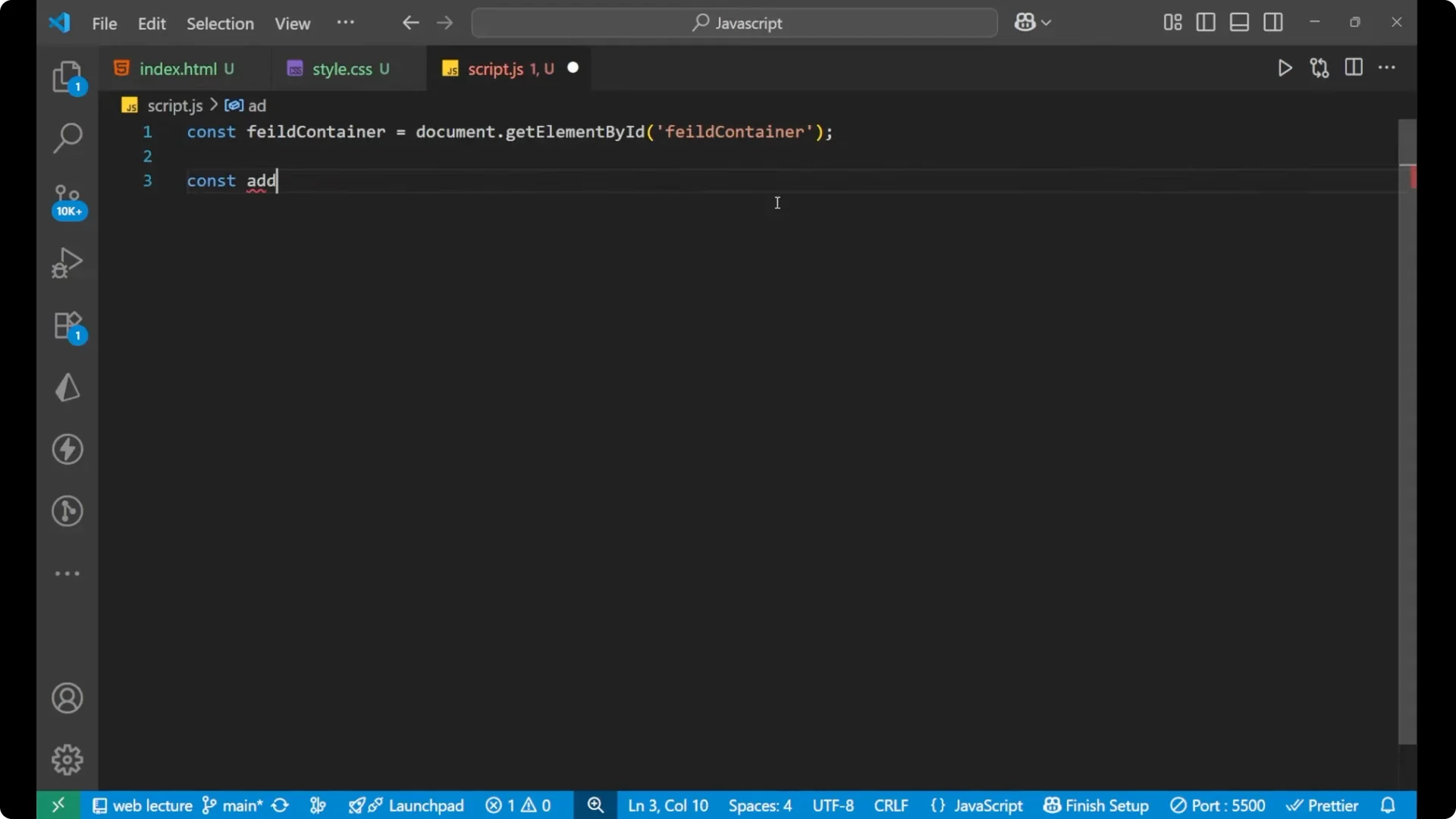
const addButton = document.getElementById('add');
JavaScript Dynamic Form Fields: Add field logic
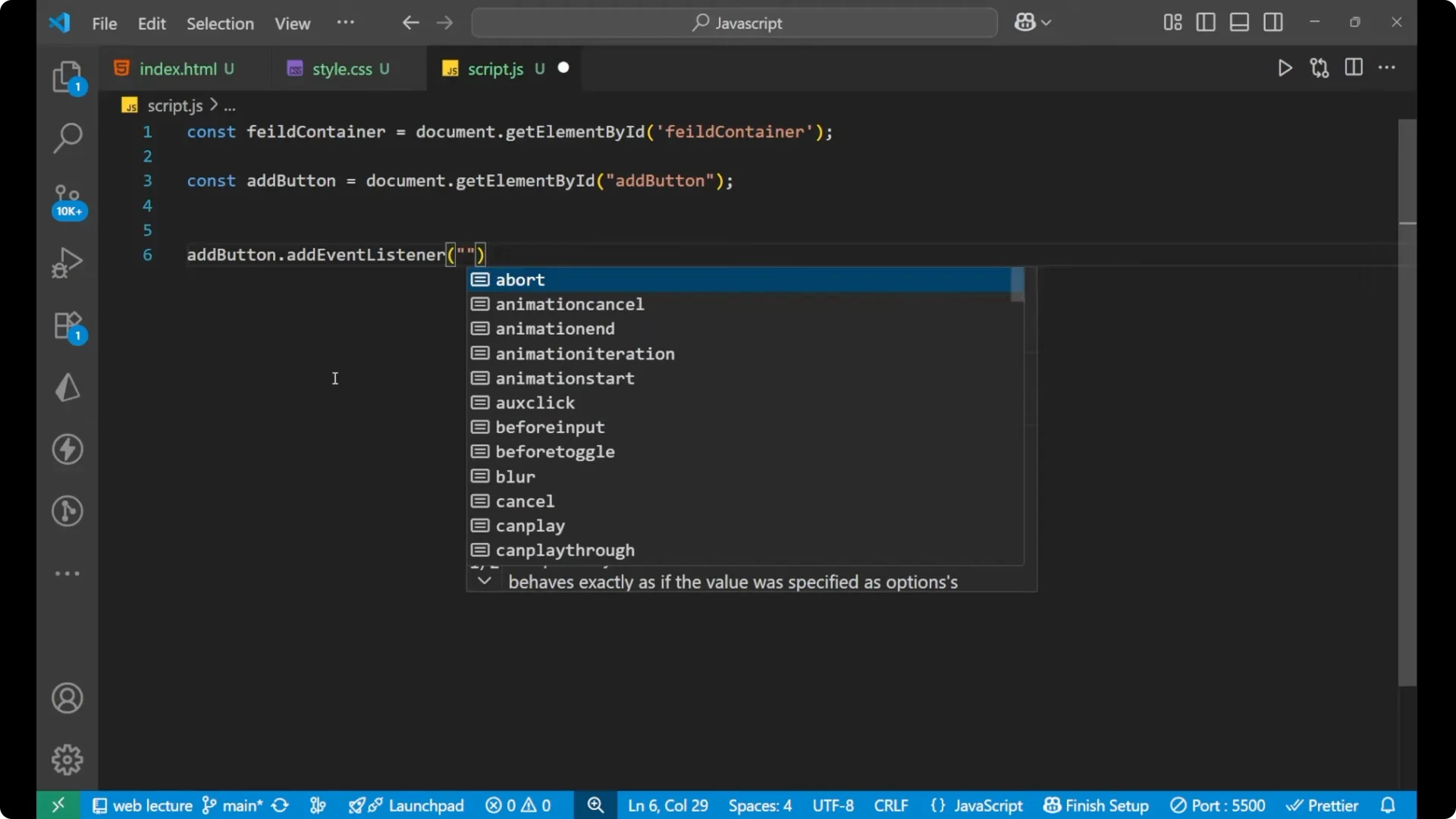
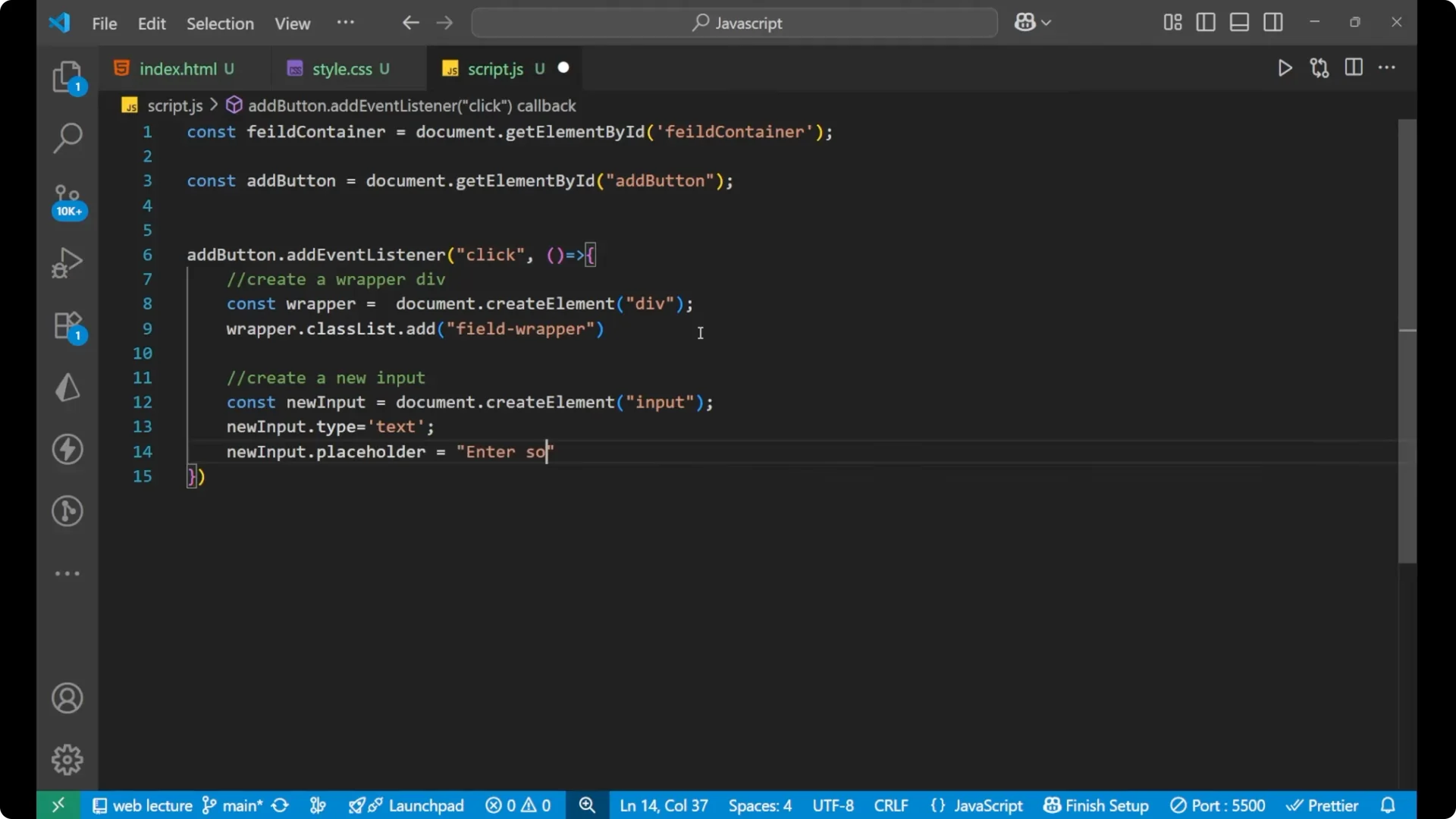
Make an event listener to the Add button such that whenever you click on Add field a new input field will appear.
- Create a wrapper div.
- Add the field-wrapper class to it.
- Create a new input and set its type and placeholder.
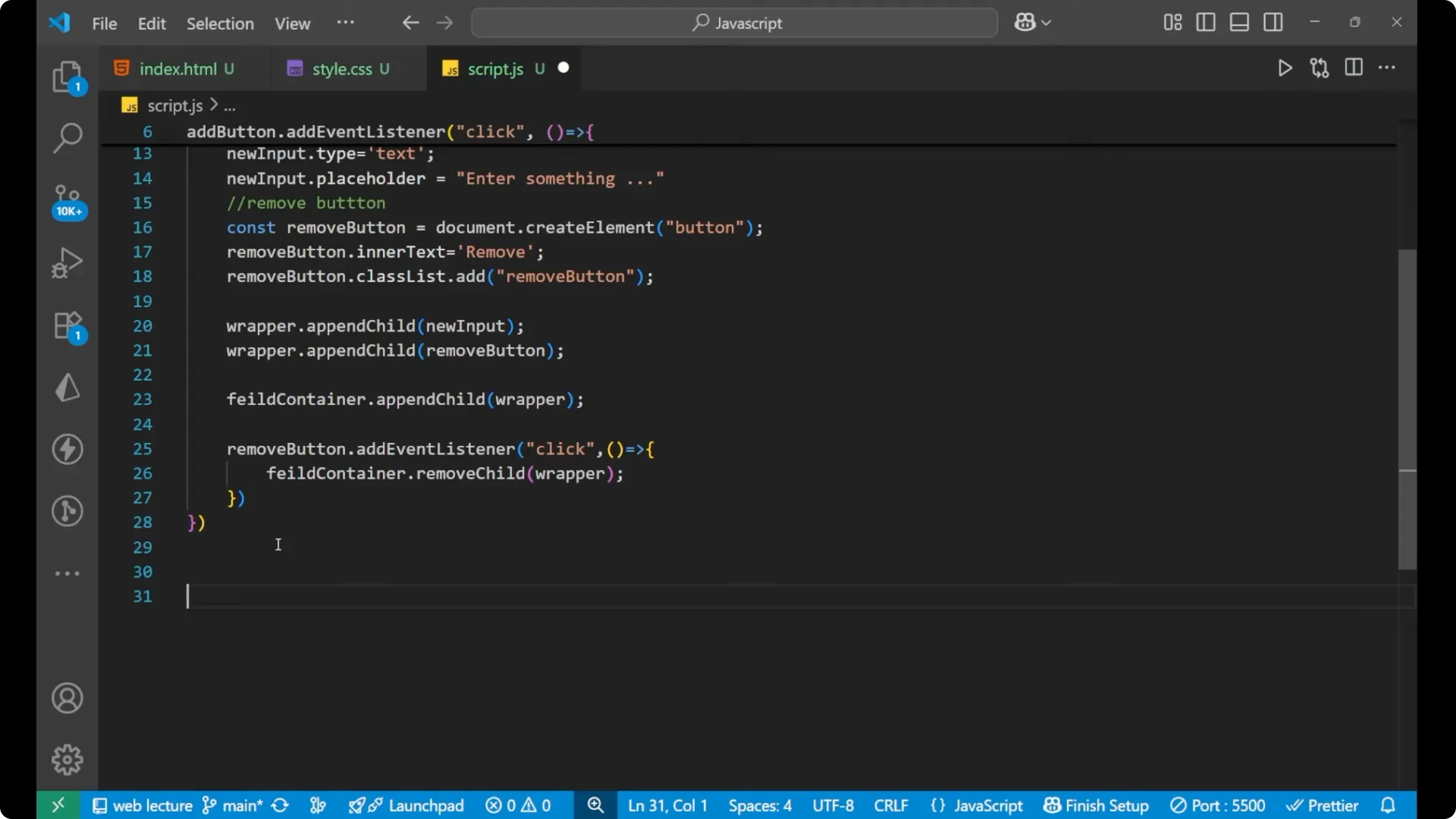
- Create a new Remove button and add the remove-button class.
- Append the input and button to the wrapper.
- Append the wrapper to the main container.
- Add a click listener to the newly created Remove button to remove its wrapper.
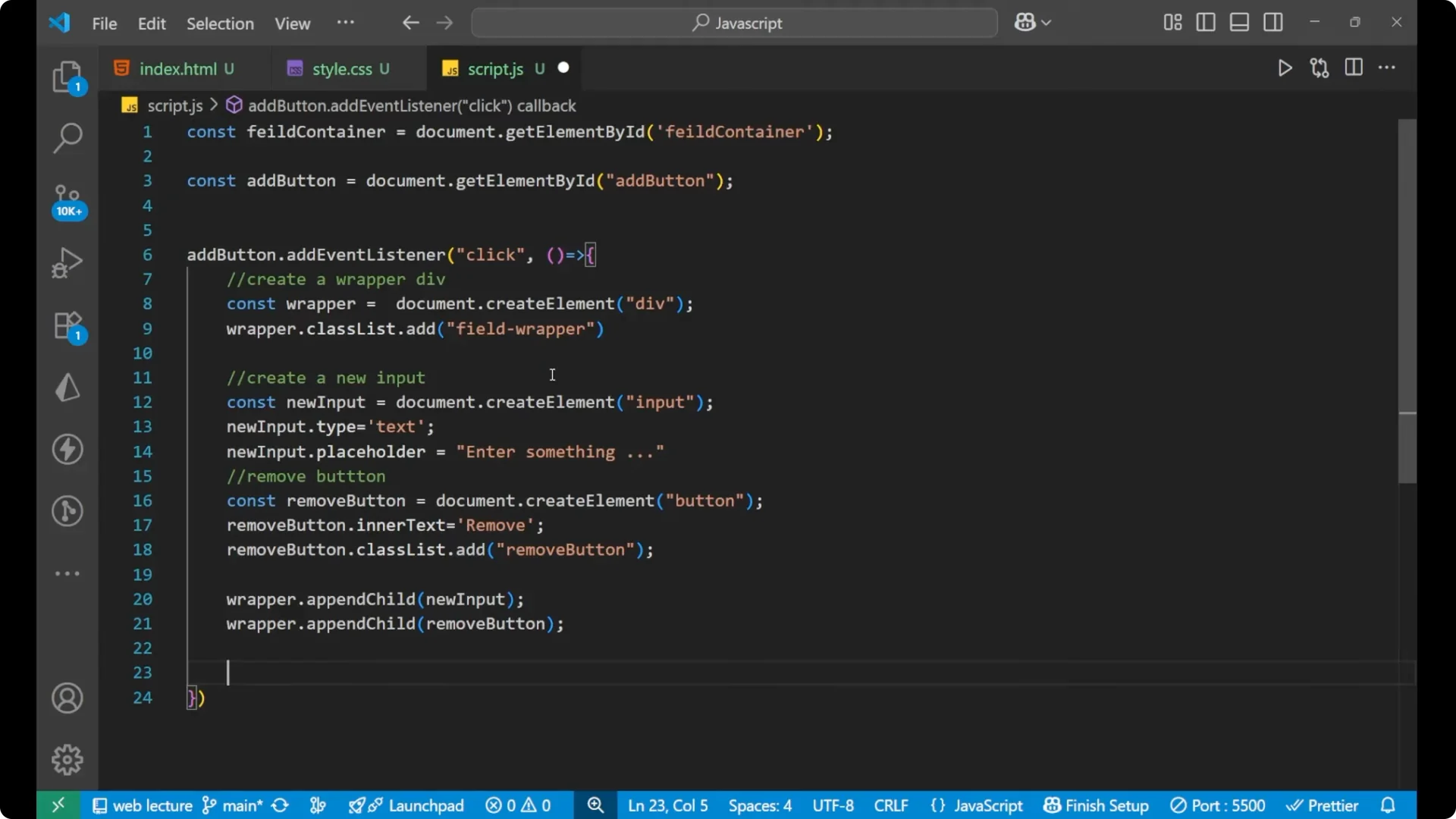
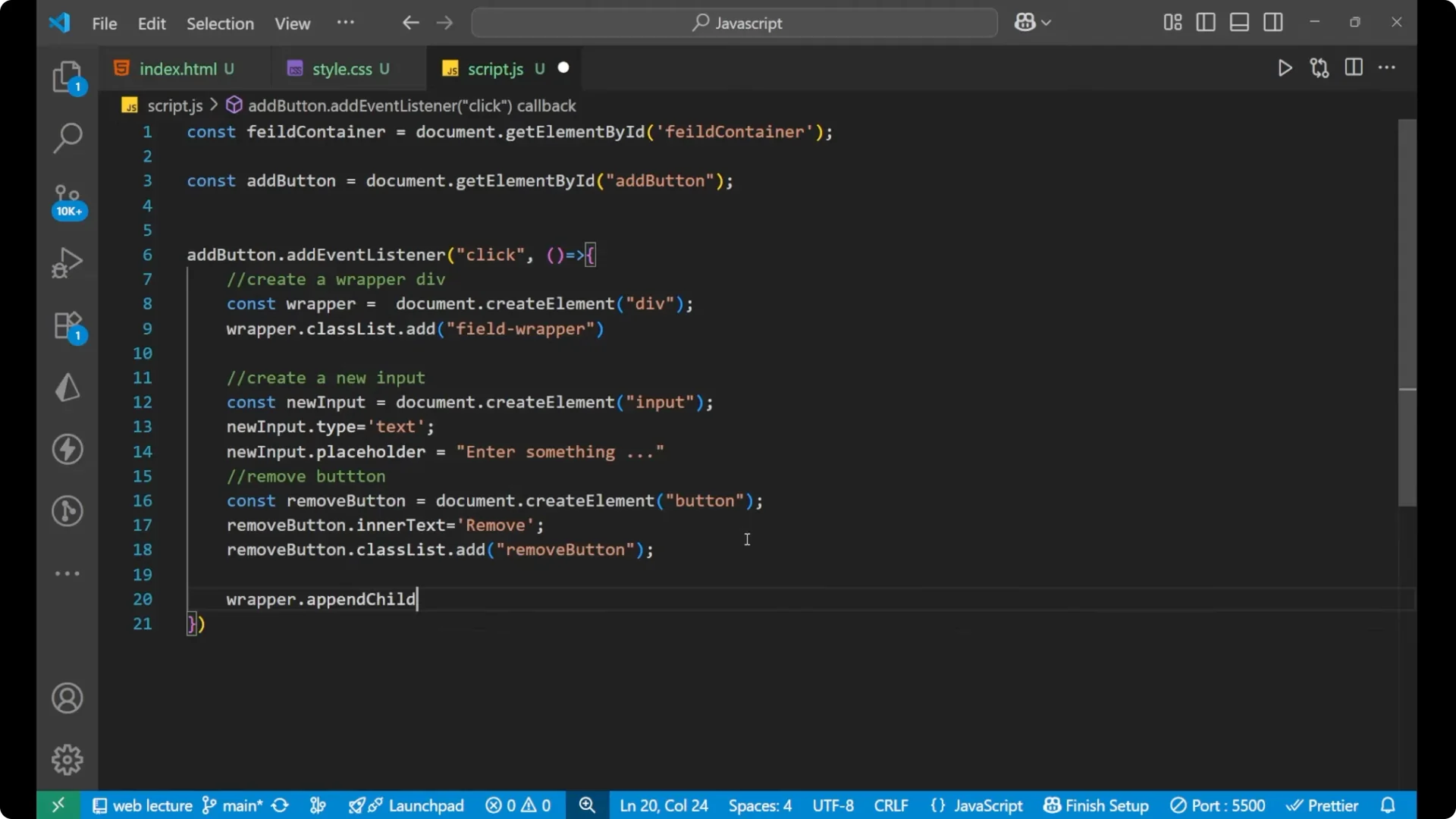
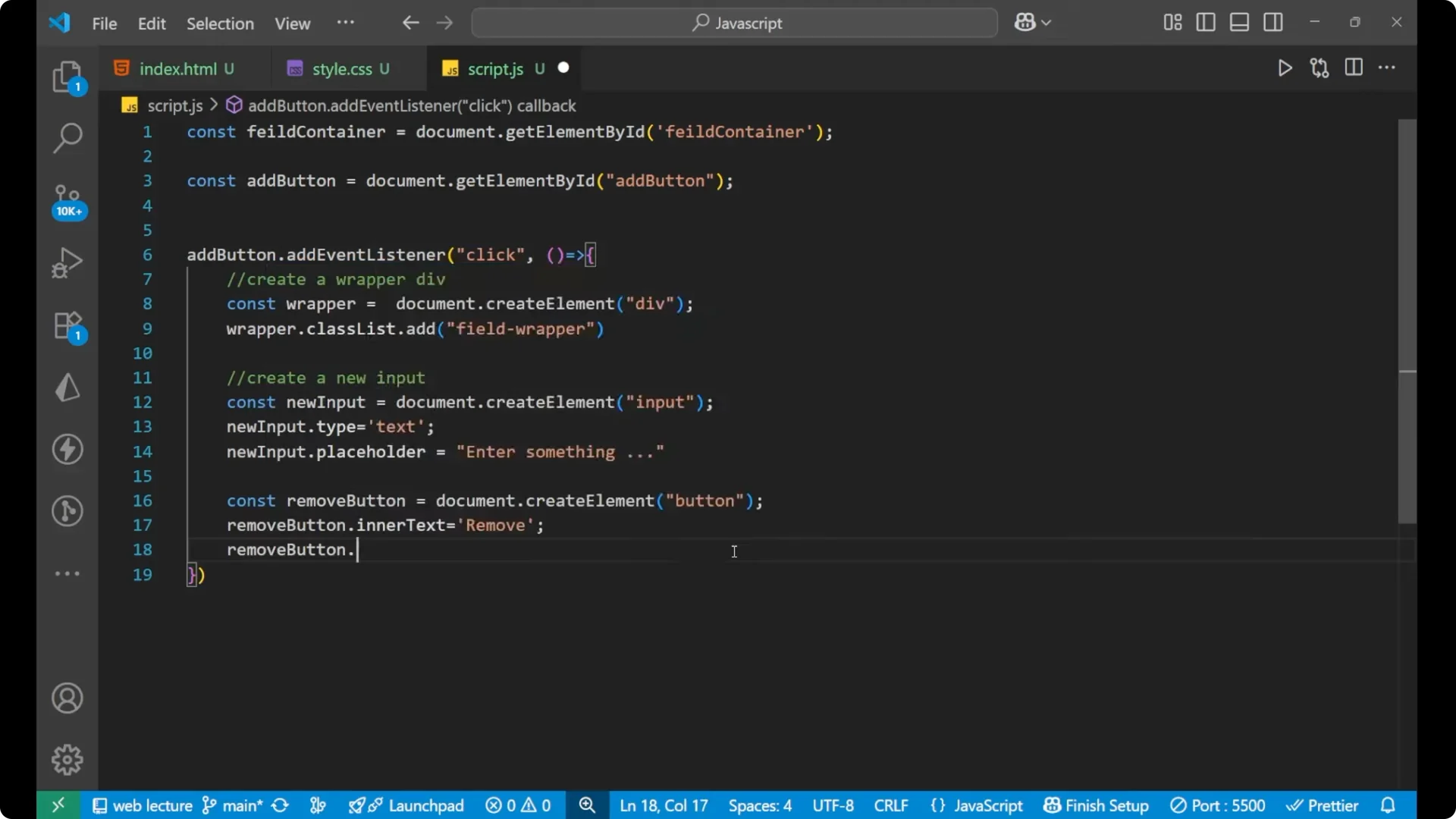
addButton.addEventListener('click', () => {
  // Create wrapper
  const wrapper = document.createElement('div');
  wrapper.classList.add('field-wrapper');


  // Create input
  const newInput = document.createElement('input');
  newInput.type = 'text';
  newInput.placeholder = 'Enter something anything which you want';

  // Create remove button
  const removeButton = document.createElement('button');
  removeButton.innerText = 'Remove';
  removeButton.classList.add('remove-button');

  // Append to wrapper
  wrapper.appendChild(newInput);
  wrapper.appendChild(removeButton);

  // Append wrapper to main container
  fieldContainer.appendChild(wrapper);

  // Click listener for this remove button
  removeButton.addEventListener('click', () => {
    fieldContainer.removeChild(wrapper);
  });
});
JavaScript Dynamic Form Fields: Remove field logic for existing buttons
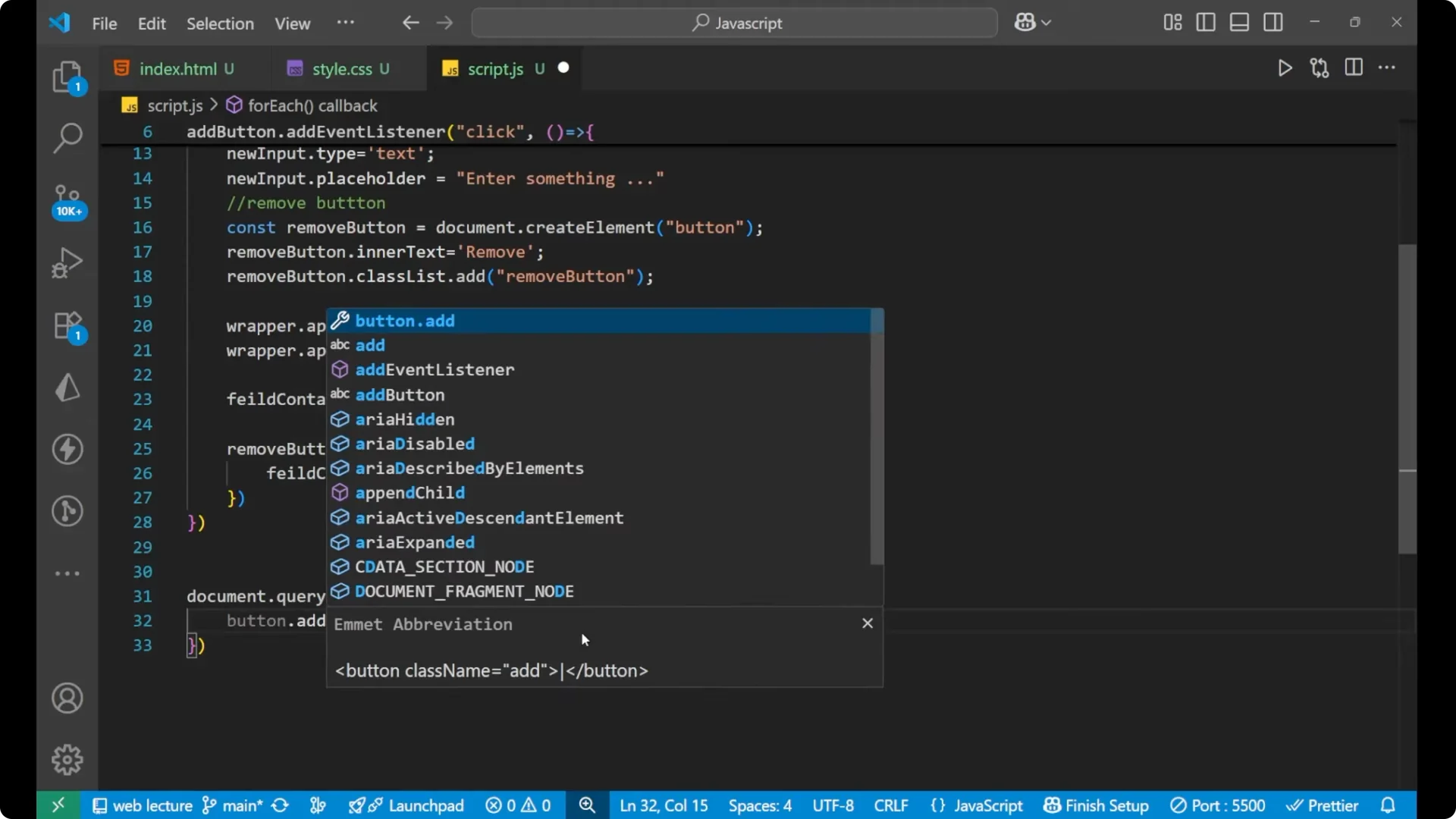
Attach an event listener to the existing Remove button that is already on the page.
We are selecting all remove buttons and applying this functionality, taking the wrapper from the parent element and then removing it.
document.querySelectorAll('.remove-button').forEach(button => {
  button.addEventListener('click', e => {
    const wrapper = e.target.parentElement;
    fieldContainer.removeChild(wrapper);
  });
});
Complete code for JavaScript Dynamic Form Fields
<!doctype html>
<html lang="en">
  <head>
    <meta charset="utf-8" />
    <title>Dynamic Form Fields</title>
    <style>
      .field-wrapper {
        margin-bottom: 8px;
        display: flex;
        gap: 8px;
      }
    </style>
  </head>
  <body>
    <h1>Dynamic Form Fields</h1>
    <div id="field-container">
      <div class="field-wrapper">
        <input type="text" placeholder="Enter something" />
        <button class="remove-button">Remove</button>
      </div>
    </div>

    <button id="add">Add field</button>

    <script>
      const fieldContainer = document.getElementById('field-container');
      const addButton = document.getElementById('add');

      addButton.addEventListener('click', () => {
        const wrapper = document.createElement('div');
        wrapper.classList.add('field-wrapper');

        const newInput = document.createElement('input');
        newInput.type = 'text';
        newInput.placeholder = 'Enter something anything which you want';

        const removeButton = document.createElement('button');
        removeButton.innerText = 'Remove';
        removeButton.classList.add('remove-button');

        wrapper.appendChild(newInput);
        wrapper.appendChild(removeButton);

        fieldContainer.appendChild(wrapper);

        removeButton.addEventListener('click', () => {
          fieldContainer.removeChild(wrapper);
        });
      });

      document.querySelectorAll('.remove-button').forEach(button => {
        button.addEventListener('click', e => {
          const wrapper = e.target.parentElement;
          fieldContainer.removeChild(wrapper);
        });
      });
    </script>
  </body>
</html>
Troubleshooting: ID or class mismatch
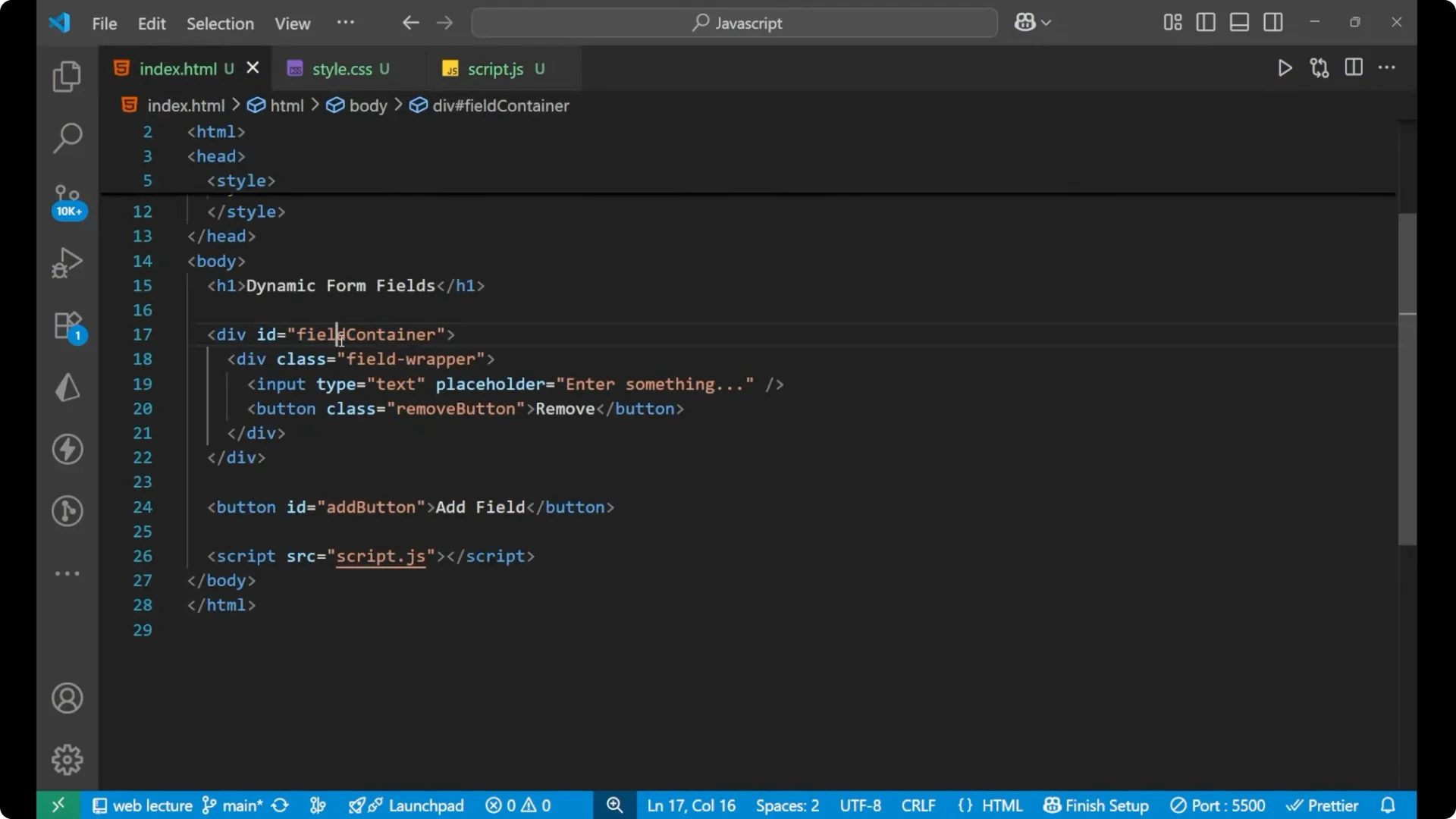
I wrote the wrong spelling of the ID and corrected it. If it is not working, copy the exact id and class names from your HTML and paste them into your JavaScript so they match.
Final Thoughts
It is creating a new field and you can write whatever you want. It is also having a Remove button, and when I click on Remove, that particular field gets removed. Add field, remove field, and repeat. Earlier we were adding an event listener to the Add button, and then we added the functionality to the Remove button for every button on the page.