In the last lecture we learned how to connect JavaScript with HTML. Here I am going to show how JavaScript can also control and interact with the CSS to create dynamic and stylish web pages. Implementing JavaScript with CSS makes the web pages more interactive by updating the styles dynamically based on the user action. Every time a user clicks, makes a mouse movement, or does any other thing on the website, a certain JavaScript function runs and updates the CSS, which makes the website very interactive.
What Dynamic CSS with JavaScript means

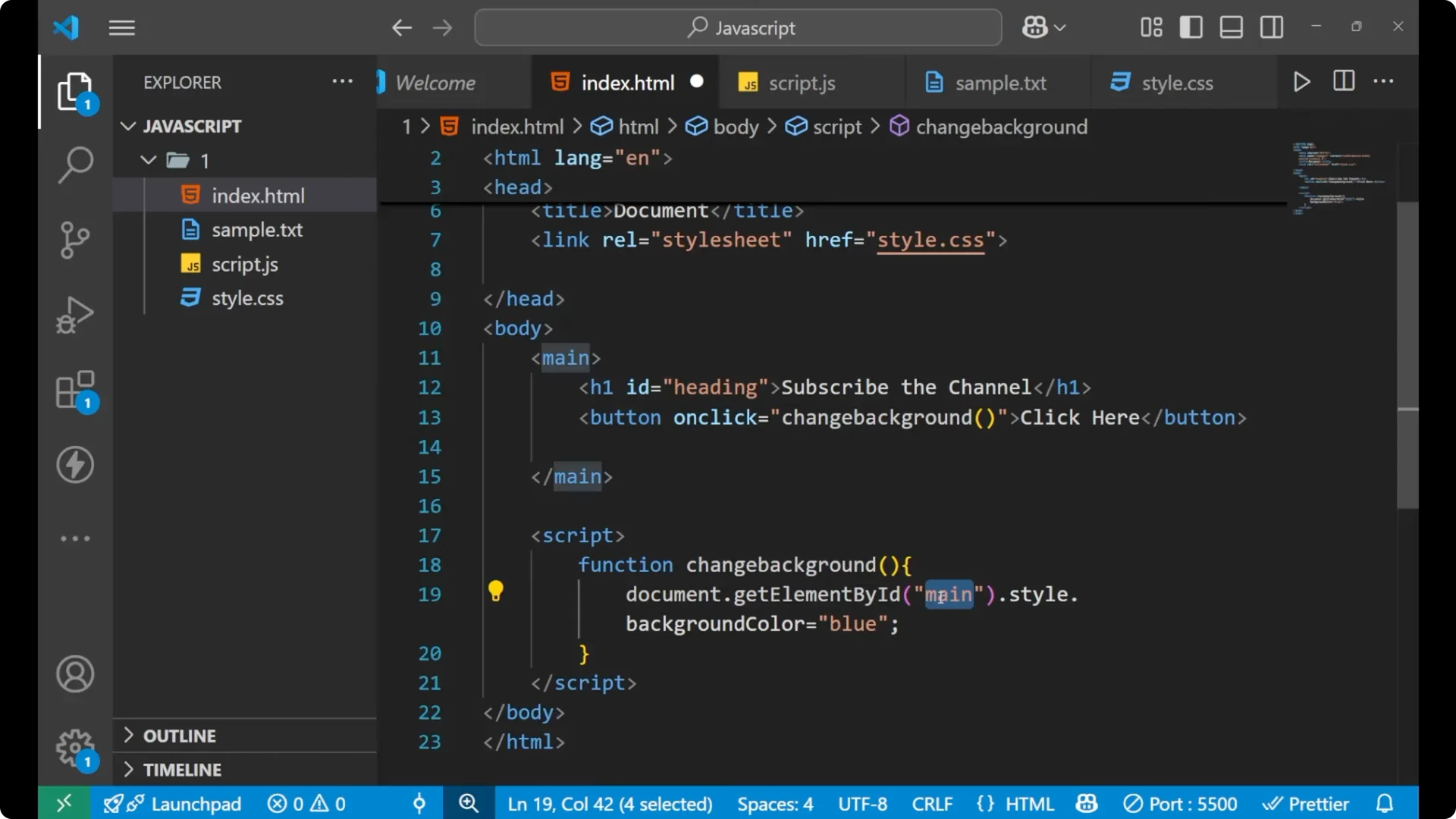
I will show how it is done. I am currently on my Visual Studio Code and I am having an HTML file, a CSS file, and a JavaScript file. In the HTML file I am having a main tag. Inside of it I am having a heading and a button tag. On the heading tag I am having an ID named heading and inside the button I have written click here. I applied CSS on the main tag with height, width, background color, and certain flexbox properties, color of the text, font family, font weight, and size.
It looks like this: a heading and a button named click here. I want that when I click on this button, the CSS of the whole main page gets changed. When I click the button, the background color which is currently black should change to another color.

Setup for Dynamic CSS with JavaScript
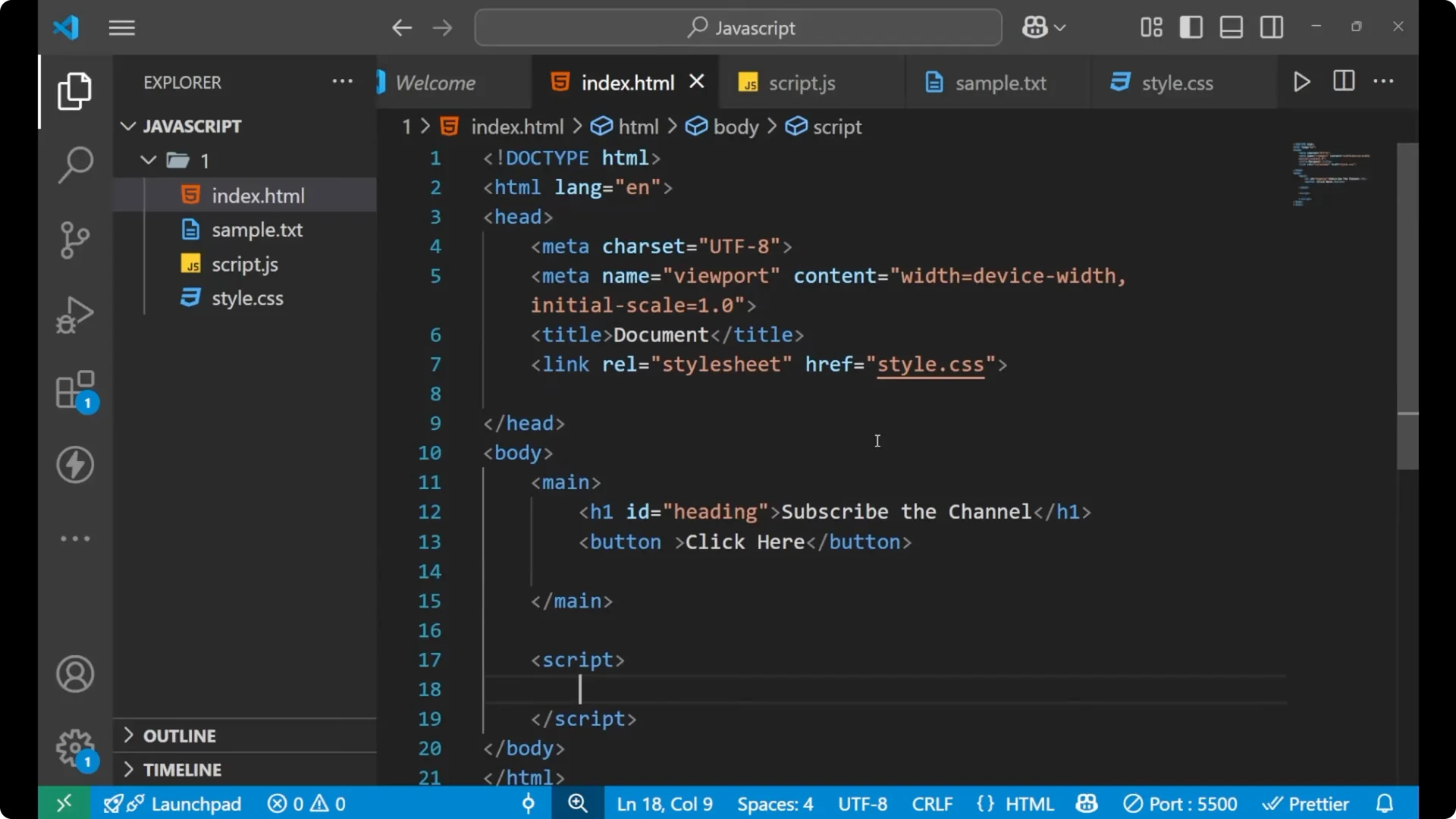
Here is a minimal version of the structure I am using.
<!DOCTYPE html>
<html lang="en">
  <head>
    <meta charset="utf-8" />
    <title>Dynamic CSS</title>
    <link rel="stylesheet" href="styles.css" />
  </head>
  <body>
    <main>
      <h1 id="heading">Subscribe the channel</h1>
      <button onclick="changeBackground()">click here</button>

      <script src="app.js"></script>
    </main>
  </body>
</html>
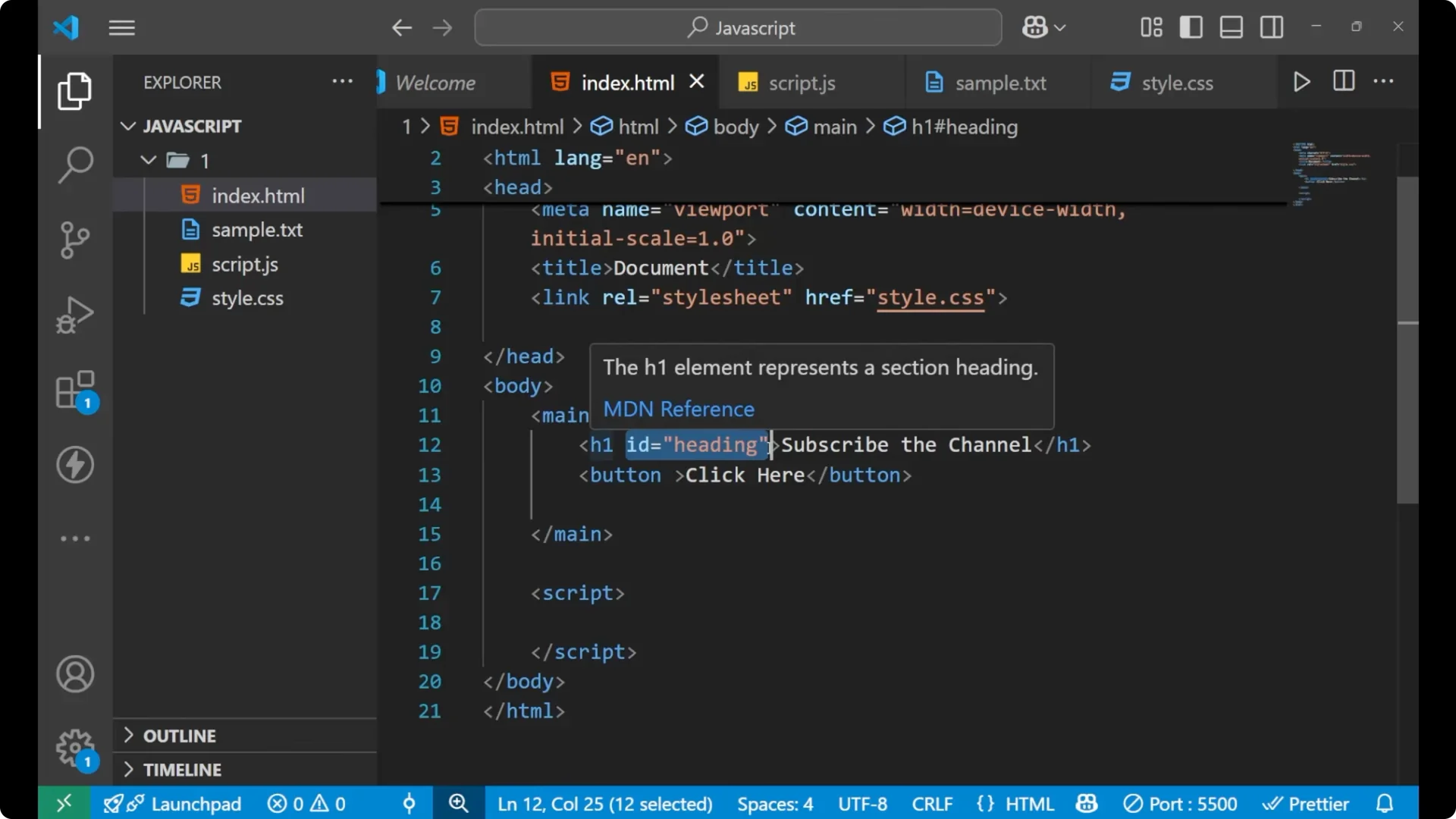
/ styles.css /
main {
  height: 100vh;
  width: 100%;
  background-color: black;
  display: flex;
  align-items: center;
  justify-content: center;
  gap: 1rem;
  color: white;
  font-family: Arial, Helvetica, sans-serif;
  font-weight: 700;
  font-size: 2rem;
}
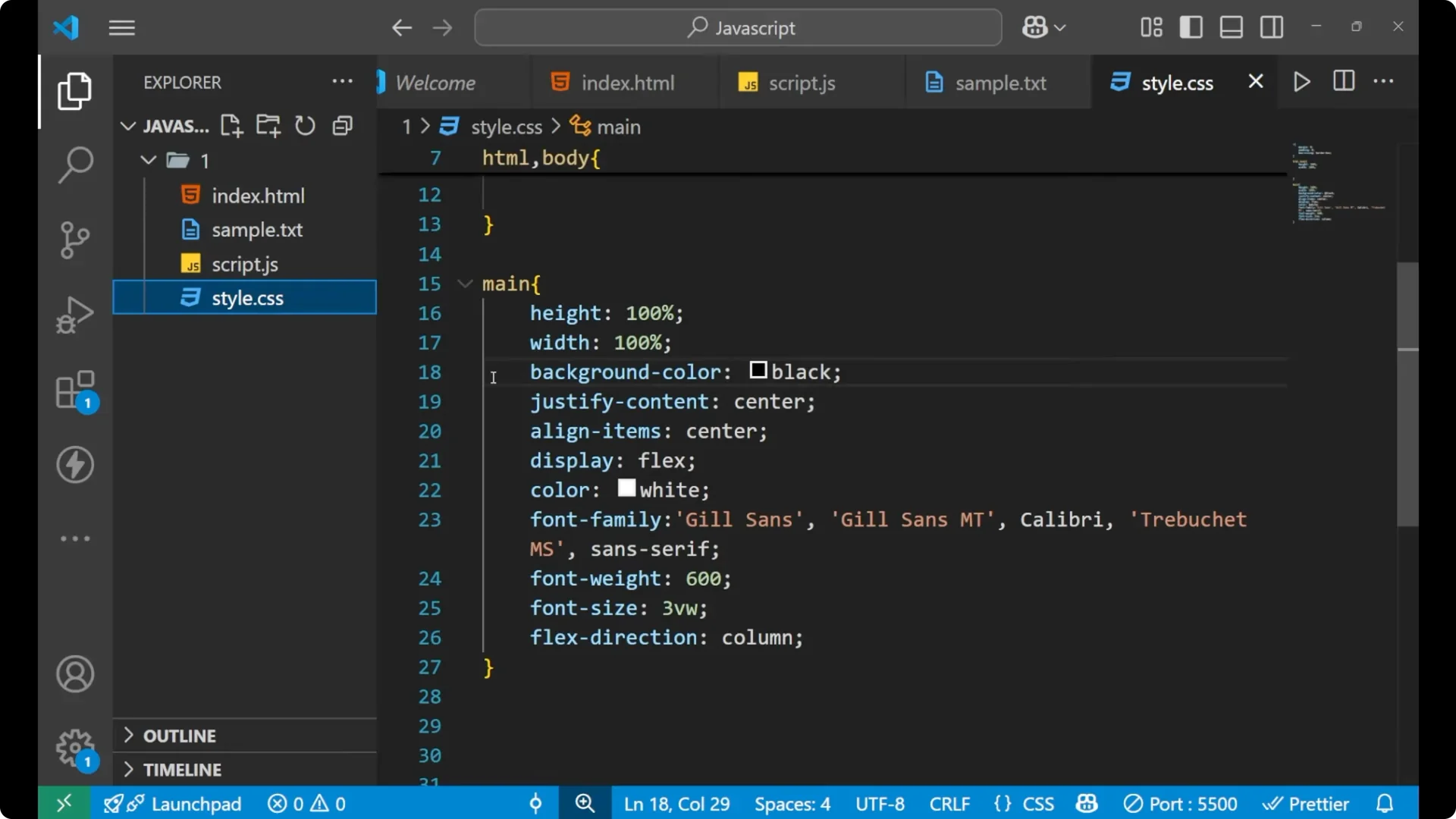
The goal is simple: clicking the button should change the background color of the
main element.
Read More: Dynamic Css Class Manipulation Javascript
Change background with Dynamic CSS with JavaScript
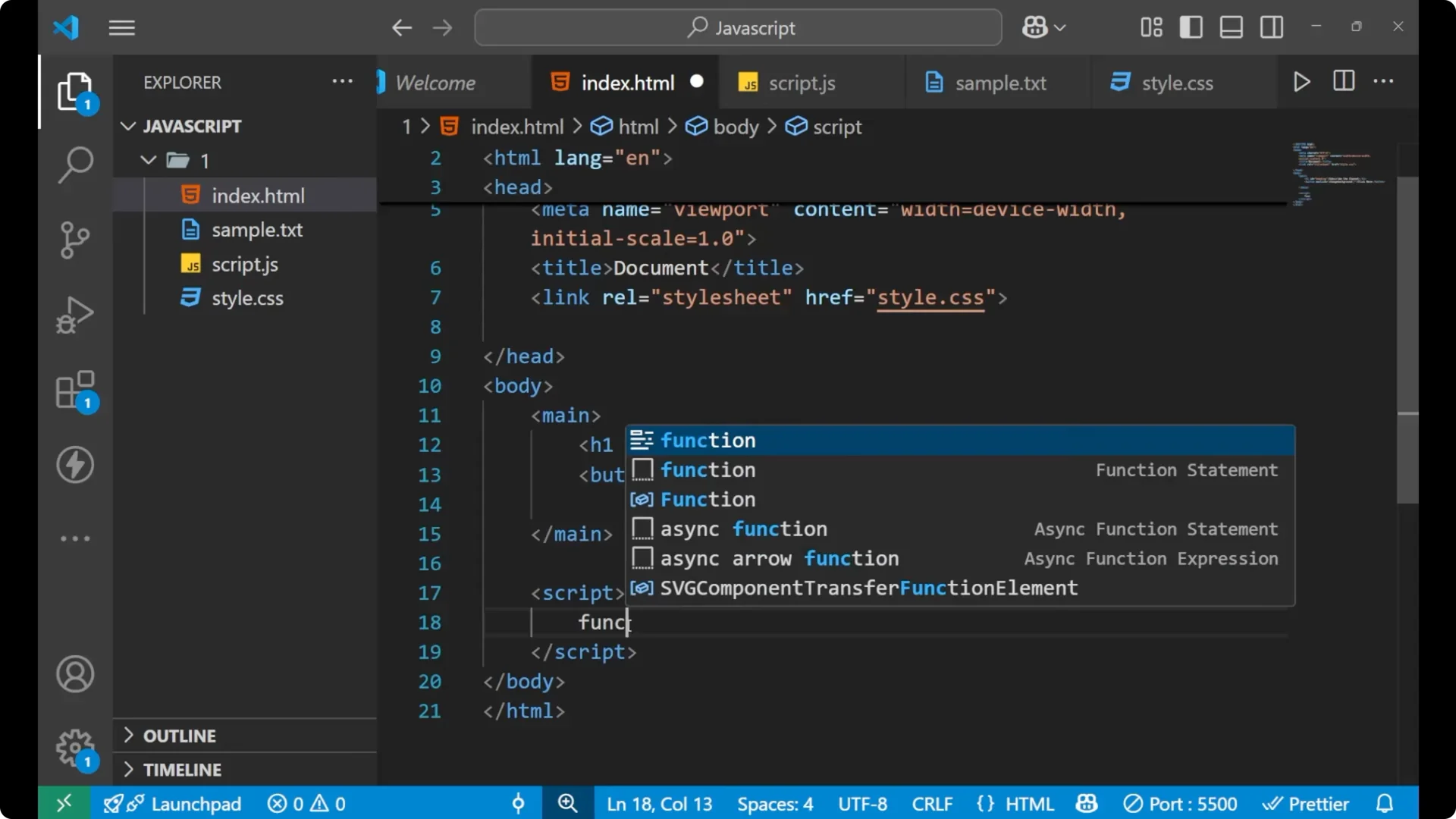
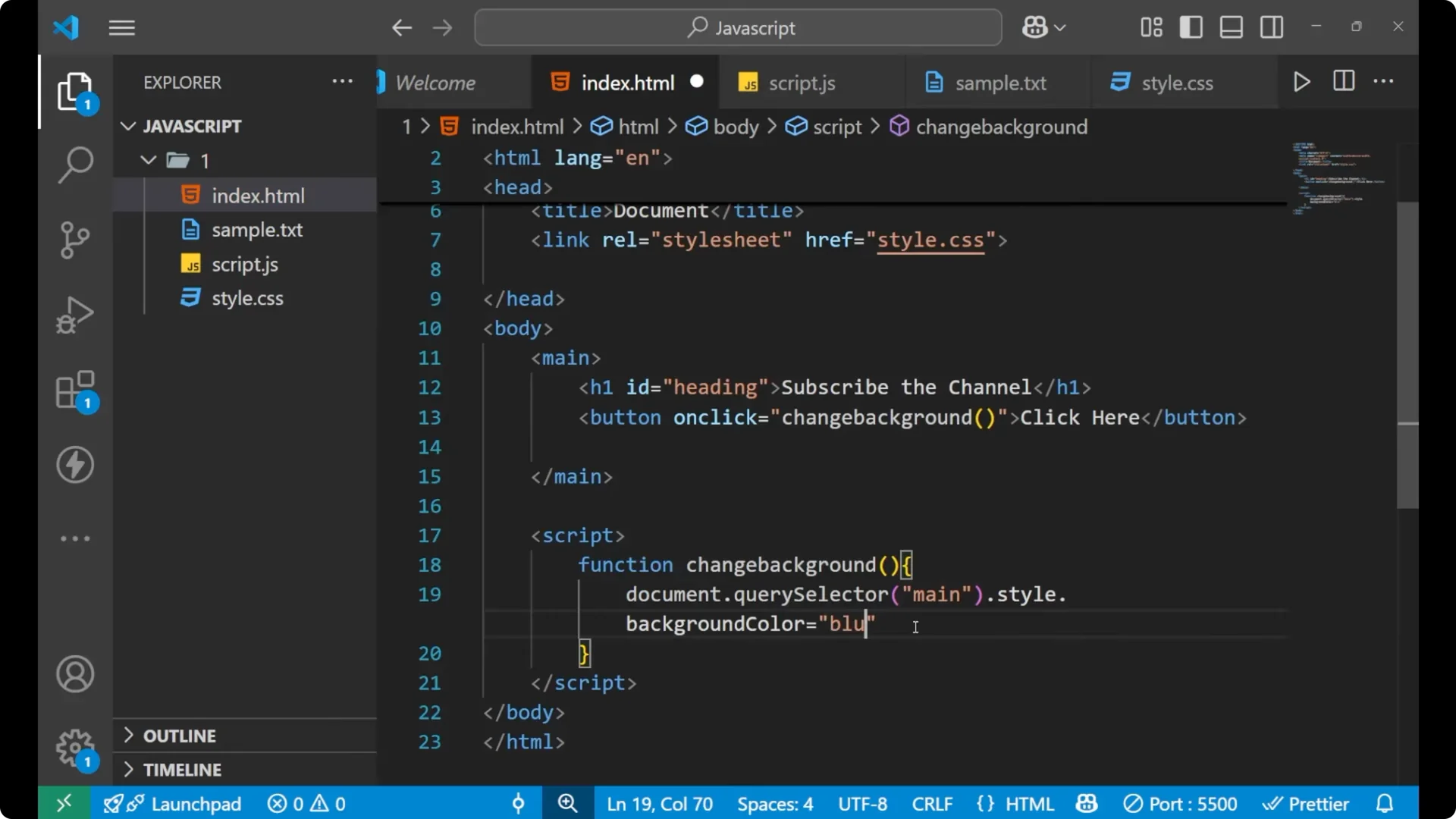
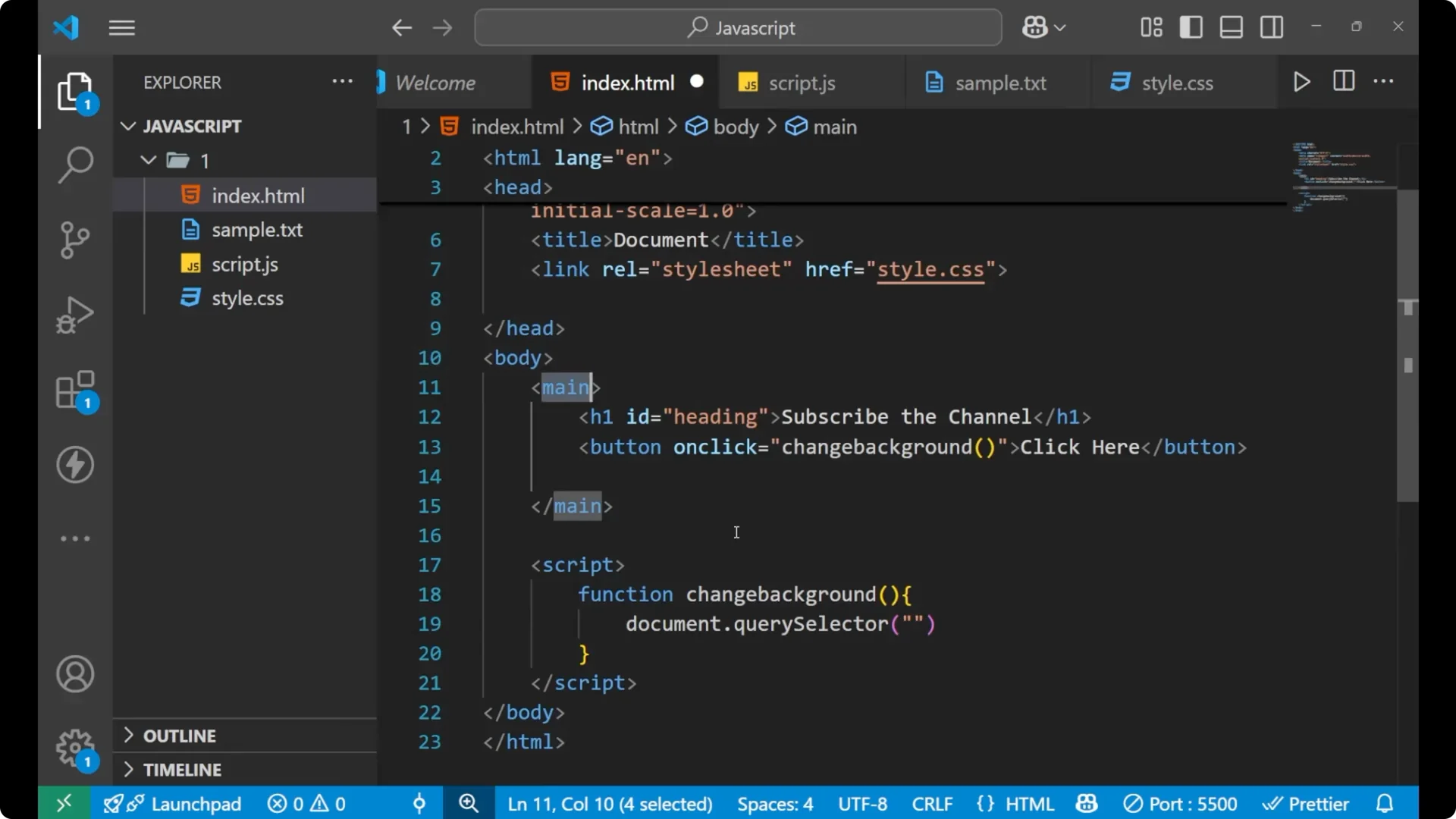
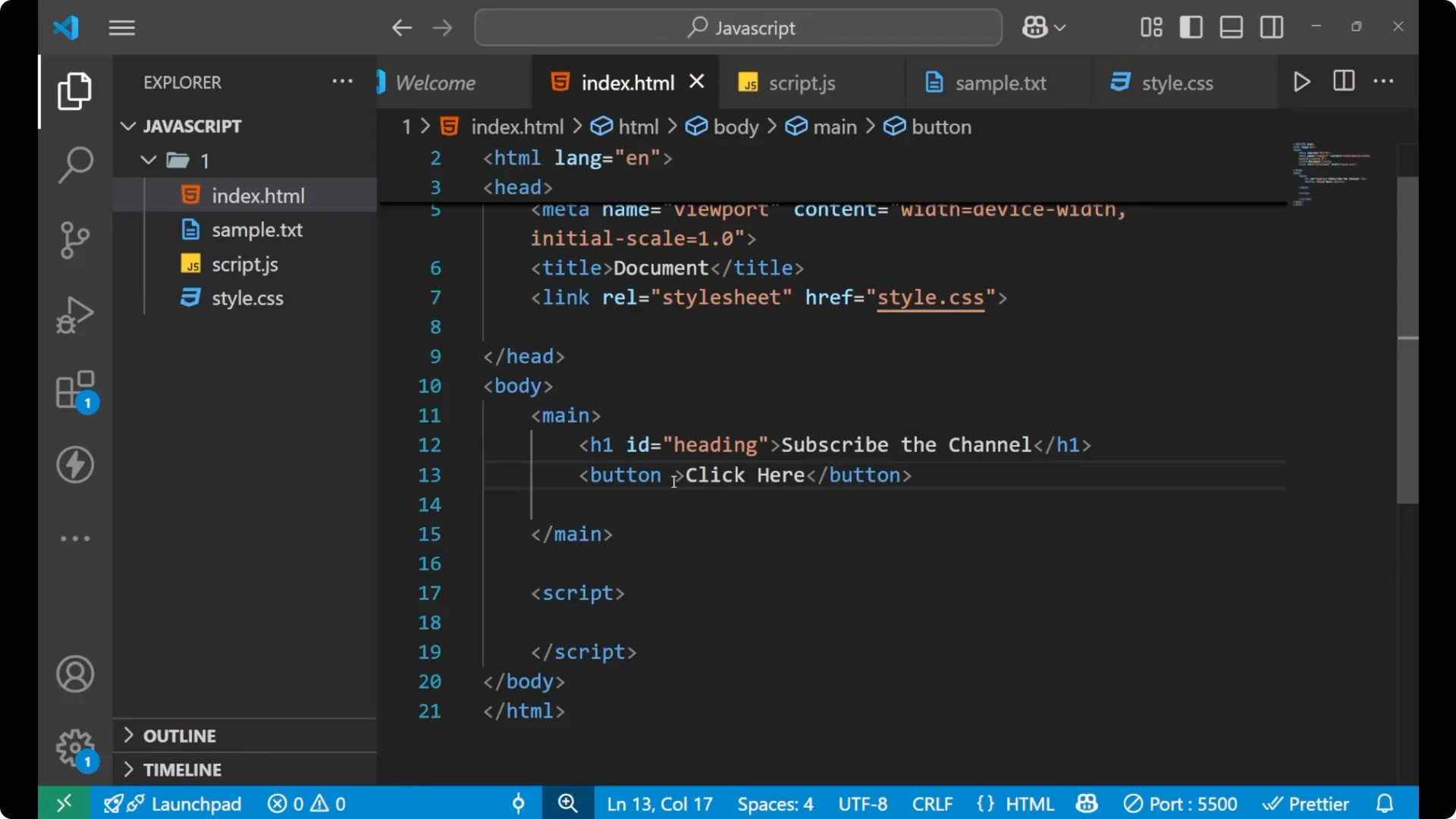
On the button I am writing
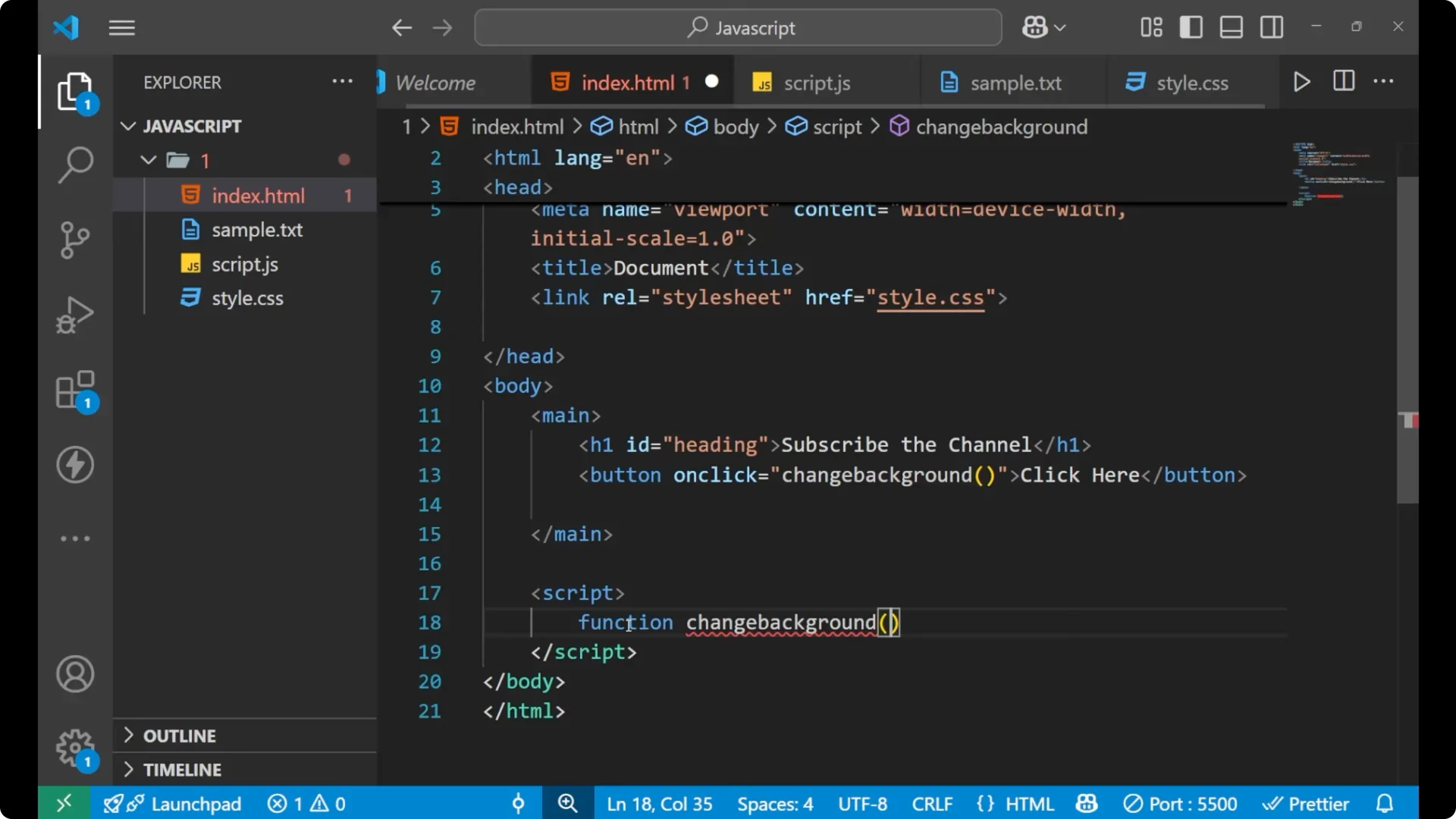
onclick and calling a function named
changeBackground. Inside the script I am going to write my JavaScript. You can also write it in an external file, but here I am keeping it simple to make the idea very clear.
Step 1: Add
onclick=”changeBackground()” to the button.
Step 2: Create a function named
changeBackground in your JavaScript.
Step 3: Select the
main element using
document.querySelector(‘main’).
Step 4: Update the
style.backgroundColor to the new color.
Step 5: Click the button and see the background change from black to blue.
// app.js
function changeBackground() {
  // document means the whole browser document containing all elements
  const main = document.querySelector('main');
  main.style.backgroundColor = 'blue';
}
When I click the button, the color gets changed from black to blue. This is how you can change the CSS of any particular element or particular query.

Selecting elements with document.querySelector for Dynamic CSS with JavaScript
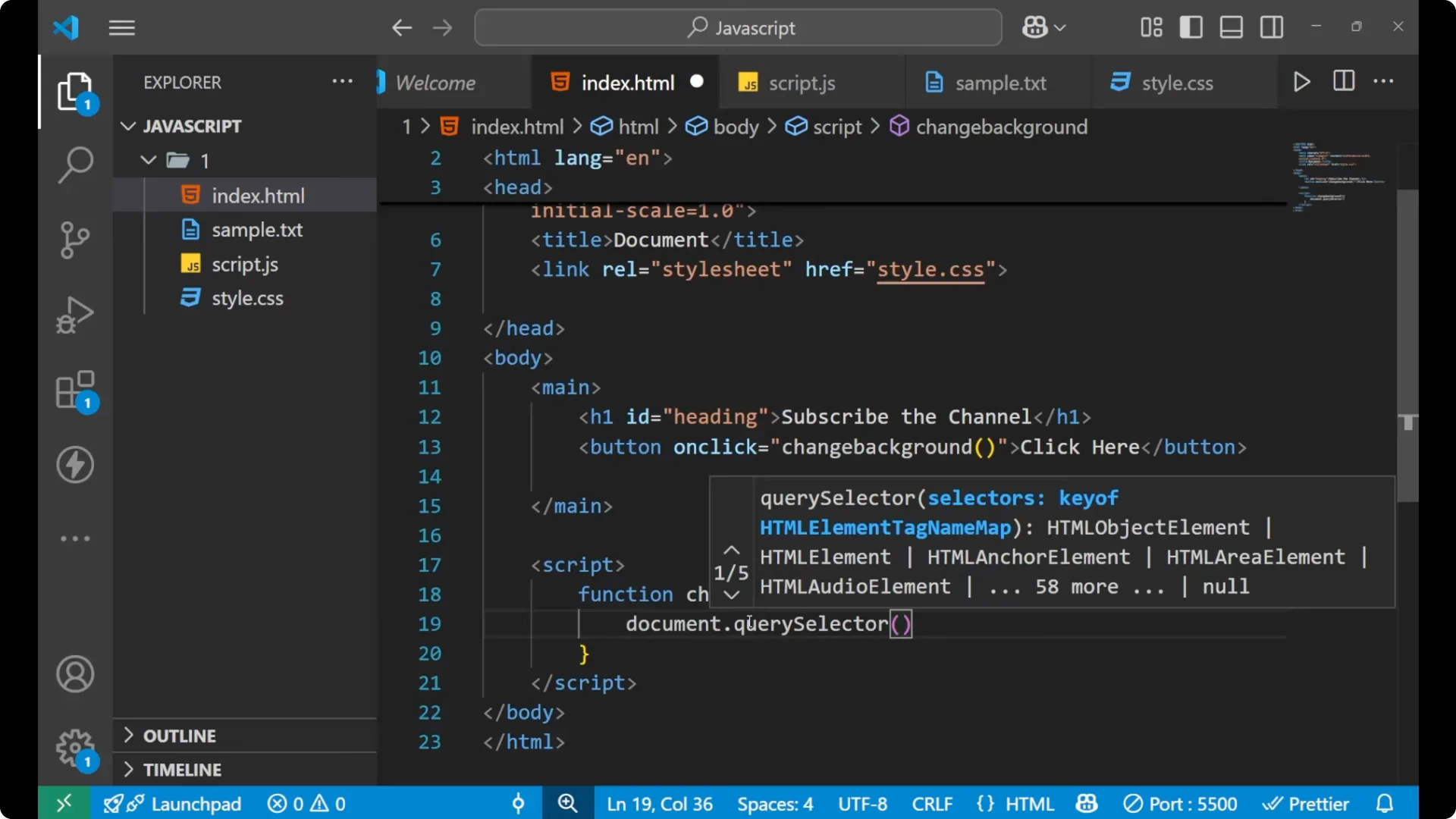
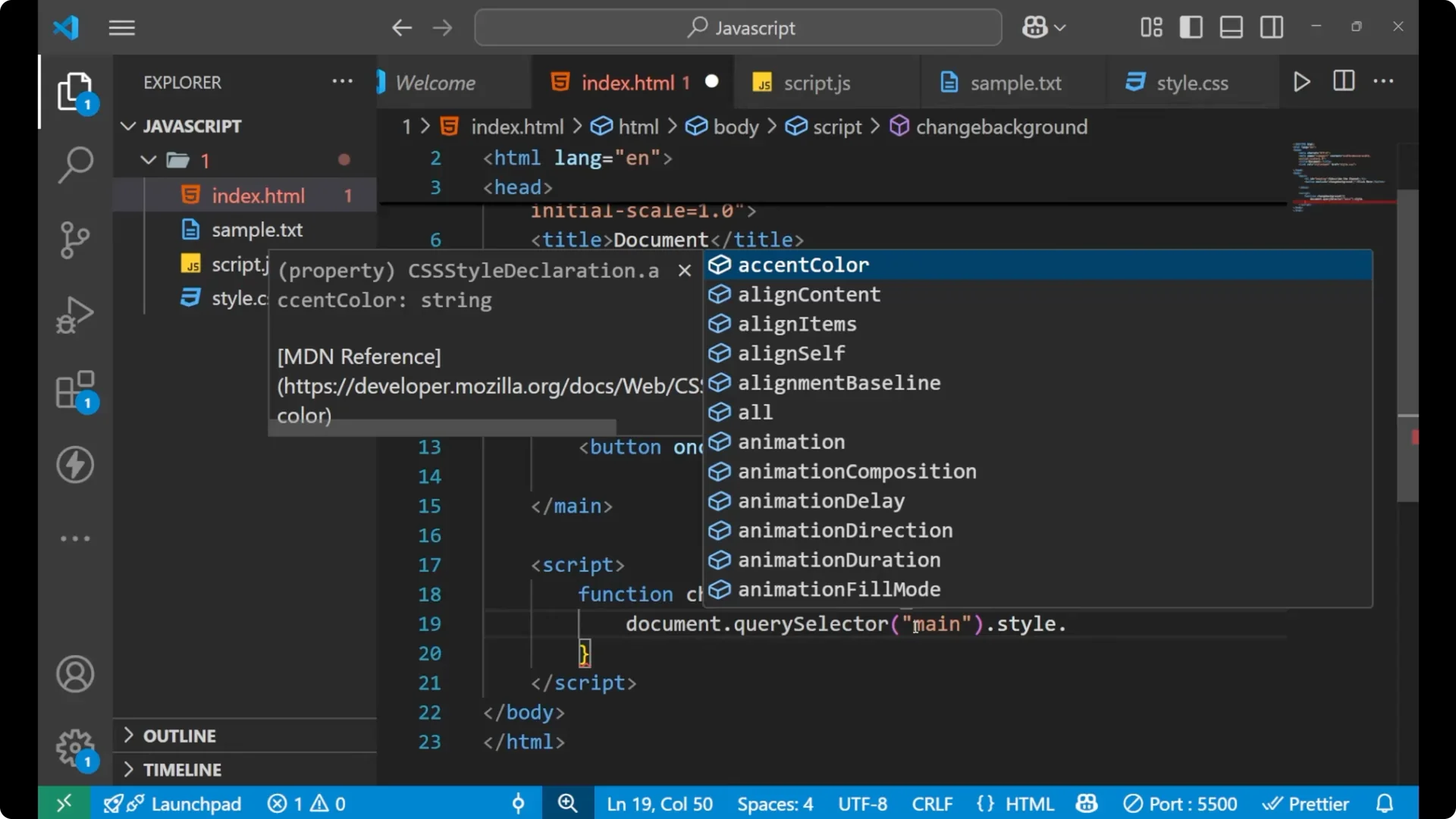
First we write
document to select the element on which we want to change the CSS. Then we use
querySelector and pass the selector name. For example, to select
main, we write
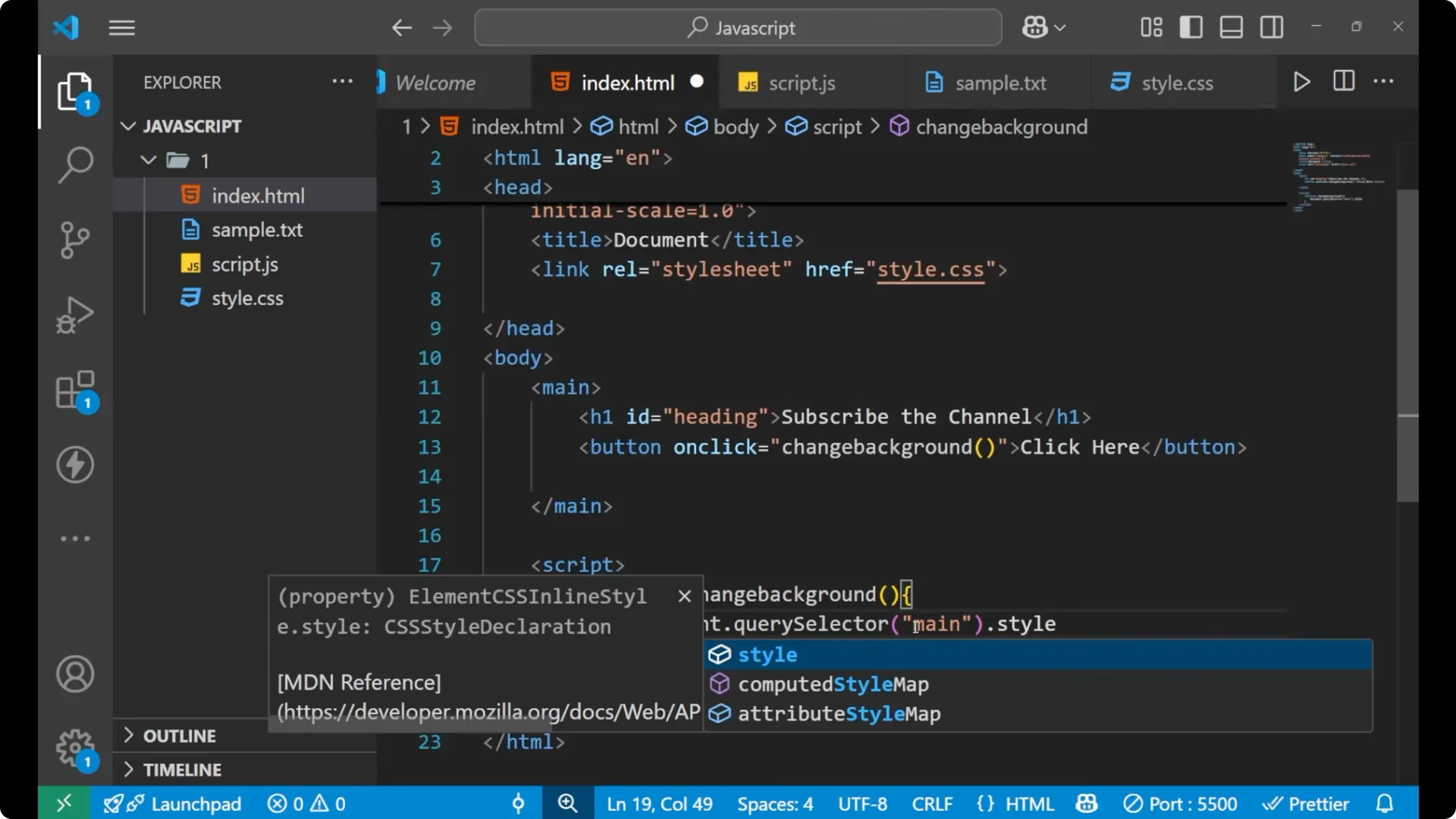
document.querySelector(‘main’). After selecting we write
style.propertyName and set it to a value, such as
style.backgroundColor = ‘blue’.
function changeBackground() {
  document.querySelector('main').style.backgroundColor = 'blue';
}
 Read More: Javascript Template Literals String Formatting
Target a specific element with getElementById for Dynamic CSS with JavaScript
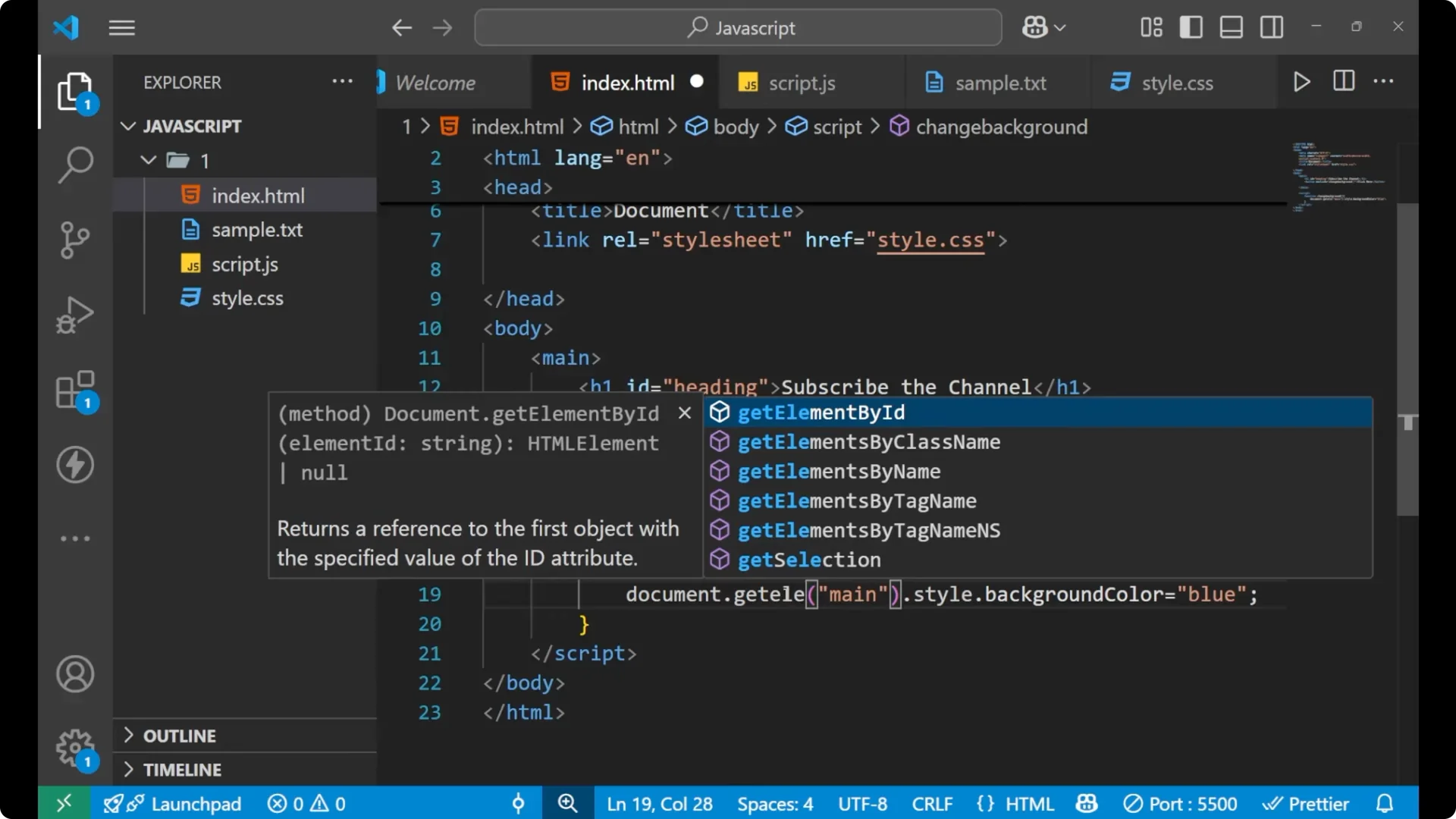
If there are a lot of
h1 tags inside the website and I want to change the CSS of only one
h1 tag, using
querySelector(‘h1’) could point to the first one, not the exact one I want. For that I use the ID, the same way we often do in CSS. With
document.getElementById I select the exact element by its ID and then change its style.
function changeHeadingStyle() {
  const title = document.getElementById('heading');
  title.style.color = 'yellow';
  title.style.fontSize = '3rem';
}
You can call this function from the same button or a different event if you want the
h1 styling to change on click.
There are two main things here: first, we can use
document.querySelector and write the name of the tag or a selector. Second, we can use
getElementById and write the name of the ID. By these two methods we can select any element on which we want to change the CSS and then write
style.property and set the CSS value.
Read More: Mastering Javascript Prototypes Prototype Chain
Final Thoughts on Dynamic CSS with JavaScript
JavaScript can update your CSS dynamically based on user actions like a click. Select the target element with
querySelector or
getElementById and then change the needed
style property such as
backgroundColor or
color. This simple pattern lets you make your pages more interactive and responsive to what the user does.
